The basic flow of an animation
You already made a circle appear in the editor chapter. Now let's understand what is actually going on when you press F5, because once you get the mental model (objects → scene → animations → frames), every other chapter of this manual becomes much easier to follow.
The recipe of every animation
Open the editor and write this two-line script:
def p = Point.at(0, 0)
play.shift(2, 1, 0, p)
Press F5 (or select Run -> Run (preview) from the menu) and, after saving the file, a brief animation will play in the preview window with a tiny white dot moving to the right. Congratulations, you have (again) done your first animation!
Let's dissect it:
def p = Point.at(0, 0)creates aPointobject at coordinates (0,0) and names itp. Creating an object does not draw it yet! At this moment,pexists only in JMathAnim's "imagination".play.shift(2, 1, 0, p)plays an animation lasting 2 seconds that shiftspby the vector (1, 0), i.e. one unit to the right. This command is the one that actually generates video frames, and as a courtesy, it addspto the scene if it wasn't there yet.
Three characters will accompany you through the whole manual:
- The objects (
Point,Shape,LatexMathObject...): the actors. - The scene: the stage. An object is only drawn if it is on stage, which happens when you call
scene.add(obj)or when an animation puts it there for you. As a shortcut you can also writescene << obj(orscene << [a, b, c]to add several at once); see Operator shortcuts in the Groovy chapter. - The
playobject: the director. Everyplay.something(...)command generates seconds of video with things moving. This is a shortcut to play simple animations in a fast way, but there is other ways like DSL definitions for example.
There is a fourth, quieter character: scene.waitSeconds(3) generates 3 seconds of still frames where nothing moves.
def p = Point.at(0, 0)
play.shift(2, 1, 0, p)  // 2 seconds of movement
scene.waitSeconds(3)          // 3 seconds of contemplation
Where do my objects live? The math view
The coordinates your objects use (the "math view") are initially centered at (0,0), with x ranging from -2 to 2. The y-range depends on the aspect ratio; for a 16:9 video it goes from -1.125 to 1.125. So Point.at(0,0) is the center of the screen, and Point.at(2,0) sits exactly at the right edge.
If your figure grows beyond the view, don't panic: the camera can move and zoom (there's a whole chapter about it), and camera.zoomToAllObjects() orcamera.adjustToAllObjects() are the "please make everything fit" button.

The 16:9 aspect ratio is the default both in preview and production mode, but you can specify any width/height with the config methods, as we will see in next chapters.
Preview vs. production
While designing, you work in preview mode (F5): low resolution, fast, with the preview window open and no video file created. During execution, the line currently being run is highlighted in green in the editor (handy to follow along, or to see where an error stopped the show).
When you are satisfied and want the real thing, run production mode (Shift+F5, or Run -> Run (production)): a full HD video (1920x1080 at 60fps) is generated. Nothing is shown on screen during rendering; watch the progress bar in the logging window, just below the preview window. You can fine-tune resolution and fps with the config methods as we will see later.
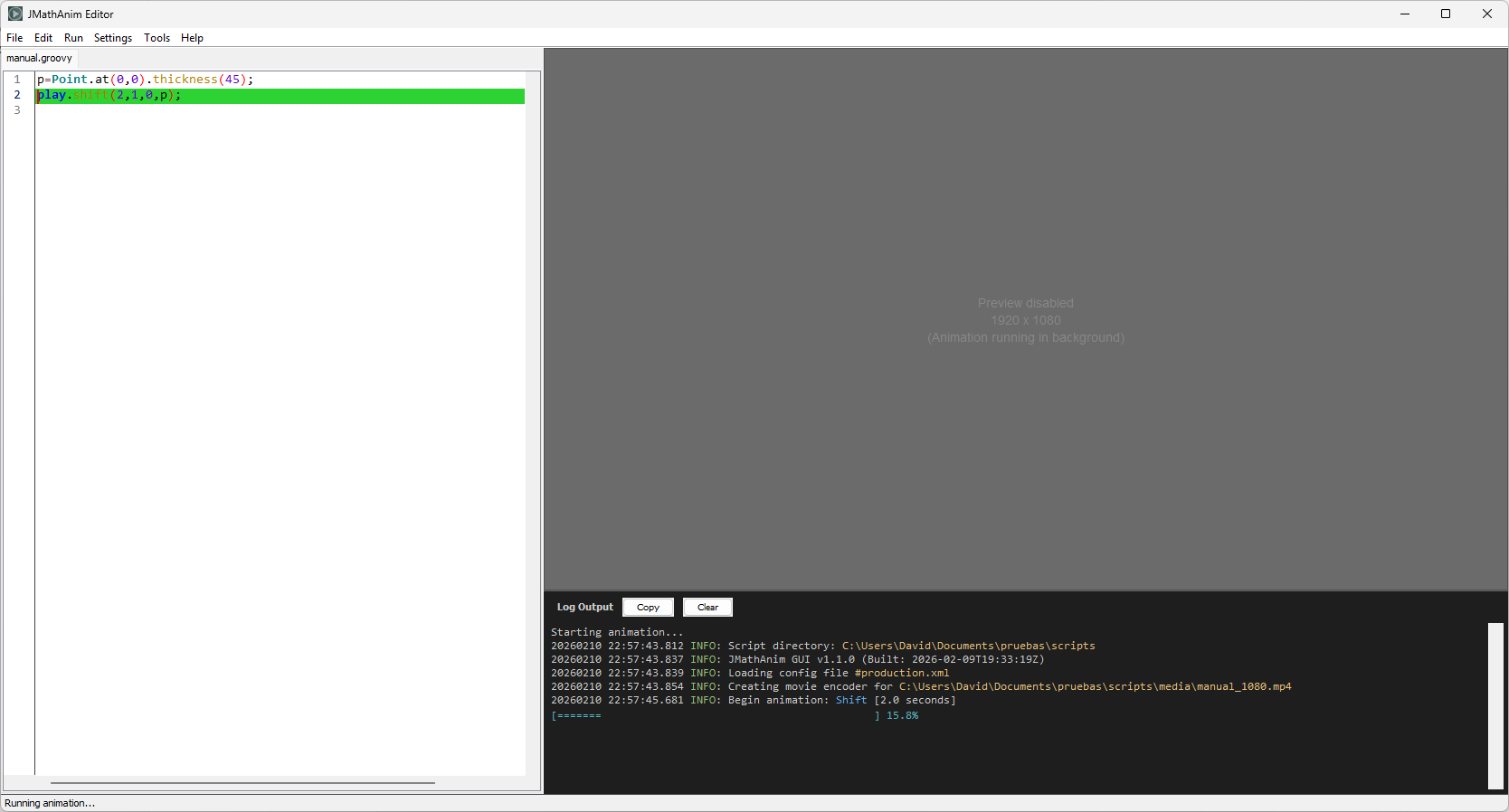
When the script finishes, the logging window prints the location of the generated file. By default, JMathAnim puts everything in a folder named media located in the directory of the script; pressing Ctrl+Shift+M opens that folder directly. The movie will be named <name_of_your_script>_1080.mp4.
Behind the scenes, these two modes simply load two different configuration presets (#preview.xml and #production.xml). You can fine-tune resolutions, colors, backgrounds and much more with config files (all explained in the Styling chapter).
Watch out with
scene.saveImage(...)in preview mode: when the preview window is open, the editor replaces the resolution of the config file with the actual size of the preview panel, so the saved PNG is as big (or as small) as that panel, not the 1066x600 that#preview.xmldeclares. JMathAnim warns you about it in the logging window. To get the image at the declared resolution you have two options: run the script in production mode (Shift+F5), or addconfig.setShowPreviewWindow(false)at the beginning of the script (in the configuration section, before any object is created). With no preview window there is nothing to fit the render into, so the size of the config file is used and the image comes out at full resolution. Note that vector output,scene.saveSVGImage(...), is resolution independent and never suffers from this.
Under the hood (optional reading for the curious and/or Java programmers)
If you use the editor you can happily skip this section. But if you like knowing how the sausage is made, or you plan to use JMathAnim as a Java library, here is the same moving dot as a full Java program:
public class MovingDot extends Scene2D {
    @Override
    public void setupSketch() {
        config.parseFile("#dark.xml");
        config.parseFile("#preview.xml");
        config.setCreateMovie(true);
    }

    @Override
    public void runSketch() throws Exception {
        Point p=Point.at(0,0);
        play.shift(2,Vec.to(1,0),p);
        waitSeconds(3);
    }

    public static void main(String[] args) {
        JMathAnimScene demoScene = new MovingDot();
        demoScene.execute();
    }
}
All animations are defined in a class that extends JMathAnimScene (here through Scene2D, which uses JavaFX for drawing). Two methods must be implemented:
setupSketch()does all the configuration before any actual animation: sizes, fps, whether to create a movie, background colors... Theconfigobject stores all of it.config.parseFile("#dark.xml")loads default colors (black background, white objects),config.setCreateMovie(true)asks for a mp4 file, andconfig.setLowQuality()sets 854x480 at 30fps (there are alsosetMediumQuality()andsetHighQuality()).runSketch()is where the fun happens: create objects, add them to the scene, and call animation commands likeplay.shift, which generate the frames.
When runSketch() ends, all finishing procedures run automatically (closing the movie file, closing windows, etc.).
Your editor scripts are, essentially, the body of runSketch(): the editor takes care of the class boilerplate and the configuration for you, which is why a two-line script is enough to get a movie.
Finally, for completeness: besides play animations there is a more manual, frame-by-frame way of animating using the advanceFrame() method (you adjust object properties yourself and advance one frame at a time). It's useful for complex movements that no predefined Animation covers, and it's explained in Adding effects to animations.