Applying styles
A good animation is half math and half looks. This chapter covers the looks: colors, thickness, dashes, gradients, and how to save your favorite combinations so your videos have a consistent visual identity without repeating yourself.
Each MathObject has an associated Stylable object that stores its drawing parameters.
How to read this chapter: the first half (colors, gradients, dash styles, saved styles) is everyday material. The second half (configuration files in XML) is for when you want to define a whole "theme" for your videos (useful, but perfectly skippable on first read).
Basic styles
Colors
Each object has 2 colors: the draw color (changed with .drawColor), used for drawing the contour; and the fill color (changed with .fillColor), used to fill the object. Each color is stored in a JMColor object, with the components red, green, blue, and alpha. The .thickness method sets the thickness of the stroke used to draw the object.
By default, thickness is measured in screen units: it stays constant regardless of camera zoom, but scaling an object with a transform scales its stroke proportionally. Two methods let you change this behavior independently: .thicknessTracksZoom(true) makes camera zoom affect the apparent thickness, and .thicknessTracksScale(false) keeps the stroke width fixed when the object is scaled.
def r = Shape.regularPolygon(5)
    .fillColor(JMColor.parse("cadetblue"))
    .drawColor(JMColor.parse("#041137"))
    .thickness(15)
scene.add(r.center())
scene.advanceFrame()
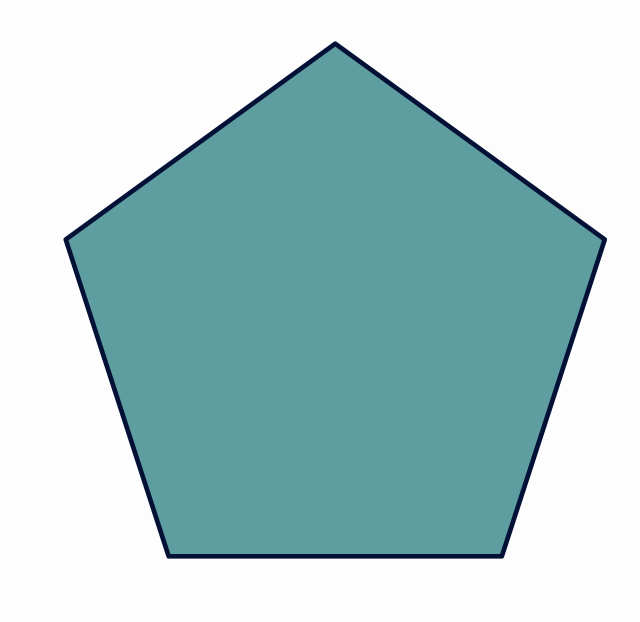
Here we can see the method .parse to define a color. All SVG color names are supported, as well as hexadecimal format #RRGGBBAA (8 hexadecimal digits), #RRGGBB (6 hexadecimal digits) and #RGB (3 hexadecimal digits). Additionally, both drawColor and fillColor accept a string directly, so that drawColor(string) is equivalent to drawColor(JMColor.parse(string)), and the same applies to fillColor.
Let the editor do it: no need to memorize that
#7ca0c0is a rather pleasant blue. Open the Color Editor (Tools -> Color Editor..., orCtrl+Shift+K) to pick SVG or custom colors from a visual palette, or pressCtrl+Spaceinside a color string to autocomplete SVG color names. TheStylingcategory of the snippets sidebar (Alt+S) also inserts ready-made style parameters likefillColororthicknessinto your DSL blocks.
def col1 = JMColor.rgba(1,1,1,.5)//White color with 50% opacity
def col2 = JMColor.parse("#CDFA14")//Red: CD, Green: FA, Blue: 14 (hexadecimal), opacity 100%
def col3 = JMColor.parse("#CDFA14A6")//Red: CD, Green: FA, Blue: 14 (hexadecimal), opacity A6 (64%)
def col4 = JMColor.parse("snow")//Color SNOW from the SVG palette
Inside a script, the shorthand color(...) saves you from writing JMColor.parse every time. It takes the same specs, or the four components in the 0..1 range (alpha optional):
def col1 = color("snow")            //Same as JMColor.parse("snow")
def col2 = color("#CDFA14A6")
def col3 = color(1, 1, 1, .5)       //Same as JMColor.rgba(1, 1, 1, .5)
The LatexMathObject also has the method .color(JMColor col), or color(string) which changes both draw and fill colors at once. There is also an overloaded version that allows changing colors for specific glyphs in objects like LatexMathObject (we will see this in the Mathematical Formulas chapter).
The methods .fillAlpha(double f) and .drawAlpha(double d) directly set the opacity of the fill and draw colors, respectively. These methods, like most, can be chained:
def sq=Shape.square().fillColor("cadetblue").fillAlpha(.5)
Gradients
All methods that accept colors also accept gradients (in fact, any class that extends PaintStyle).
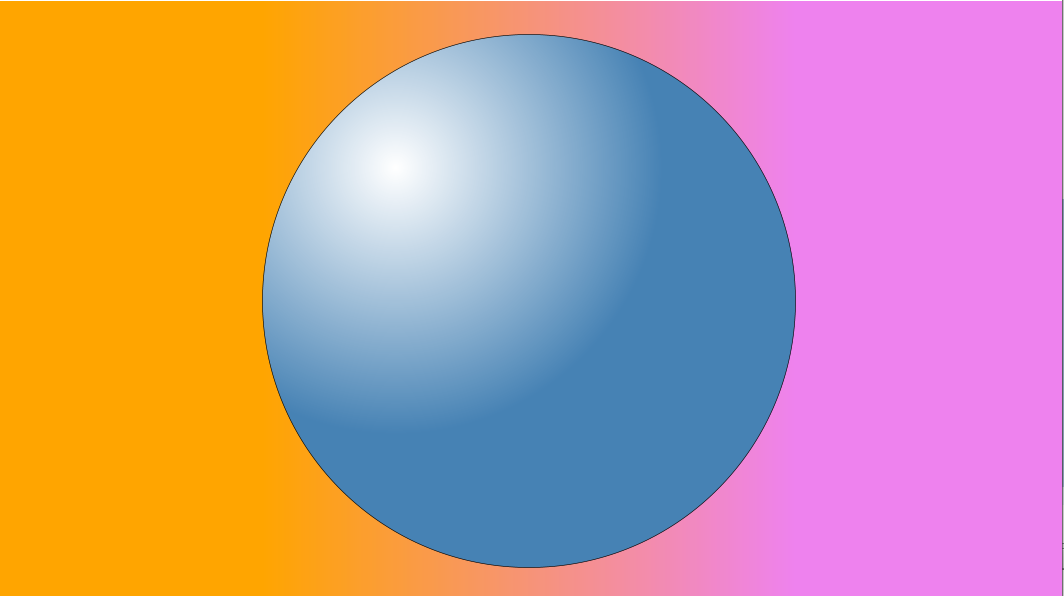
Linear gradients can be defined in a similar way to the JavaFX syntax:
//A linear gradient from point (-1,0) to (1,0)
def gradientBG = JMLinearGradient.make(Vec.to(-1, 0), Vec.to(1, 0))
gradientBG
    .add(0d, "orange")//at t=0 (point (-1,0)), orange color
    .add(1d, "violet")//at t=1 (point (1,0)), violet color
config.setBackgroundColor(gradientBG)

def circle = Shape.circle()

//A radial gradient from relative point (.25,.75) and relative radius .75
def gradientCircle = JMRadialGradient.make(Vec.to(.25, .75), .5)
gradientCircle.setRelativeToShape(true)
    .add(0d, "white")//At center of (.25,.75), white color
    .add(1d, "steelblue")//With distance of the center >.5, steelblue color
circle.fillColor(gradientCircle)

scene.add(circle)
You can use predefined color scales, from the ColorScale class:
def sq = Shape.square().center().rotate(15*DEGREES)
def lg = JMLinearGradient.make(Vec.to(.75, 0), Vec.to(1, 1))
    .setRelativeToShape(true)
    .setStops(ColorScale.viridis(0, 1))
sq.fillColor(lg)
scene.add(sq)
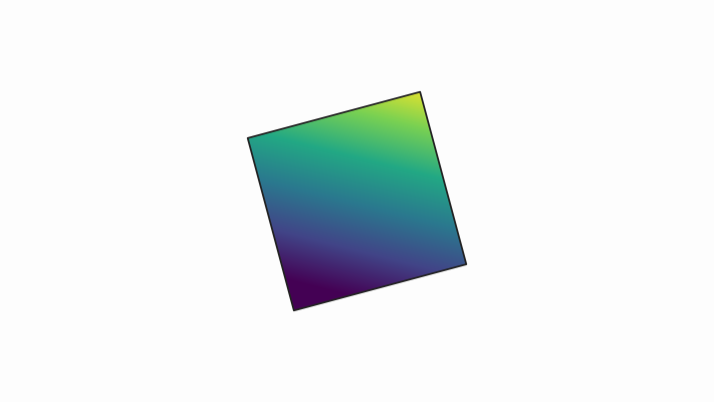
Currently there are defined the following color scales: viridis, magma, inferno, plasma, turbo, and rainbow. You can always see the list invoking the autocompletion with the parameter colorscale: inside a proper DSL block.

You can also create the gradients using the DSL, with the linearGradient(...) and radialGradient(...) commands (color stops are given as t: color entries):
def gradientBG = linearGradient(
    from: [-1, 0],
    to: [1, 0],
    relative: false,
    0.0: "orange", 0.5: "blue", 1.0: "violet"
)
def gradientCircle = radialGradient(
    center: [0.25, 0.75],
    radius: 0.75,
    relative: true,
    colorScale: ["inferno", 0, 1]
)
You can apply gradients both to fill and draw colors:
def functionGradient=linearGradient(//A linear gradient from the bottom of the screen to the top
    from: scene.mathView.lower,
    to: scene.mathView.upper,
    relative: false,
    0.0: "blue",
    1.0: "red"
)

def axesGradient=radialGradient(//A radial gradient from the center, with radius 2
    center: [0, 0],
    radius: 2,
    relative: false,
    0.0: "black",
    1.0: "violet"
)

def axes=axes(//Axes
    xRange: [-2, 2],
    yRange: [-2, 2],
    xStep: .5,
    yStep: .5,
    style: [drawColor: axesGradient]
)

def fg=funcGraph(//Function to draw
    func: { x -> Math.sin(x*2) },
    style: [drawColor: functionGradient, thickness: 10]
)

//When defining axes through DSL, they are
//automatically added to the scene, so we only add fg
scene.add(fg)
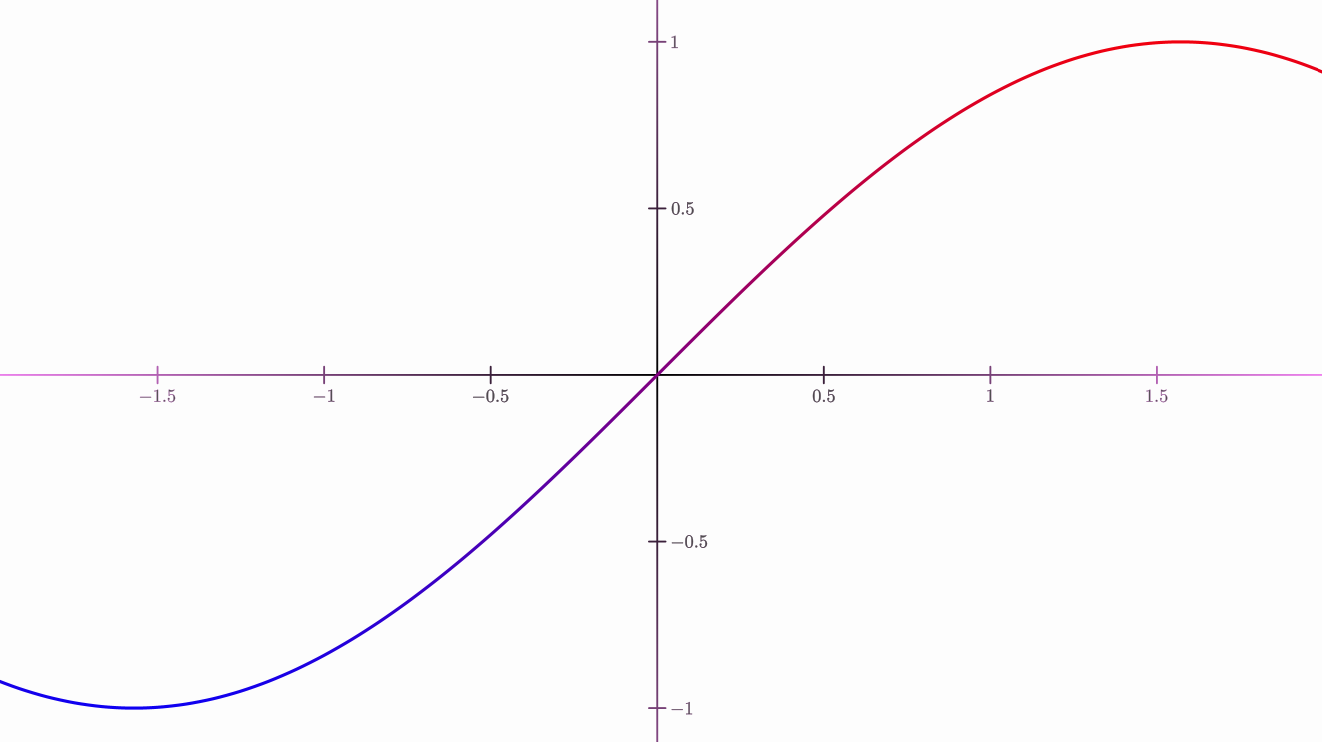
If xRange is omitted, the graph is dynamic and follows the camera view. A parametric or polar curve is available through the parametricCurve(...) command.
DashStyle
The dashStyle method sets the dash used to draw the outline, chosen from the enum DashStyle. Currently, there are 4 different styles, SOLID, DASHED, DOTTED and DASHDOTTED. The following Groovy code creates 4 pentagons with these dash styles.
def r1 = Shape.regularPolygon(5).thickness(10)
def r2 = r1.copy().stack()
    .withDestinyAnchor(AnchorType.RIGHT)
    .withGaps(.1)
    .toObject(r1)
def r3 = r1.copy().stack()
    .withDestinyAnchor(AnchorType.RIGHT)
    .withGaps(.1)
    .toObject(r2)
def r4 = r1.copy().stack()
    .withDestinyAnchor(AnchorType.RIGHT)
    .withGaps(.1)
    .toObject(r3)

r1.dashStyle(DashStyle.SOLID)
r2.dashStyle(DashStyle.DASHED)
r3.dashStyle(DashStyle.DOTTED)
r4.dashStyle(DashStyle.DASHDOTTED)


scene.add(
        LatexMathObject.make("{\\tt SOLID}").stack().toObject(r1),
        LatexMathObject.make("{\\tt DASHED}").stack().toObject(r2),
        LatexMathObject.make("{\\tt DOTTED}").stack().toObject(r3),
        LatexMathObject.make("{\\tt DASHDOTTED}").stack().toObject(r4),
        r1, r2, r3, r4
        )
camera.adjustToAllObjects()
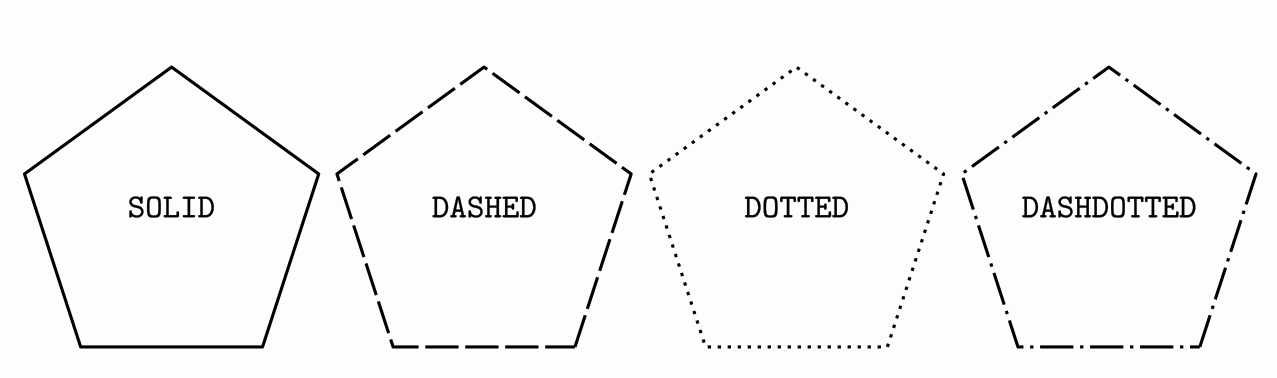
Another simpler way to get a similar image, using DSL syntax and loops:
def reg = Shape.regularPolygon(5).thickness(10);
def group = group(//Creates a group with 4 copies of reg
      copies: reg,
      number: 4,
      layout: [type: "simple", layout: "left", gaps: .1],
      addToScene: true
)
int n = 0
for (dash in DashStyle) {//Iterate over DashStyle values
    def pentagon = group.get(n)
    pentagon.dashStyle(dash)
    latex(
          text: "{\\tt $dash}",//Note we don't use the 'r' modifier here!
          stack: [to: pentagon],
          addToScene: true
    )
    n++
}
camera.adjustToAllObjects()
Saving styles
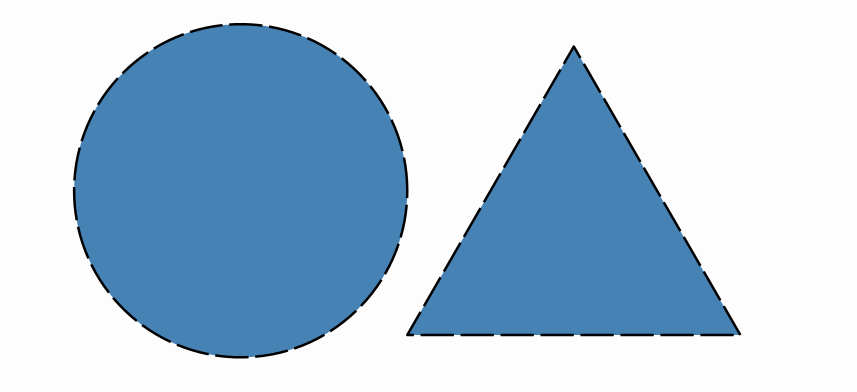
A particular combination of drawing parameters can be saved as a named style. The config object stores the saved styles and provides methods to manage them. To apply a style to an object, use the method .style(styleName).
def triangle = shape(
    type:  'regularpolygon',
    sides: 3,
    style: [thickness: 8, dashStyle: 'dashed', fillColor: 'steelblue']
)

// Register a named style copied from the triangle's current style
createStyle(name: 'myStyle', from: triangle)

def circle = shape(
    type:      'circle',
    transform: [scale: 0.5],
    style:     'myStyle',
    stack:     [to: triangle, destinyAnchor: 'left']
)

scene.add(triangle, circle)
scene.advanceFrame()
Giving a whole passage the same style
When several objects share a style, defaults(style: ...) { ... } says it once and every object created inside the block takes it, whether it is written as a Map, as a named style or as a closure:
def a, b, c
defaults(style: [color: "red"]) {
    a = shape(type: "circle")
    b = shape(type: "circle", transform: [shift: [2, 0]])
    c = shape(type: "circle", style: [thickness: 4])   // red, and thicker
}
The styles are not replaced but applied one after another, the one of the call last, so each writes only the properties it names. The block also carries layer, visible, fixedCamera and addToScene, and the parameters of the animations built inside it. It is described in full in the Animations chapter.
Although using named styles is an efficient way to organize the appearance of an animation, you don't need to create them just to copy drawing attributes from one object to another. With the .getMp() method you can access directly the Stylable object that stores the drawing parameters. To copy the style from object A to object B, use the .copyFrom method like this:
B.getMp().copyFrom(A.getMp())
Restyling objects with apply(...)
The object DSL blocks (shape, point, text...) accept style:, transform: and stack: maps when the object is created. To change those same properties on objects that already exist use the apply(...) DSL command. It takes the object (or a list/array of objects) in obj: and applies the remaining maps to every one of them:
def a = shape(type: "circle")
def b = shape(type: "square", transform: [shift: [2, 0]])

//Restyle a single object
apply(obj: a, style: [fillColor: "steelblue", thickness: 6])

//Restyle and transform many objects in one call
apply(obj: [a, b], style: [drawColor: "orange"], transform: [rotate: PI/4])
apply accepts the same style:, transform:, stack:, layer: and visible: keys as the object blocks, so it is the DSL equivalent of chaining setter methods on each object. The Apply category of the snippets sidebar (Alt+S) inserts ready-made apply blocks for style, transform and stack.
Styling the pieces of an object: parts:
Some objects are not a single drawable but a small assembly: a slider is a track carrying a marker, a read-out and the labels of both ends; a set of axes has two axis lines, their ticks, the tick labels and the axis names. Every piece is registered under a name, and the parts: map styles them one by one:
def a = scalar(0)
def sl = slider(value: a, from: 0, to: 1, label: r"$a$",
                style: [color: "gray", thickness: 3],   //the track itself
                parts: [knob  : [color: "red", dotStyle: "circle", thickness: 40],
                        labels: [color: "lightgray"]],
                stack: [screen: "lower_right", gaps: 0.2], addToScene: true)
style: keeps meaning the object itself; parts: reaches inside it. Each value of the map is exactly what style: accepts, so a named style works too: parts: [labels: "faintText"].
Besides plain names, a selector can be a glob, a comma-separated list, "*" for every piece, or a path descending into a piece of a piece:
axes(parts: ["*"     : [color: "gray"],     //everything, as a base
             legends : [color: "white"],    //all tick labels
             "x*"    : [thickness: 3]])     //xAxis, xTicks, xLegends, xLabel
Order of application is by specificity and not by writing order: "*" first, then globs, then exact names. That way the general case is the base and the specific selectors correct it, whatever order they were written in. A selector that matches nothing is reported in the log together with the list of names the object does offer.
Names that stand for several pieces at once (labels, ends, axis, ticks, legends) are declared by each block, so they are part of the object and keep working long after it was created:
apply(obj: sl, parts: [knob: [color: "green"]])          //restyle later
animStyle(obj: sl, parts: [labels: [drawAlpha: 0]],      //or animate the change
          runtime: 1)
The same names give access to the pieces themselves, which is what you need to move, animate or measure one of them on its own:
sl["knob"].thickness(40)              //one piece, by name
sl.parts(knob: [color: "gold"])       //the parts map, as a method
sl.parts()                            //name -> piece, to find out what there is
play.highlight(sl["knob"])
The parts of the built-in composites are:
| Object | Parts | Collective names |
|---|---|---|
slider |
knob, value, name, min, max |
labels, ends |
axes |
xAxis, yAxis, xTicks, yTicks, xLegends, yLegends, xLabel, yLabel |
axis, ticks, legends, labels |
shape, point, funcGraph, line, ray, parametricCurve, trail, combine, pointOnGraph |
The inline labels: label0, label1..., or the name given with the key: entry of a label spec |
- |
graph, diagram, group |
The name of every node or named child | - |
The older per-piece keys still work: knobStyle: and labelStyle: in slider, and xStyle:, yStyle:, xTickStyle:, yTickStyle:, xLegendStyle:, yLegendStyle: and axisStyle: in axes. They are applied before parts:, so a parts: entry always wins.
Render effects
In addition to basic drawing properties, renderer-specific effects can be applied to any MathObject through the .getRendererEffects() method. The JavaFX renderer currently supports blur, drop shadow, and clipping.
All spatial parameters (blur radius, shadow kernel size, shadow offset) are expressed in math coordinates, so they scale correctly across different output resolutions.
Effects work on every kind of drawable shapes (text and images...) and can be set or changed at any point, including after the object is already on screen.
Gaussian blur
Softens the rendered output of the object. The radius controls the amount of blur.
def c = Shape.circle().fillColor('deepskyblue2')
def r = Shape.square().center().scale(2.5, .3).fillColor('darkorchid2')
c.getRendererEffects().setGaussianBlurRadius(.1)
scene.add(c, r)
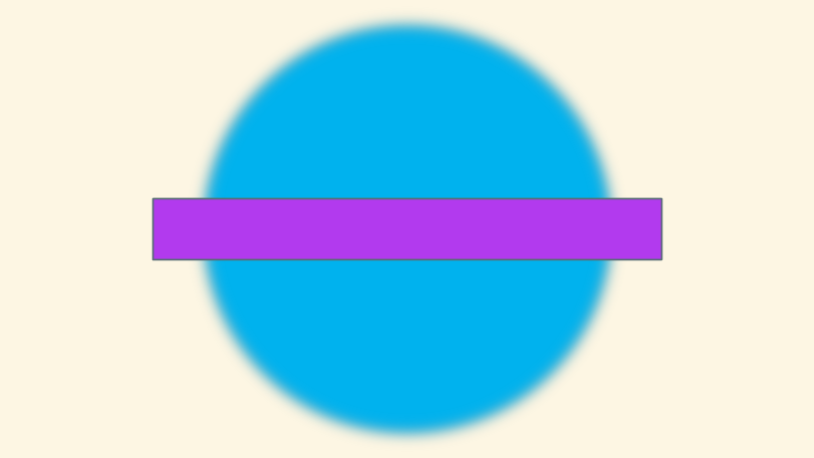
Note that only the circle is blurred. The rectangle remains sharp since no effect was applied to it.
Drop shadow
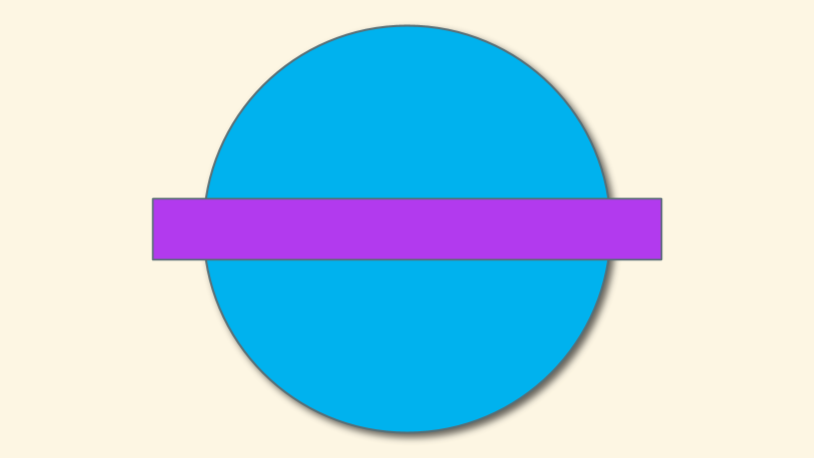
Draws a coloured shadow behind the object. The method setShadowParameters configures all shadow properties at once:
setShadowParameters(kernelSize, xOffset, yOffset, color, alpha)
- kernelSize: blur radius of the shadow (larger = softer)
- xOffset / yOffset: displacement in math coordinates (positive Y = up)
- color: shadow colour (CSS name or hex string)
- alpha: opacity from 0.0 (transparent) to 1.0 (opaque)
def c = Shape.circle().fillColor('deepskyblue2')
def r = Shape.square().center().scale(2.5, .3).fillColor('darkorchid2')
c.getRendererEffects().setShadowParameters(.05, .02, -0.02, "black", .6)
scene.add(c, r)
Clipping
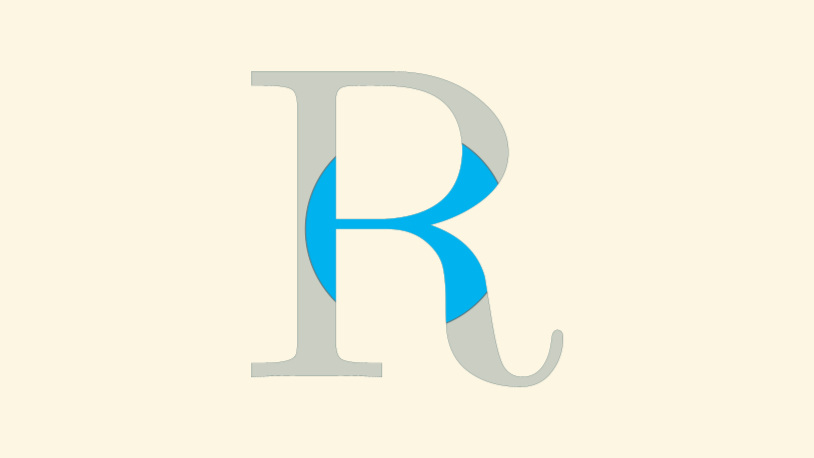
Restricts the visible area of an object to the interior of a given shape. Any object implementing the Pathable interface can be used as a clip shape.
def c = Shape.circle().fillColor('deepskyblue2').scale(.5)
def r = LatexMathObject.make(r'R')
    .get(0)           // Get the first glyph (the letter R)
    .center().scale(12) // Center on screen and scale up
r.fillAlpha(.2)        // 20% opacity for the background R
c.getRendererEffects().setClip(r)
scene.add(r, c)
Combining effects
Effects can be chained fluently and combined on the same object:
def c = Shape.circle().fillColor('deepskyblue2')
c.getRendererEffects()
    .setShadowParameters(.05, .02, -0.02, "black", .6)
    .setGaussianBlurRadius(.03)
scene.add(c)
Copying effects between objects
Use copyFrom to replicate the effect settings of one object onto another. Both the shadow colour and the clip shape are deep-copied (the clip as a detached snapshot of its path), so modifying the source afterwards won't affect the copy.
Only the effects the source actually specifies are copied, so copyFrom never resets an effect the source says nothing about. In particular the absence of a clip cannot be copied: use removeClip() for that.
def c = Shape.circle().fillColor('deepskyblue2')
def r = Shape.square().center().scale(2.5, .3).fillColor('darkorchid2')
c.getRendererEffects().setShadowParameters(.05, .02, -0.02, "black", .6)
r.getRendererEffects().copyFrom(c.getRendererEffects())
scene.add(c, r) // Both objects now have the same shadow
In the DSL
Every effect is also reachable from the style: map, under a renderEffects: sub-map. It is spelled renderEffects and not simply effects because the animation blocks already use effects: for something unrelated (turns, jump...).
def band = shape(type: "rectangle", from: [-2, .5], to: [2, 2])

shape(type: "circle", addToScene: true,
      style: [fillColor: "orange",
              renderEffects: [blur: .008,
                              shadowKernel: .05, shadowOffsetX: .02, shadowOffsetY: -.02,
                              shadowColor: "black", shadowAlpha: .8]])

// Effects can also be set later, on objects already on screen
apply(obj: c, style: [renderEffects: [clip: band]])
| Key | Meaning |
|---|---|
blur |
Gaussian blur radius in math coordinates (0 disables) |
shadow |
Enable or disable the drop shadow; a positive shadowKernel already enables it |
shadowKernel |
Shadow blur radius in math coordinates |
shadowOffsetX, shadowOffsetY |
Shadow offset in math coordinates (positive y is up) |
shadowColor, shadowAlpha |
Shadow colour and opacity |
clip |
Shape to clip with, or false to remove the clip |
The shadow keys are merged with the current values, so a map that only mentions shadowAlpha keeps the kernel, offsets and colour already set.
Animating effects
Effects are interpolated by animStyle, so blur and shadow can be faded in and out like any other style property:
play.run(animStyle(obj: c, runtime: 1,
                   style: [renderEffects: [blur: .02, shadowKernel: .06,
                                           shadowOffsetX: .04, shadowOffsetY: -.04,
                                           shadowColor: "black", shadowAlpha: .9]]))
An animation only touches the effects its map mentions; everything else is left alone, so animStyle(obj: c, style: [fillColor: "red"]) keeps whatever shadow c already had.
Two things are not interpolated. The clip shape is a path, so it is applied at the end of the animation rather than blended. And shadow is a switch: while a shadow is growing in or shrinking out it stays enabled for the whole animation, so animate shadowAlpha or shadowKernel to fade one away rather than flipping shadow: false.
Configuring the scene
The config DSL
The whole configuration block fits in one call, with the same keys you would set one by one:
config(mediaWidth: 800, mediaHeight: 600, fps: 25,
       createMovie: true, outputFileName: "animation",
       backgroundColor: "white", loggingLevel: "debug")
A preset saves the size and the frame rate:
config(quality: "high", createMovie: true) // low | medium | high
The keys are grouped by what they do:
| Group | Keys |
|---|---|
| Output | quality, size, mediaWidth (mediaW, width), mediaHeight (mediaH, height), fps, createMovie, saveToPNG, outputDir, outputFileName |
| Preview | showPreviewWindow, previewWindowSize, limitFPS, printProgressBar, showDebugFrameNumbers |
| Look | backgroundColor, backgroundImage, drawShadow, shadow |
| Files and sound | resourcesDir, soundsEnabled, ffmpeg |
| Behaviour | loggingLevel, defaultLambda, load |
The global shadow takes its parameters in pixels, and setting them already enables it:
config(shadow: [kernel: 8, offsetX: 5, offsetY: 5, color: "black", alpha: 0.5])
load: parses a configuration file (see the next section) before the rest of the map, so what you write in the call overrides what the file says:
config(load: "dark.xml", fps: 60)
Like the config object itself, this belongs to the configuration part of the script: the library refuses to change the media size or the frame rate once the sketch is running.
The config object
The Scene class has an instance of JMathAnimConfig, named config, that allows you to customize global aspects of the animation. Most of these methods should be called only in the setupSketch() part of the animation. Invoking config methods in runSketch() could lead to unpredictable behavior.
//Methods to adjust output
config.setMediaWidth(800)//Adjusts width output to 800px
config.setMediaHeight(600)//Adjusts height output to 600px
config.setFPS(25)//Adjusts frames per second of video output to 25 fps

config.setCreateMovie(true)//Generates a mp4 file with the animation
config.setOutputDir("media")//Specifies output directory at <PROJECT_DIR>\media (this is the default value)
config.setOutputFileName("animation")//Sets video filename as animation_WWW.mp4 where WWW is the width output (by default, the output file name is the name of the scene class)

config.setShowPreviewWindow(true)//Show the preview window (by default: true). Setting it to false also restores the resolution of the config file, see the note below

config.setBackgroundColor(JMColor.parse("WHITE"))//Sets background color to white
config.setBackGroundImage("background.png")//Sets the background image, located at RESOURCES_DIR\images. If null, no image background is applied
config.setDrawShadow(true)//Apply global shadow effect to the scene, using javafx shadow effect
config.setShadowParameters(8, 5, 5, .5f)//Sets global shadow parameters in pixels (kernel 8, offsets 5 and 5, shadow alpha .5f)

config.setResourcesDir("resources")//Specifies resources directory at  path <script_dir>\resources
config.setLoggingLevel(LogLevel.DEBUG)//Sets the logging level to DEBUG, showing more messages to the console
config.setLoggingLevel(4)//Sets the logging level using numbers. 0=No log, 1=Errors, 2=Warnings, 3=Info, 4=Debug
Resolution and the preview window: when a script runs in preview mode (
F5), the editor overrides the media size with the actual size of the preview panel, soscene.saveImage(...)produces a PNG of that size instead of the resolution declared in the config file (a warning is printed in the logging window). Run the script in production mode (Shift+F5) or callconfig.setShowPreviewWindow(false)in the configuration part of the script to render at the declared resolution. See Preview vs. production.
The configuration files
Loading config files
All settings and style definitions can be stored in XML files and loaded with the ConfigLoader class. This class provides the static method ConfigLoader.parseFile("file.xml"), which can also be called from the config object as config.parseFile("file.xml").
Where does JMathAnim look for the files? There are 3 location types that you can specify:
-
If the file name starts with
#it refers to an internal config file included in the library jar. -
If the file name starts with
!it refers to an absolute path. -
Otherwise, it will look into the
<default resources path>/config/folder.
By default, the resources path is located at the /resources folder. So if you want to add resources locally to your project, you should create this folder. You can change the default resources folder with the method config.setResourcesDir(newDir).
This way, if you want to store all your resources in a system-wide location, you can place them in a folder (say /home/bob/myJMathAnimResources) and point JMathAnim to it with the method config.setResourcesDir("/home/bob/myJMathAnimResources") at the beginning of the setupSketch() method (note that the ! modifier is not needed here).
A typical resources folder follows this structure:
resources/
├── config/
│   ├── preview.xml
│   ├── production.xml
│   ├── myStyles.xml
│   └── ...
├── images/
│   ├── background.png
│   ├── logo.svg
│   └── ...
└── ...
The config.parseFile will look into the config folder, and image-related objects like SVGMathObject or JMImage will look into the images folder.
A few examples:
- the
config.parseFile("file.xml")command will try to loadfile.xmllocated at<your current root project>/resources/configfolder - the
config.parseFile("#file.xml")command will try to loadfile.xmlinternally stored at the jar library. - the
config.parseFile("!/home/user/myResources/file.xml")command will try to loadfile.xmlfrom the location/home/user/myResources/file.xml.
Note: The "!" modifier can also be used when specifying a file path in the config files, like background images, for example.
If the program cannot find the file, the logger will report an error but the execution won't be stopped.
Here is an example of a basic config file that I use for previewing, called preview.xml. The <video> tag controls aspects related to movie output:
<JMathAnimConfig>
    <video>
        <size width="1066" height="600" fps="30"/>
        <createMovie>false</createMovie>
        <showPreviewWindow>true</showPreviewWindow>
    </video>
</JMathAnimConfig>
And this for production, called productionWithShadow.xml. The background tag controls aspects like image or color background, or shadow effect.
<JMathAnimConfig>
    <video>
        <size width="1920" height="1080" fps="60"/>
        <createMovie>true</createMovie>
        <outputDir>c:\media</outputDir>
        <showPreviewWindow>false</showPreviewWindow>
    </video>
    <background>
        <shadows kernelSize="8" offsetX="15" offsetY="15" alpha=".5">true</shadows>
        <image>background1080.png</image>
    </background>
</JMathAnimConfig>
This way, you can change program behavior by just changing the config file loaded.
You can have several config files with different, independent aspects. This is the light.xml config I used in examples shown:
<JMathAnimConfig>
    <include>#axes_and_functions_light.xml</include>
    <include>#dots.xml</include>
    <background>
        <color>#FDFDFD</color>
    </background>
    <styles>
        <style name="default">
            <drawColor>black</drawColor>
            <fillColor>#00000000</fillColor>
            <stroke thickness="4"/>
        </style>
          <style name="dotdefault">
            <drawColor>black</drawColor>
            <fillColor>#00000000</fillColor>
            <stroke thickness="30"/>
        </style>
        <style name="latexdefault">
            <drawColor>black</drawColor>
            <fillColor>black</fillColor>
            <stroke thickness="1" absoluteThickness="TRUE"/>
        </style>
        <style name="solidRed">
            <drawColor>black</drawColor>
            <fillColor>#f55652</fillColor>
            <stroke thickness="8"/>
        </style>
        <style name="solidBlue">
            <drawColor>black</drawColor>
            <fillColor>#7ca0c0</fillColor>
            <stroke thickness="8"/>
        </style>
        <style name="solidGreen">
            <drawColor>black</drawColor>
            <fillColor>#9bc693</fillColor>
            <stroke thickness="8"/>
        </style>
        <style name="solidOrange">
            <drawColor>black</drawColor>
            <fillColor>orange</fillColor>
            <stroke thickness="8"/>
        </style>
            <style name="1">
            <drawColor>#07004D</drawColor>
            <stroke thickness="30"/>
            <dotStyle>circle</dotStyle>
        </style>
        <style name="2">
            <drawColor>#BF2500</drawColor>
            <stroke thickness="30"/>
            <dotStyle>cross</dotStyle>
        </style>
        <style name="3">
            <drawColor>#5D2E8C</drawColor>
            <stroke thickness="30"/>
            <dotStyle>plus</dotStyle>
        </style>
          <style name="fn1">
            <drawColor>#0F4C5C</drawColor>
            <fillColor>none</fillColor>
            <stroke thickness="8"/>
        </style>
         <style name="fn2">
            <drawColor>#9A031E</drawColor>
            <fillColor>none</fillColor>
            <stroke thickness="8"/>
        </style>
         <style name="fn3">
            <drawColor>#5F0F40</drawColor>
            <fillColor>none</fillColor>
            <stroke thickness="4" dashStyle="DASHED"/>
        </style>
    </styles>
</JMathAnimConfig>
The JAR of the JMathAnim library includes several predefined config files that you can load using the # prefix in the file name:
- The
config.parseFile("#preview.xml")loads settings for previewing the animation, with a low resolution of 1066x600 at 30fps, showing preview windows and not creating a movie, which is ideal for the creation process of the scene. This preset is automatically loaded when invoking Run (preview) from the editor. - The
config.parseFile("#production.xml")loads settings for generating the final animation, with high resolution 1920x1080 at 60fps, not showing preview windows and creating a movie. This config should be loaded when the design process is done and you want to create the final animation. This preset is automatically loaded when invoking Run (production) from the editor. - The
config.parseFile("#light.xml")loads settings for black drawings over a white background. The default colors are black. - The
config.parseFile("#dark.xml")loads settings for white drawings over a black background. The default colors are white.
You can check all the internal config files in the github sources folder.
The <styles> tag allows defining styles to apply to your animation. There are some convention-named styles that are important (names are case-insensitive):
- Style
default: All MathObjects (except the next ones mentioned) load this style when created. - Style
dotdefault: AllPointobjects load this style when created. - Style
latexDefault: Applied by default to allLaTexMathObjectinstances. - Style
functionGraphDefault: For function graphs. - Style
axisdefault: For x-axis and y-axis. - Style
axistickdefault: For x-ticks and y-ticks in the axes. - Style
axislegenddefault: For legends in ticks of axes. - If no style with these names is defined, a default style with white stroke and no fill will be applied.
Below is an example showing the same scene loaded with the dark.xml and light.xml config files. 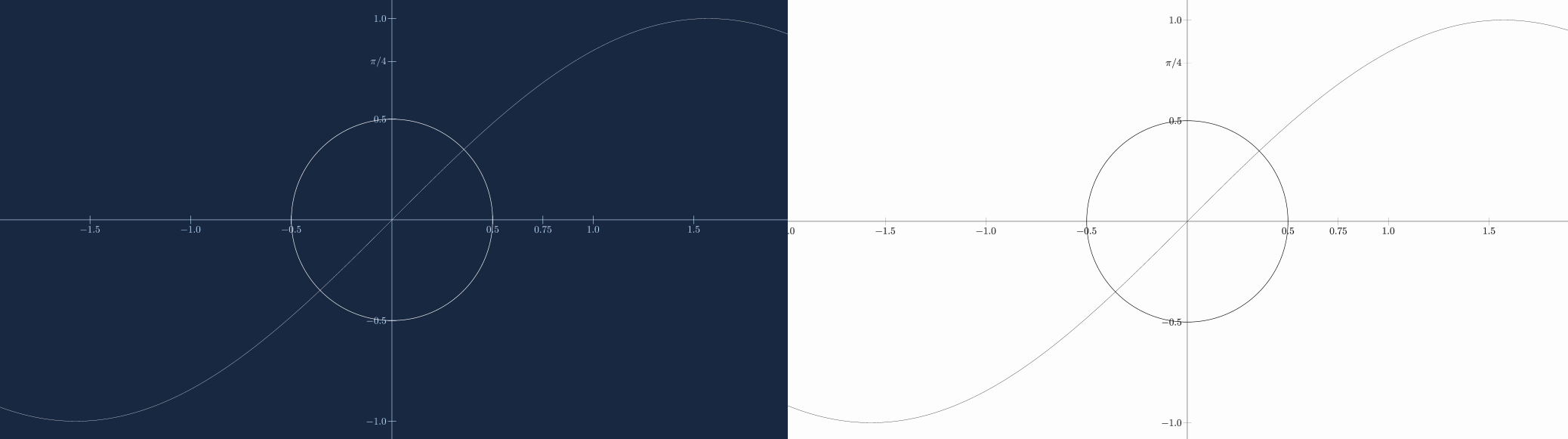
The <include> tag that appears at the beginning loads additional config files. In this example, a dots.xml file that defines styles for dots is included:
<JMathAnimConfig>
    <styles>
        <style name="redCircle">
            <drawColor>RED</drawColor>
            <stroke thickness="30"/>
            <dotStyle>circle</dotStyle>
        </style>
        <style name="blueCross">
            <drawColor>#6ca2e0</drawColor>
            <stroke thickness="30"/>
            <dotStyle>cross</dotStyle>
        </style>
        <style name="yellowPlus">
            <drawColor>#FCE16D</drawColor>
            <stroke thickness="30"/>
            <dotStyle>plus</dotStyle>
        </style>
    </styles>
</JMathAnimConfig>
Note that a dot requires a higher thickness than a Shape to be visible. This is because a Point with thickness 4 will have the same width as a stroke from a Shape with the same thickness, making it very small. Therefore, Point objects need a higher thickness value in order to be clearly visible.
Configuration files syntax
As mentioned above, config files use XML format. All files must have a root tag called <JMathAnimConfig>. Everything outside of this tag is ignored.
Inside this tag, we may have:
-
The
<include>tag allows loading another XML config file. For example<include>#axes_and_functions_dark.xml</include>(an internal config file included in the jar library) or<include>myColors.xml</include>(a file located in theresources/configfolder). -
The
<video>tag controls the output format. Inside this tag you can use: -
The
<size/>tag, with attributeswidth,heightandfps. For example<size width="1066" height="600" fps="30"/>. - The
<createMovie>tag takes a boolean value that determines whether a movie file is actually created. For example<createMovie>false</createMovie>. - The
<saveToPNG>tag takes a boolean value that determines whether each frame should be saved as a separate, auto-numbered PNG file. For example<saveToPNG>false</saveToPNG>. - The
<showPreviewWindow>tag controls whether the preview window is shown. For example<showPreviewWindow>true</showPreviewWindow>. - The
<outputDir>tag specifies the folder where the movie will be saved. If this tag is not present, the generated movie will be saved in theROOT_PROJECT_DIR/mediafolder by default. For example<outputDir>c:/my_generated_movies</outputDir>. -
The
<outputFileName>tag sets part of the file name of the generated movie. A suffix with the media height is always appended to the name. If this tag is not present, the name defaults to the class name of yourScene2Dsubclass. -
The
<background>tag contains settings related to the background and visual effects: -
The
<color>tag sets the background color. You can specify a color using a JavaFX color name (case insensitive), like<color>white</color>, or a hex format like<color>#F0A3C5</color>. The hex format can be 8 digits (RGBA), 6 digits (RGB with alpha 1) or 3 digits (RGB with alpha 1). - The
<image>tag sets a background image. You can use the!modifier to specify an absolute path. Otherwise, the program will look in theresources/imagesfolder. Note that no scaling or adjustment is performed, so the image dimensions should match those specified in the<size/>tag. -
The
<shadows>tag adds a shadow effect to all objects drawn on the screen, except for the background image. For example,<shadows kernelSize="8" offsetX="5" offsetY="5" alpha=".7">true</shadows>sets a shadow with a kernel size of 8 (the amount of shadow blurring), offsets of (5, 5) relative to the original objects, and an alpha transparency of 70%. -
The
<styles>tag defines all the styles you may need, each one inside a<style>subtag. For example:
 <style name="myStyle">
     <drawColor>WHITE</drawColor>
     <fillColor>#f55652</fillColor>
     <stroke thickness="7" dashStyle="SOLID" thicknessTracksScale="TRUE"/>
     <dotStyle></dotStyle>
 </style>
It is pretty self-explanatory. The attribute name defines the style name (case sensitive) and the <drawColor>, <fillColor> and <stroke> tags define their respective properties. The stroke properties are grouped as attributes of the <stroke> element: thickness, dashStyle (a value from the enum DashStyle: SOLID, DASHED, DOTTED or DASHDOTTED), lineType, lineCap and lineJoin.
Two orthogonal attributes control how the stroke thickness responds to the scene:
thicknessTracksZoom: ifTRUE, camera zoom changes the apparent (pixel) thickness, so zooming in on a circle makes its stroke thicker on screen. IfFALSE(the default), the thickness stays constant in screen units regardless of camera zoom.thicknessTracksScale: ifTRUE(the default), scaling the object multiplies its thickness, so a scaled object keeps proportionally thick borders. Set it toFALSEto keep the stroke width fixed when the object is scaled.
The legacy absoluteThickness="TRUE" attribute is still accepted for backwards compatibility and is equivalent to freezing both axes (thicknessTracksZoom="FALSE" and thicknessTracksScale="FALSE"), i.e. a thickness that never changes with zoom or scale.
The <dotStyle> tag accepts one of the values of the enum DotStyle, and determines how a Point object with this style will be drawn. Currently, the possible values are CIRCLE, CROSS, PLUS, RING, TRIANGLE_UP_HOLLOW, TRIANGLE_UP_FILLED, TRIANGLE_DOWN_HOLLOW and TRIANGLE_DOWN_FILLED.