Animations
So far, we've learned to draw basic objects and position them where we want. Now let's explore what this library was designed for: animations. The Animation class stores any kind of animation you can apply to objects. Not only can MathObject instances be animated, but the Camera object can also be animated.
Quick Start: Your First Animation
Animating an object is straightforward. Every common animation has a DSL command (insert them from the snippets palette with Alt+S, category Animations) that plays immediately and takes readable named parameters:
def sq = Shape.square().center()                  // A square centered on screen
animShift(obj: sq, dx: 0.5, dy: 0.5, runtime: 1)  // Move it (0.5, 0.5) in 1 second
Important: Note that sq was not explicitly added to the scene. The animation adds it automatically.
Every anim* command autocompletes with Ctrl+Space and is listed in the DSL cheatsheet. A few you will use constantly:
appear(obj: sq, type: "draw", runtime: 2)      // draw it into being
animRotate(obj: sq, angle: 90 * DEGREES, runtime: 2)   // angles always in radians
disappear(obj: sq, type: "shrinkout")          // bye bye square
In plain Groovy: the same animations live on the
playobject, which is more compact once you know it.animShift(obj: sq, dx: 0.5, dy: 0.5, runtime: 1)isplay.shift(1, 0.5, 0.5, sq). You can also build an animation explicitly and run it:def anim = Commands.shift(1, Vec.to(.5, .5), sq) play.run(anim) // play.run(anim) is an alias for scene.playAnimation(anim)
play.xxxand the DSL do exactly the same thing; mix them freely.
Understanding the Animation Lifecycle
An Animation object has five key methods that control its lifecycle. Understanding these is essential if you want to implement custom animations or control them manually:
-
initialize()- Prepares the objects to be animated. This should be called immediately before the animation begins. No modifications should be made to the objects between calling this method and starting the animation. Calling it on an animation that is already initialized is harmless and reports success; it returnsfalseonly when the setup really failed. -
prepareForAnim()- Runs exactly once, immediately before the first frame, and leaves the scene in the state the animation shows att = 0. This is where auxiliary objects are added and the objects being replaced are hidden. You never call it yourself:doAnimdoes, throughprepareOnce(). -
processAnimation()- Computes the time based on the frame rate and calls thedoAnim()method. Returnstruewhen the animation is finished. -
doAnim(double t)- Actually performs the animation. The parametertranges from 0 to 1, where: t = 0represents the beginning of the animationt = 1represents the end
Note: t represents the percentage of animation completed, not actual time. Internally a mapped version of t is used, called lt, so that animations start and end smoothly rather than linearly. See "The time mapping layers" below.
The rendered frames are dt, 2*dt, ..., 1: the state at t = 0 is never drawn by doAnim, it is the one prepareForAnim() leaves behind.
finishAnimation()- Applies the deferred scene operations, callscleanAnimationAt(EndState)and runs the finish hook. It is idempotent: calling it twice does nothing the second time.
Where the animation stopped: EndState
Cleanup is not decided by comparing the time with 0 or 1, but by asking where the animation stopped:
AT_START- the mapped time is 0. Nothing the animation creates should remain, so its deferred additions are undone.AT_END- the mapped time is 1. What the animation creates is what stays.MIDDLE- it stopped halfway; the intermediate objects are what the scene shows.
Because everything hangs off this, an animation played backwards cleans up correctly with no extra code: the reverse of a creation is a destruction.
The time mapping layers
The value an animation uses, lt, is the composition of five layers applied in order:
- allocation (
setAllocationParameters(a, b)) - the slice of the total time this animation occupies inside its container. Owned by the container: a group staggering its children withdelay, or a join giving each child its slot. Scripts do not normally set it. - direction (
setReversed(true)) - identity, or1-tto run the animation backwards. - repeat (
setRepeatCount(n)) - plays the animationntimes within the same runtime. - behaviour (
setBehaviourLambda(...)) - the shape of the progress: where the animation is at each instant. A there-and-back, a hold in the middle, anything that is not "straight to the end". - easing (
setLambda(...)) - how smoothly that progress is travelled, the one the DSL exposes aslambda:.
Behaviour and easing are separate layers because they answer different questions, and keeping them apart is what lets you combine them. A there-and-back written into the easing slot works, but leaves nothing to smooth it:
animShift(obj: sq, dx: 2, lambda: "backAndForthLinear")            // corners at both ends
animShift(obj: sq, dx: 2, advanced: [behaviour: "backAndForthLinear"])  // same trip, eased
Write the behaviour linearly. The easing sits on top of its result, so the object brakes into the far point and into the return without the definition knowing anything about smoothing.
The composition is built once when a layer changes, not on every frame. isPlayingBackwards() tells whether the resulting mapping decreases, whether because of the direction layer or because of the easing itself.
Animation effects (jump, turns, scale, alpha) use a parallel time, getEffectLT(t), which shares the first three layers but can carry its own easing through setEffectLambda(...). That way a "back and forth" decoration does not turn the movement itself into a round trip.
Manual Animation Control
While you can use playAnimation() to handle everything automatically, you can also control animations manually:
// Manual control (equivalent to play.run(anim))
def anim = <define your animation here>
anim.initialize()
while (!anim.processAnimation()) {
    scene.advanceFrame()
}
anim.finishAnimation()
is equivalent to:
// Automatic control (recommended for most cases)
def anim = <define your animation here>
play.run(anim)
The play Object
The play object is a convenient shortcut for accessing commonly used animations. It's an instance of the PlayAnim class.
Animation Parameter Structure
In general, animation parameters follow this consistent structure:
(runTime, parameters, object_1, …, object_n)
The last part is a varargs MathObject, allowing you to apply the animation to multiple objects simultaneously.
Basic Animations
The three basic transformations (shift, rotate and scale) have DSL animation commands: animShift, animRotate and animScale.
Example: Moving a Square
As they say, a GIF (and its code) is worth a thousand words:
def sq = Shape.square().fillColor("#87556f")
animShift(obj: sq, dx: 0.75, dy: -0.5, runtime: 3)  // move over 3 seconds
scene.waitSeconds(1)
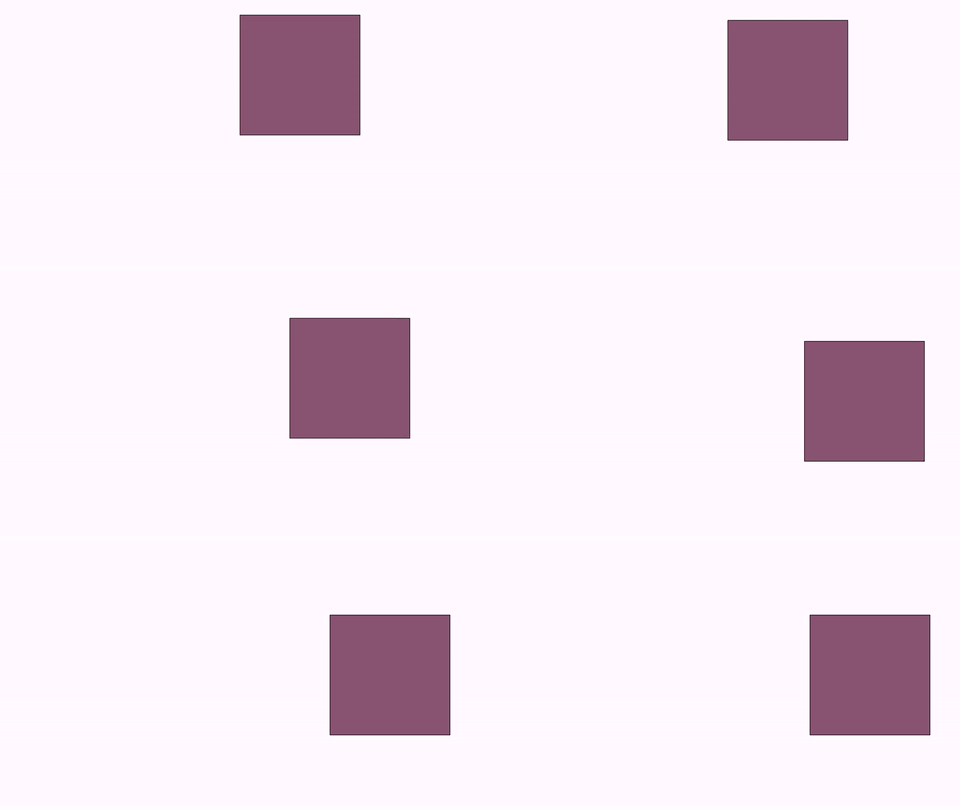
In plain Groovy:
animShift(obj: sq, dx: 0.75, dy: -0.5, runtime: 3)isplay.shift(3, 0.75, -0.5, sq)(orplay.shift(3, Vec.to(0.75, -0.5), sq)). You can also build the animation first and play it:play.run(Commands.shift(3, Vec.to(0.75, -0.5), sq)).
Moving, Rotating, and Scaling
The three commands cover the most common transformations:
// Rotate 45 degrees (angles are always in radians) around its own center, in 3 seconds
animRotate(obj: sq, angle: 45 * DEGREES, runtime: 3)

// Rotate 120 degrees around the origin
animRotate(obj: sq, angle: 120 * DEGREES, center: [0, 0], runtime: 5)

// Scale uniformly to 70%, around its center, in 3 seconds
animScale(obj: sq, scale: 0.7, runtime: 3)

// Scale to 70% in X and 150% in Y, around (1, 0), in 3 seconds
animScale(obj: sq, sx: 0.7, sy: 1.5, center: [1, 0], runtime: 3)
In plain Groovy: these are
play.rotate(3, 45*DEGREES, sq),play.rotate(5, Vec.origin(), 120*DEGREES, sq),play.scale(3, .7, sq)andplay.scale(3, Vec.to(1, 0), .7, 1.5, sq).Rotating several objects (around each center or a shared one): with the Groovy
play.rotate, passing objects as separate arguments (play.rotate(3, 45*DEGREES, a, b, c)) rotates them all around their combined center, as a rigid block; passing them as a list (play.rotate(3, 45*DEGREES, [a, b, c])) rotates each around its own center. The same distinction applies with an explicit center:play.rotate(3, center, 45*DEGREES, [a, b, c]).
Animating the Camera
The camera view is animated with the animCamera command, whose type selects the motion:
// Pan the camera 4 seconds with vector (1, -1)
animCamera(type: "shift", dx: 1, dy: -1, runtime: 4)

// Zoom in to 200% (scale factor 0.5), in 3 seconds
animCamera(type: "scale", scale: 0.5, runtime: 3)

// Zoom out to 25% (scale factor 4)
animCamera(type: "scale", scale: 4, runtime: 3)

// Pan and zoom to fit specific objects
animCamera(type: "zoomToObjects", obj: [sq, circ, A, B], runtime: 3)

// Pan and zoom to fit every object in the scene
animCamera(type: "zoomToAllObjects", runtime: 3)
In plain Groovy:
play.cameraShift(4, 1, -1),play.cameraScale(3, .5),play.adjustCameraToObjects(3, sq, circ, A, B)andplay.adjustCameraToAllObjects(3).
Tip: Before adjusting the camera to objects, you can define the gaps (padding) between objects and the screen border using:
camera.setGaps(hGap, vGap)
Entering and Exiting Animations
These commands help you smoothly add or remove objects from the scene. Bringing objects in is done with appear(...), taking them out with disappear(...); the type chooses the effect.
Fade Animations
appear(obj: sq, type: "fadein", runtime: 2)     // alpha 0 → 1, adds it to the scene
disappear(obj: sq, type: "fadeout", runtime: 2) // alpha 1 → 0, removes it from the scene
In plain Groovy:
play.fadeIn(2, sq),play.fadeOut(2, sq), andplay.fadeOutAll(2)to fade out every object in the scene at once.
Grow and Shrink Animations
appear(obj: sq, type: "growin", runtime: 2)                     // scales 0 → 1
appear(obj: sq, type: "growin", angle: 30*DEGREES, runtime: 2)  // ...also rotating 30°
disappear(obj: sq, type: "shrinkout", runtime: 2)               // scales → 0, then removes
disappear(obj: sq, type: "shrinkout", angle: 45*DEGREES, runtime: 2)
In plain Groovy:
play.growIn(2, sq),play.growIn(2, 30*DEGREES, sq),play.shrinkOut(2, sq),play.shrinkOut(2, 45*DEGREES, sq).
Move In/Out Animations
// The object enters from / exits through a screen edge
appear(obj: sq, type: "movein", from: "left")      // entering from the left
disappear(obj: sq, type: "moveout", to: "left")    // exiting through the left
Edge values are left, right, upper, lower (and the corners upper_left, ...).
In plain Groovy:
play.moveIn(1, ScreenAnchor.LEFT, sq),play.moveOut(1, ScreenAnchor.LEFT, sq).
Using Default Timing
Omit runtime and the animation uses its default duration (1 second):
appear(obj: sq, type: "fadein") // a 1-second fade in
In plain Groovy: most
play.xxxmethods can also be called without the time argument (e.g.play.fadeIn(sq)); the defaults are the publicplay.defaultRunTime...variables.
Complete Example
def sq = Shape.square().fillColor("#87556f").center()
def text = latex(text: r"{\tt fade in}", stack: [screen: "lower", gaps: .1], addToScene: true)

appear(obj: sq, type: "fadein")
scene.waitSeconds(1)

text.setLatex(r"{\tt scale}")   // Changes the text
animScale(obj: sq, sx: 1.5, sy: 1, runtime: 1)
scene.waitSeconds(1)

text.setLatex(r"{\tt shrink out}")
disappear(obj: sq, type: "shrinkout", angle: 45*DEGREES)
scene.waitSeconds(1)
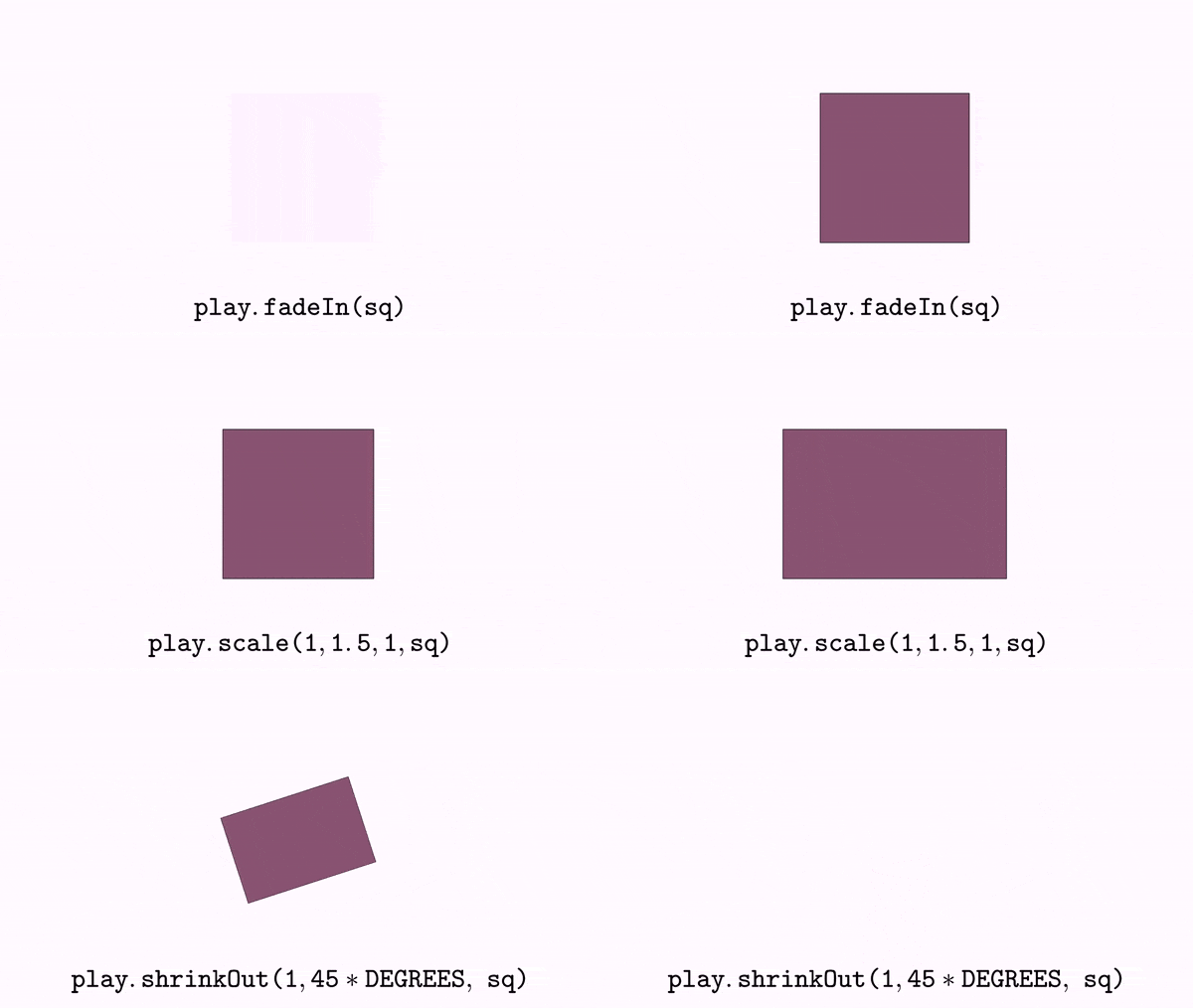
Note: These commands give quick access to simple animations. For fine-tuning parameters like lambda functions or adding effects, see the next chapter: the DSL exposes them through effects: and lambda:, and the low-level Commands/animation objects expose them as methods.
Highlighting Animations
Highlighting animations briefly attract the viewer's attention to specific objects:
Available Highlighting Types
All of these are reached through the highlight(...) DSL command; the type picks the flavor:
highlight(default): scales the object back and forth (default: 150%)twist: like highlight but adds a small twist (default: ±15 degrees)boxHighlight: draws growing boxes around objectscontour: draws a "snake" running over the shape's contour
Example: All Highlight Types
def sq = Shape.square().center()

def importantPoint1 = sq.getPoint(1).drawColor("red")
def importantLabel1 = label(
      text: "A",
      path: importantPoint1
)

def importantPoint2 = sq.getPoint(2).drawColor("green")
def importantLabel2 =  label(
      text: "B",
      path: importantPoint2,
      rotatedirection: 45*DEGREES
)


def importantPoint3 = sq.getPoint(3).drawColor("blue")
def importantLabel3 =  label(
      text: "C",
      path: importantPoint3,
      rotatedirection: 135*DEGREES
)

scene.add(sq,
      importantPoint1, importantLabel1,
      importantPoint2, importantLabel2,
      importantPoint3, importantLabel3
)

highlight(obj: importantLabel1)                  // scale back and forth
highlight(obj: importantLabel2, type: "twist")   // scale with a twist
highlight(obj: importantLabel3, type: "boxHighlight")
highlight(obj: sq, type: "contour")              // "snake" over the contour
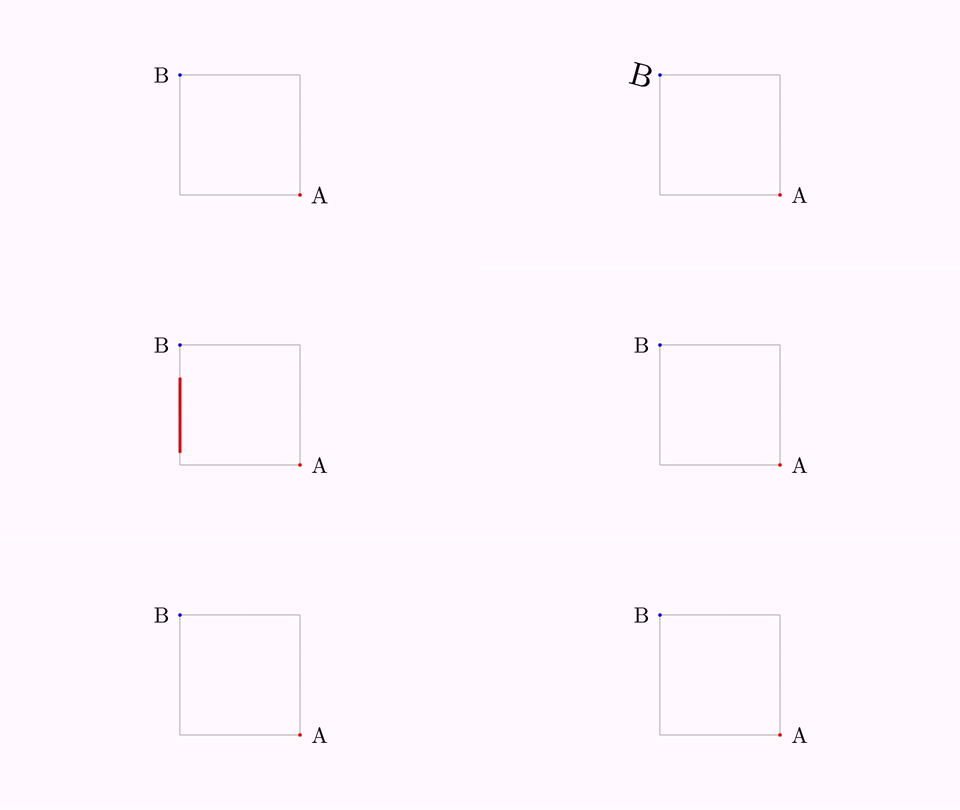
In plain Groovy:
play.highlight(...),play.twistAndScale(...),play.boxHighlight(...)andplay.contourHighlight(...)respectively.
Configuring the contour highlight
The contour ("snake") highlight takes a few extra parameters:
def obj = Shape.circle()
scene.add(obj)
highlight(obj: obj, type: "contour",
          amplitude: 0.85,   // max portion of the shape drawn (0-1, default 0.4; 1 draws then undraws all)
          thickness: 15,     // thickness of the "snake"
          color: "violet")   // color of the "snake"
scene.waitSeconds(2)
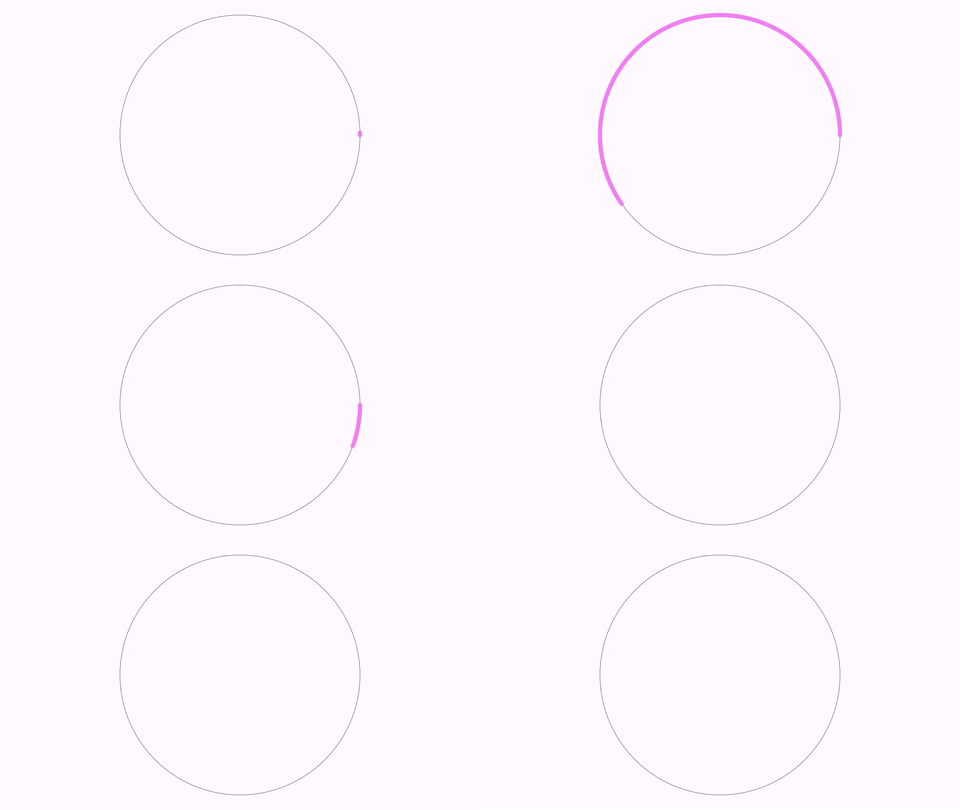
In plain Groovy: build a
ContourHighlight.make(2, obj)and chain.setAmplitude(.85).setThickness(15).setColor("violet"), thenplay.run(anim).
Highlighting Bounding Boxes
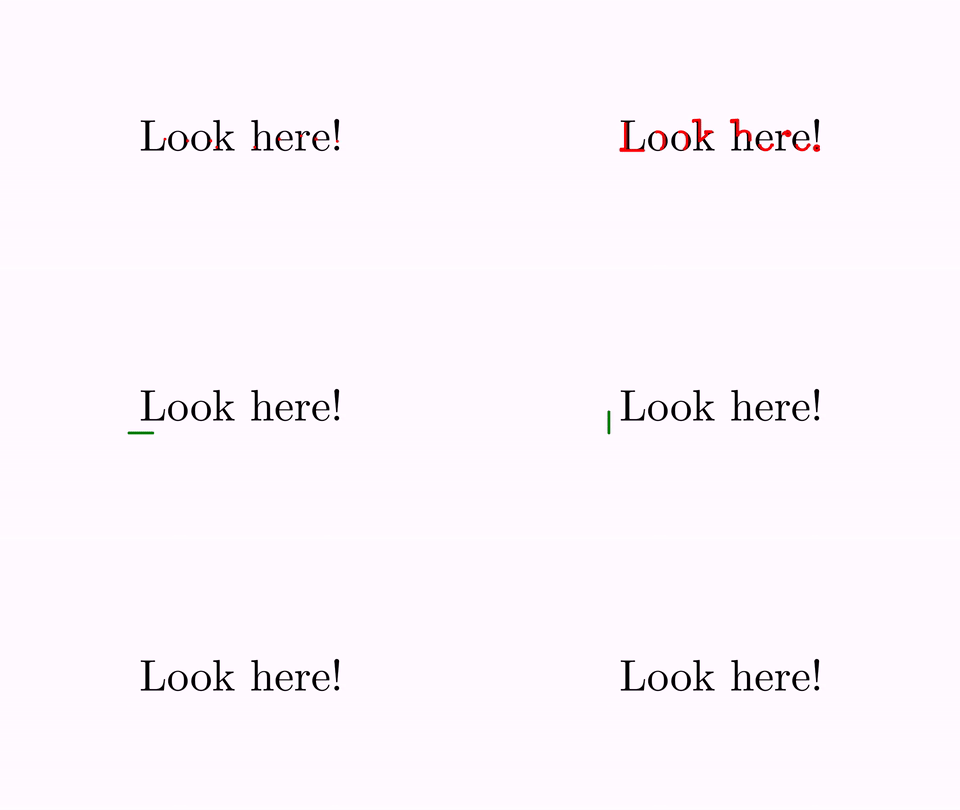
For complex shapes, running the snake over the bounding box is cleaner than over every detail of the outline. Pass box: true:
def obj = LatexMathObject.make("Look here!")
    .center().scale(2)
scene.add(obj)

// Over the full (busy) outline
highlight(obj: obj, type: "contour")

// Over the bounding box instead (gap 0.1 around the box)
highlight(obj: obj, type: "contour", box: true, gap: 0.1, color: "green")
scene.waitSeconds(2)
In plain Groovy:
ContourHighlight.make(2, obj)andContourHighlight.makeBBox(2, .1, obj).
Highlighting Points
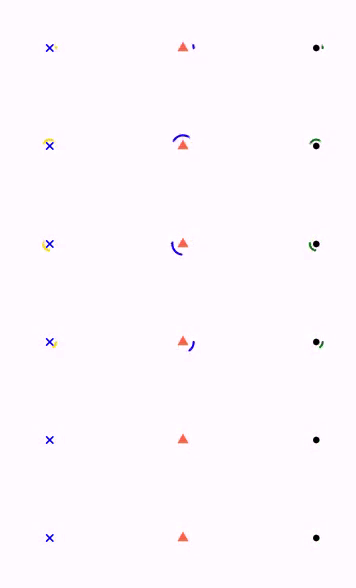
You can also highlight Point objects: a circle with radius equal to the point's thickness is drawn. Here we build three highlights with run: false and fire them together with animGroup so they play at the same time:
def P1 = Point.at(-.5, 0)
    .dotStyle(DotStyle.CROSS)
    .thickness(30)
    .drawColor("blue")

def P2 = Point.at(0, 0)
    .dotStyle(DotStyle.TRIANGLE_UP_FILLED)
    .thickness(50)
    .drawColor("tomato")

def P3 = Point.at(.5, 0)
    .dotStyle(DotStyle.CIRCLE)
    .thickness(30)
    .drawColor("black")

scene.add(P1, P2, P3)

def h1 = highlight(obj: P1, type: "contour", color: "gold",  run: false)
def h2 = highlight(obj: P2, type: "contour", color: "blue",  run: false)
def h3 = highlight(obj: P3, type: "contour", color: "green", run: false)
animGroup(anims: [h1, h2, h3])
scene.waitSeconds(1)
In plain Groovy:
ContourHighlight.make(2, P1).setColor("gold")(and the same for the others), thenplay.run(anim1, anim2, anim3).
Aligning Objects
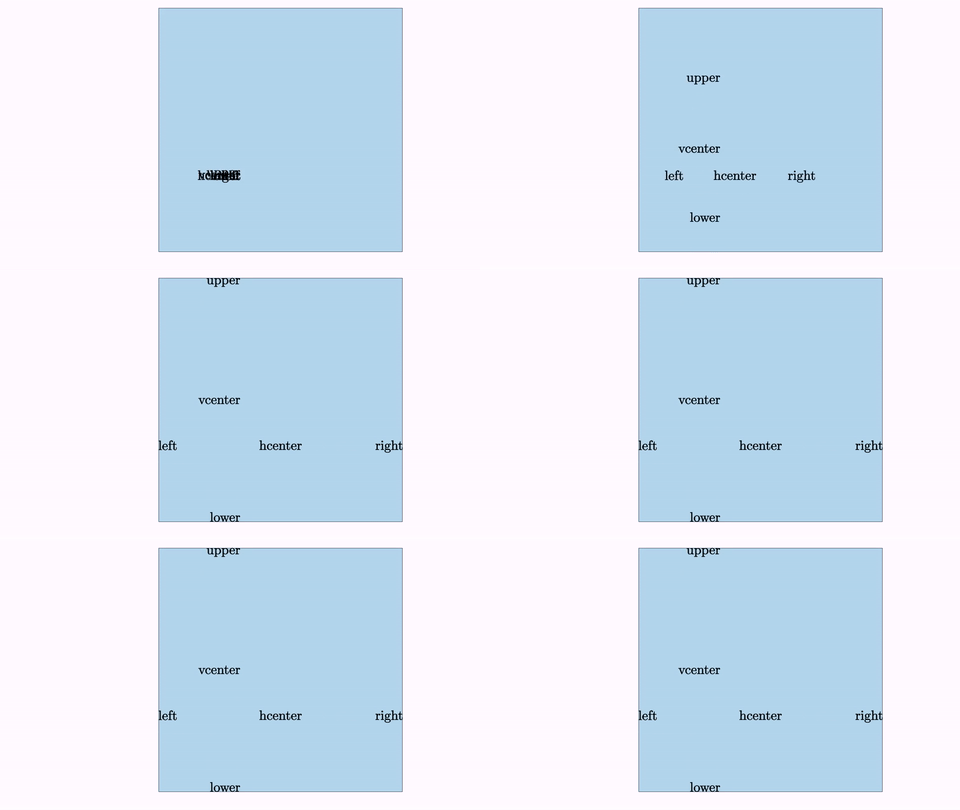
The animAlign(...) command animates the alignment of one object with another (the animated counterpart of the align() method). Here six labels slide onto the edges and centers of a big square. We build each with run: false and fire them together with animGroup:
def upper = LatexMathObject.make("upper")
def lower = LatexMathObject.make("lower")
def left = LatexMathObject.make("left")
def right = LatexMathObject.make("right")
def hcenter = LatexMathObject.make("center")
def vcenter = LatexMathObject.make("vcenter")
def center = Shape.square().scale(3).fillColor("lightblue")

scene.add(center)
camera.adjustToAllObjects()

def a1 = animAlign(obj: left,    dst: center, type: "left",    runtime: 3, run: false)
def a2 = animAlign(obj: right,   dst: center, type: "right",   runtime: 3, run: false)
def a3 = animAlign(obj: upper,   dst: center, type: "upper",   runtime: 3, run: false)
def a4 = animAlign(obj: lower,   dst: center, type: "lower",   runtime: 3, run: false)
def a5 = animAlign(obj: hcenter, dst: center, type: "hcenter", runtime: 3, run: false)
def a6 = animAlign(obj: vcenter, dst: center, type: "vcenter", runtime: 3, run: false)
animGroup(anims: [a1, a2, a3, a4, a5, a6])
scene.waitSeconds(1)
type accepts left, right, upper, lower, hcenter, vcenter,
baseline or baseline_to_lower. The last two align texts by the line their
letters sit on, instead of by a side of the bounding box; objects that do not
know their baseline fall back to lower.
to (aliases dst and destiny) is not restricted to a MathObject: it takes
anything with a bounding box, and the destination is never moved. A point is a
degenerate box, so aligning to it puts the chosen side of the object at that
point:
animAlign(obj: gr, to: [0, 0], type: "left")                 // a point
animAlign(obj: gr, to: camera.getMathView(), type: "upper")  // the whole view
animAlign(obj: gr, to: [-1, -1, 1, 1], type: "right")        // a region
In plain Groovy:
animAlign(obj: left, dst: center, type: "left", runtime: 3)isCommands.align(3, center, AlignType.LEFT, left); run several at once withplay.run(anim1, anim2, ...).
Sibling commands: animStackTo, animDistribute and animSetLayout
Three related commands animate the positioning tools from the Transforming objects chapter: animStackTo (animated stack), animDistribute (animated distribute) and animSetLayout (animated setLayout). Like every anim* command they play immediately unless run: false is given, and always return the animation:
// Stack a square to the right of a circle, with a gap
animStackTo(obj: sq, to: circle, anchor: "right", gap: 0.1)

// Spread the elements of a group evenly, horizontally
animDistribute(obj: g, orientation: "horizontal", runtime: 2)

// Lay out the elements of a group in a row to the right, but don't play yet;
// store it in a variable and play it later with play.run(anim)
def anim = animSetLayout(obj: g, layout: "right", gap: 0.1, run: false)
animStackTo and animSetLayout accept a single object or a List; layout also admits a GroupLayout (as returned by the layout(...) DSL) or an inline spec map like [type: "circular", center: [0, 0], radius: 2].
animDistribute needs several objects: a List, or a single group whose elements are the ones spread out. The two extreme ones stay where they are and the rest end evenly spaced between them, exactly where the distribute(...) method of a group would put them. orientation is horizontal, vertical or both, and respectOrder: false ignores the current order, so the first object given ends at the left (or lower) extreme.
animDistribute(obj: [a, b, c], orientation: "horizontal")
animDistribute(obj: g, orientation: "both", runtime: 3)
animDistribute(obj: [a, b, c], orientation: "vertical", respectOrder: false)
In plain Groovy:
animDistribute(obj: [a, b, c], orientation: "horizontal")isCommands.distribute(1, OrientationType.HORIZONTAL, a, b, c).
Moving Along a Path
The MoveAlongPath animation moves an object along a specified path. You can use either a Shape or JMPath object to define the path.
Path Movement Parameters
The animation accepts two important boolean parameters:
- Rotation: Whether the object should rotate to match the tangent of the path
- Parameterization:
true- Uses arc-length parameterization for constant velocity along the pathfalse- Uses standard Bézier parameterization (slower at sharp turns)
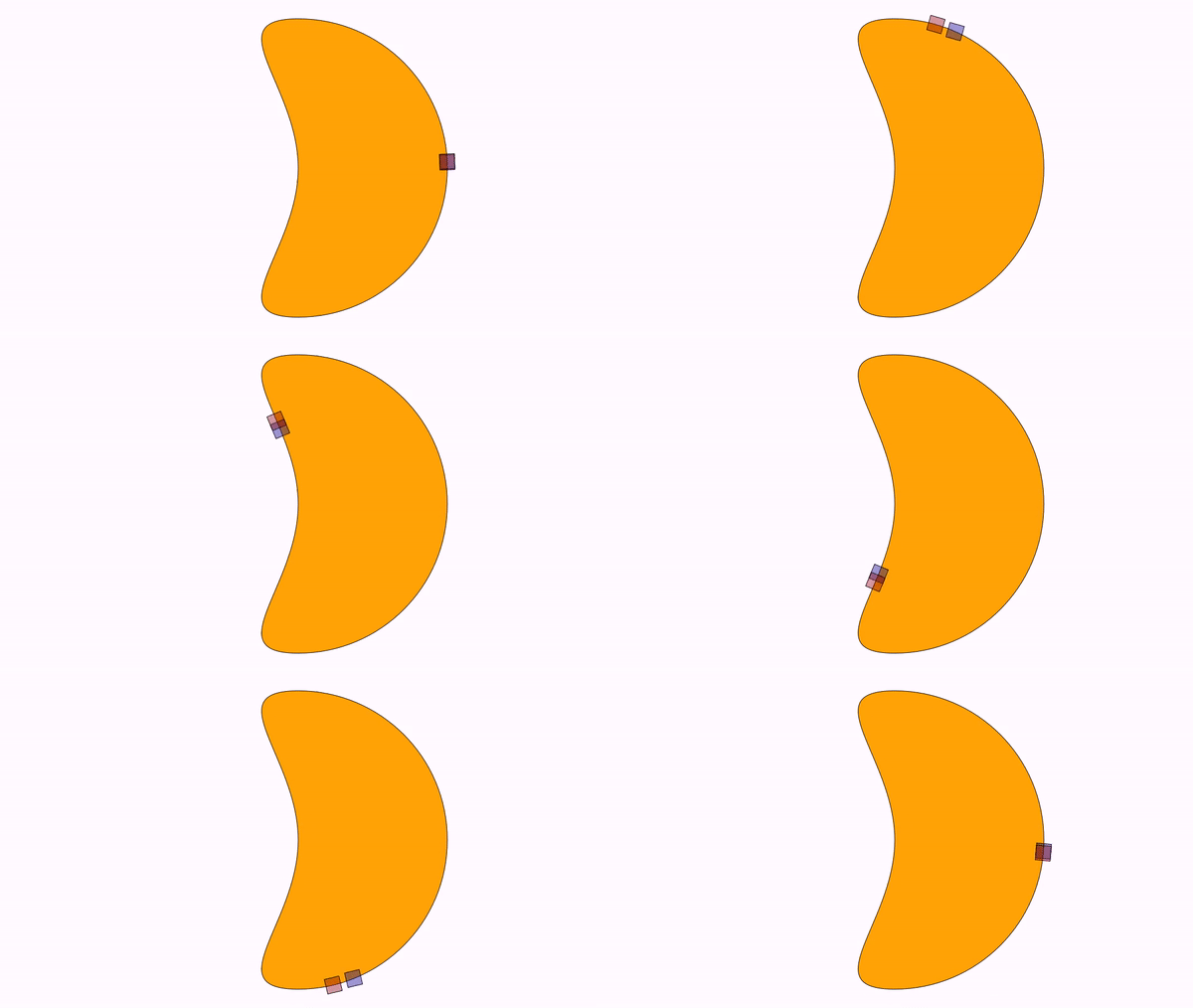
Example: Comparing Parameterizations
// Create a path shaped like a piece of tangerine
def pathShape = Shape.circle().fillColor("orange")  // A circle (4 Bézier curves)
pathShape.get(2).shift(1, 0)  // Move left point to create a wedge shape
scene.add(pathShape)

// Blue square: moves with Bézier coordinates
def blueSquare = Shape.square()
.scale(.1)
.fillColor("darkblue").fillAlpha(.4)

// Red square: uses arc-length for constant velocity
def redSquare = blueSquare.copy()
    .fillColor("darkred").fillAlpha(.4)

// Animation with constant velocity (arc-length parameterization)
def anim=animMoveAlongPath(
    runtime: 5, // Duration in seconds
    obj: blueSquare, // Object to move
    path: tangerine, // Path to follow
    anchor: "center",// Center of object matches the path
    rotation: 'rotate',  // Rotate object to match tangent
    parametrized: true,// Use arc-length (constant velocity)
    lambda: "linear", // Linear timing function
    run: false //Don't play the animation yet!
)

def anim2=animMoveAlongPath(
    runtime: 5, // Duration in seconds
    obj: blueSquare, // Object to move
    path: tangerine, // Path to follow
    anchor: "center",// Center of object matches the path
    rotation: 'rotate',  // Rotate object to match tangent
    parametrized: false,//  Use Bézier parameterization
    lambda: "linear", // Linear timing function
    run: false //Don't play the animation yet!
)

animGroup(anims: [anim, anim2])   // play both at the same time

### Playing several animations at once, without `run: false`

Every animation plays as soon as it is built, so combining them with `animGroup` means creating each one with `run: false` first. The `play { ... }` block spares you that: everything built inside it is played together when the block closes.

```groovy
play {
    appear(runtime: 1, obj: v, type: "movein", from: "right")
    appear(runtime: 1, obj: [u1, u2], type: "movein", from: "left")
}
sequence { ... } is the same block playing the children one after another, and both nest in any combination, which gives a whole passage with no run: false anywhere:
sequence {
    play { appear(obj: a); appear(obj: b) }
    animShift(obj: a, dx: 2)
    play { disappear(obj: a); disappear(obj: b) }
}
Nothing inside a block plays on its own, and a run: false written there is simply redundant. The innermost block wins, so a whole block counts as one animation of the block around it.
play and sequence take no parameters, because a container gets its timing from the children it holds. When you do need parameters of your own, the two containers accept the very same block:
animGroup(delay: 0.5) {           // play { } that staggers its children
    appear(obj: a)
    appear(obj: b)
}

animJoin(gap: 0.5) {              // sequence { } with a pause between steps
    animShift(obj: a, dx: 2)
    animRotate(obj: a, angle: PI)
}
The block form is the same machinery: the children are received unevaluated, none of them needs run: false, and it nests with play/sequence in any combination. Writing anims: and a block at the same time is an error, since they are two ways of saying the same thing.
A block that builds nothing inside plays the animations it returns, so a list built in a loop, where the animations are necessarily created with run: false, goes straight into a block:
def anims = steps.collect { animShift(obj: p, vector: it, runtime: 0.1, run: false) }
sequence { anims }   // same as animJoin(anims: anims)
Saying when each animation starts: timeline { ... }
play and sequence cover the two extremes, everything at once and one strictly after another. When several things overlap, what you want to write is the second each one starts at, and that is the timeline { ... } block:
timeline {
    at(0)      { appear(obj: title) }
    at(0.5)    { animShift(obj: a, dx: 2, runtime: 2) }
    after(0.3) { disappear(obj: title) }
}
Each at(second) { ... } schedules what its own block builds at that second of the timeline, counting from its beginning. Inside one of those blocks the rule is the one of play: what it builds runs together, and a sequence { ... } written inside runs one after another. after(gap) { ... } needs no second at all, it starts gap seconds after the end of the previous block, and after { ... } chains right after it.
The whole block is played as a single animation, so a timeline is one more animation of the scene: it nests inside a sequence, a skip fast-forwards it, and run: false hands it over to be combined later.
Marks name a second so the rest is written against it instead of against numbers that all have to be corrected together when one duration changes:
timeline {
    at(0) { appear(obj: formula) }
    mark("shown")                            // the second the appear ends at
    at("shown")     { highlight(obj: formula) }
    at(timeOf("shown") + 0.4) { animCamera(scale: 1.2) }
}
| Name | Meaning |
|---|---|
at(second) { ... } / at("mark") { ... } |
Schedules what the block builds at that second, or at a mark |
after(gap) { ... } |
Starts gap seconds after the end of the previous block (after { ... } for no gap) |
mark(name) / mark(name, second) |
Names the second the last block ends at, or an arbitrary one |
now / last / total |
Second the last block ends at, second it starts at, second the timeline ends at so far |
timeOf(name) |
The second a mark stands for, to compute another one from it |
at(last) { ... } is how something goes in parallel with the block just written, since last is the second that one starts at. Each scheduling call hands back the second its own block ends at.
The total is the furthest end of everything scheduled. timeline(runtime: 8) { ... } only lengthens it, to leave the scene still at the end; a runtime shorter than the content is reported and ignored, because compressing the timeline would mean moving the seconds the script states. For the same reason the block takes no lambda, effects nor delay: an easing over the whole thing would bend those seconds. Set them on the animations inside, which keep every parameter of their own.
Parameters shared by a whole passage: defaults(...) { ... }
Writing runtime: and lambda: on every line of a long passage is the most repeated thing in a script. defaults(...) { ... } gives everything built inside it the parameters it does not name itself, both the animations and the objects:
defaults(runtime: 2, lambda: "smooth") {
    animShift(obj: a, dx: 2)                     // runtime 2, smooth
    animRotate(obj: b, angle: PI)                // runtime 2, smooth
    animScale(obj: c, scale: 2, runtime: 0.5)    // runtime 0.5: the call wins
}
The call always wins, and so does the innermost block when they are nested, so a passage refines the defaults of the scene without undoing them. The two map parameters, effects and advanced, are merged key by key rather than replaced, so a call adding one effect keeps the ones the block sets:
defaults(runtime: 2) {
    defaults(effects: [jump: 0.5]) {
        animShift(obj: a, dx: 2)                 // runtime 2 and a jump
        animShift(obj: b, dx: 2, effects: [turns: 1])   // runtime 2, the jump and a turn
    }
}
The block plays nothing and collects nothing by itself, and hands back whatever it returns, which means it can wrap a play block or live inside one indistinctly. The containers take nothing from it: play, sequence, timeline, animGroup and animJoin get their timing from their children, which already carry the defaults. Applying them a second time on the container would ease an easing and stagger a stagger.
The same block for the objects
defaults covers the other half of the DSL too: the parameters saying what an object is like are shared exactly the same way, which is how three circles of the same colour are written without repeating it three times, each one still in its own variable:
def a, b, c
defaults(style: [color: "red"], addToScene: true) {
    a = shape(type: "circle")
    b = shape(type: "circle", transform: [shift: [2, 0]])
    c = shape(type: "circle", style: [thickness: 4])   // red, and thicker
}
Styles do not replace one another: the ones of the blocks are applied first and the one of the call last, and each writes only the properties it names, so the block gives the colour and one object still changes its thickness. Every form is accepted on both sides, so a named style built with createStyle is the natural thing to put in the block:
createStyle(name: "highlighted", color: "red", thickness: 4)
defaults(style: "highlighted") { ... }
If the block builds a list instead of assigning variables, it hands it straight back:
def circles = defaults(style: [color: "red"]) {
    (0..2).collect { shape(type: "circle", transform: [shift: [it, 0]]) }
}
| Key | What every object of the block takes |
|---|---|
style |
The style, applied before the one of the call |
transform |
The transform, merged with the one of the call |
layer |
The rendering layer |
visible |
The visibility flag |
fixedCamera |
Drawn with the fixed camera, unaffected by zoom and pan |
addToScene |
Added to the scene as it is created |
transform follows the merging rule and not the chaining one, so the object is transformed once and not twice: the keys of the block go first and the ones of the call after, in the order the transform: map always applies them. Note that the size lives there and not at the top level, so half-sized circles are transform: [scale: 0.5], never scale: 0.5:
defaults(transform: [scale: 0.5]) {
    a = shape(type: "circle")                              // scaled 0.5
    b = shape(type: "circle", transform: [shift: [2, 0]])  // scaled 0.5, then shifted
    c = shape(type: "circle", transform: [scale: 2])       // scaled 2: the call wins the key
}
Three of the common parameters are deliberately left out. stack places an object against another one, so sharing it stacks everything the block creates on the same spot; label would repeat one text on every object; and parts names the pieces of one particular object, which no two builders share.
apply(...) takes nothing from the block either. It configures objects that already exist, which the block did not build, and a default style or transform reaching them would restyle or move objects the call only meant to touch in the way it says. What a default style does reach is every object the block itself creates, including the ones a builder makes for itself, such as the label of a shape or the connectors of a graph, which is what "everything here looks like this" means.
Animating a list that may be empty
When the objects come from a list the script builds, that list may well come out empty in some iteration. That is not an error: the command logs a warning and returns an animation that does nothing and takes no time, so nothing has to be guarded:
disappear(obj: toFadeOut) // toFadeOut == [] -> warning, and an animation that does nothing
The same goes for an empty anims list in animGroup / animJoin. The animation returned is a real Animation, so it can be stored, put in a group or returned from a block like any other one, and being empty it adds no frame to the video. A missing obj (the parameter not written at all) is still an error, since that is a mistake in the script.
Skipping a part while you work on the next one
skip { ... } runs its block without rendering a single frame: every animation inside is taken straight to its final state, so the scene ends up exactly where it would have been, at no cost. It saves commenting code out, which would also lose the objects that part creates.
skip {
    play { appear(obj: title); appear(obj: axes) }
    animShift(obj: title, dy: 2)
}
// from here on, everything is rendered as usual
It is a tool for writing a scene, not a preview of the final video: an animation whose effect depends on going through the intermediate frames, such as an updater that accumulates or a trail being drawn, does not end the same way as if it had been played.
Annotations that go away on their own
An arrow, a bracket or a note explaining one step has to be created, shown and then taken out again, and that last part means repeating the whole list at the end, which is exactly where one of them is forgotten. temporarily { ... } takes out of the scene everything that entered it inside the block:
temporarily {
    def arrow = arrow(from: a, to: b)
    def note  = latex(r"$f'(x)$", stack: [to: arrow, at: "upper"])
    play { appear(obj: [arrow, note]) }
    animWait(1)
}   // arrow and note leave the scene here
What it undoes is what reached the scene, not what the block created. The list of objects of the scene is photographed on the way in and compared on the way out, so every route in is covered without any builder knowing about it: a scene.add(...) written by hand, an addToScene: true, a defaults(addToScene: true) and, above all, the objects an animation brings in by itself, as appear, morph or a creation animation do. The comparison is by reference, so two objects that are equal but not the same one are told apart.
runtime animates the exit instead of removing the objects between two frames, with the same vocabulary as disappear (fade is accepted as an alias):
temporarily(runtime: 0.5) { ... }
temporarily(runtime: 0.5, type: "shrinkout") { ... }
When part of what the block builds is a result that stays, keep(...) spares it:
temporarily(runtime: 0.5) {
    def guide  = shape(type: "segment", from: a, to: b, addToScene: true)
    def result = latex(r"$c = 5$")
    play { appear(obj: result) }
    keep(result)        // the guide goes, the result stays
}
Two things it does not do. It undoes additions only: something that was in the scene before the block and left it inside is not put back, since re-adding an object whose exit animation already finished has no clear meaning. And its exit animation is a normal one, so writing the block inside a play/sequence block means that block collects the disappear and plays it after the objects are already gone; the case is reported in the log. Blocks nest with no special case, since each one photographs the scene on the way in.
Reading the log of a long render
section("name") { ... } runs its block writing to the log when it starts, and when it ends how many frames it added, how much video that is and how long it took to compute. It changes nothing in the scene, so it can wrap anything:
section("intro") {
    play { appear(obj: title); appear(obj: axes) }
}
Writing the children inline inside animGroup(anims: [...]) without run: false does not work: Groovy evaluates the arguments before calling the container, so each child is played on its own first and the group replays it afterwards. The DSL warns when it finds an already played child.
**Note:** We specified `lamda: "linear"`for uniform velocity. Lambda functions are covered in detail in the next chapter.
**Tip:** Although `FunctionGraph` is a subclass of `Shape` and supports `MoveAlongPath`, it's recommended to use the `PointOnFunctionGraph` object when animating a point along a function graph.
**Tip:** Try adding the method `camera.registerUpdater(FollowObject.make(blueSquare))` just before the `play.run`
command to keep the camera always centered on the blue square.
The same animations in Groovy syntax can be defined:
```groovy
def anim = MoveAlongPath.make(
5, // Duration in seconds
tangerine, // Path to follow
blueSquare, // Object to move
AnchorType.CENTER, // Center of object matches the path
RotationType.ROTATE, // Rotate object to match tangent
true // Use arc-length (constant velocity)
).setLambda(t -> t) // Linear timing function
// Animation with Bézier parameterization
def anim2 = MoveAlongPath.make(
5, // Duration in seconds
tangerine, // Path to follow
redSquare, // Object to move
AnchorType.LEFT, // Left side of object matches the path
RotationType.FIXED, // Don't rotate object
false // Use Bézier parameterization
).setLambda(t -> t) // Linear timing function
The ShowCreation Animation
The ShowCreation animation draws an object and adds it to the scene. Different strategies are used depending on the object type, specified in the ShowCreationStrategy enum. The strategy is chosen automatically but can be overridden with setStrategy().
Warning: Forcing a specific strategy may cause errors for incompatible object types.
Example: Creating a Square
Use appear(...) with type: "draw" (aliases: showcreation, sketch):
def sq = Shape.square()
    .fillColor("#87556f").center()

appear(obj: sq, type: "draw", runtime: 2)  // Draws sq in 2 seconds
scene.waitSeconds(1)
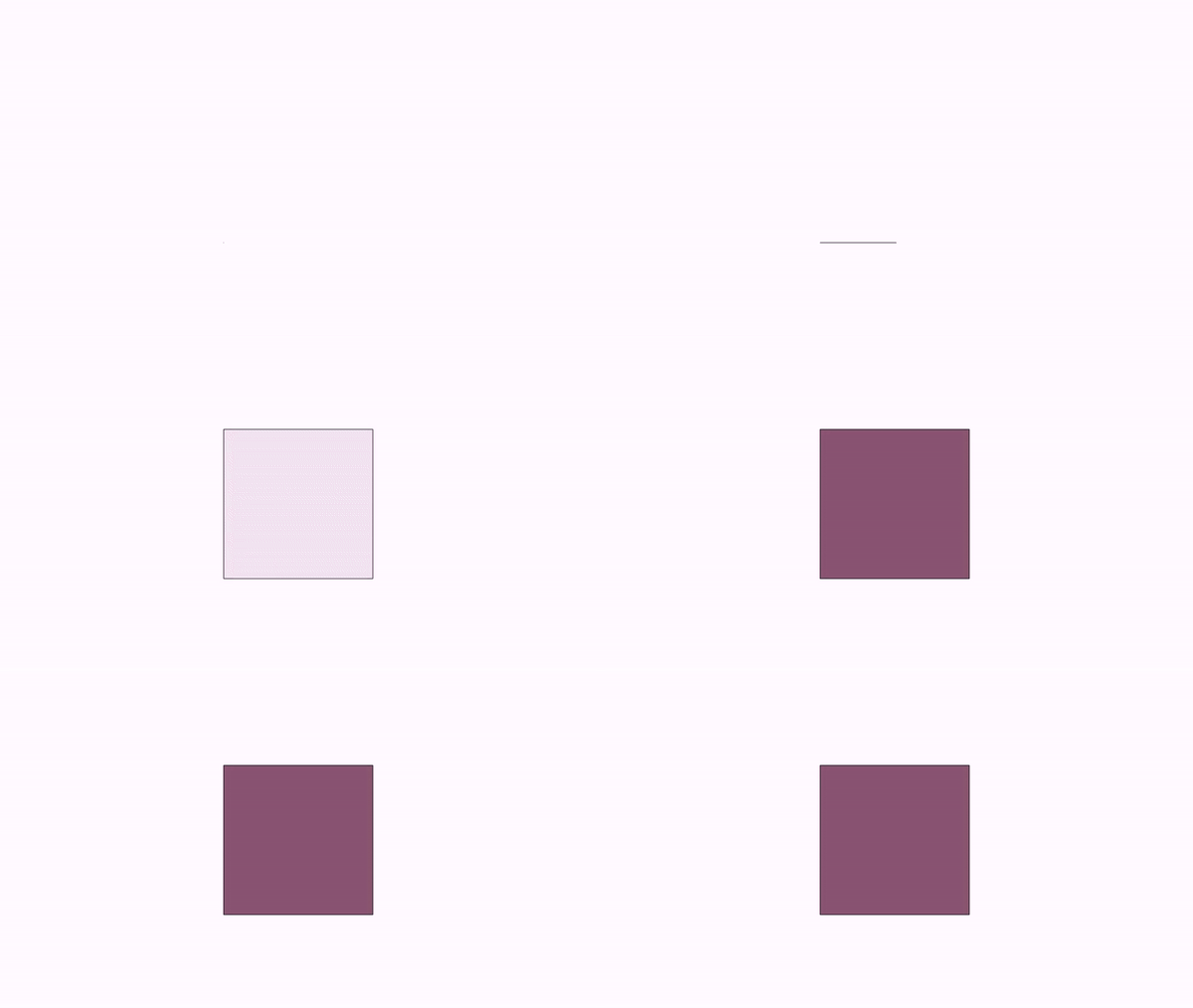
For a simple shape like this, the SIMPLE_SHAPE_CREATION strategy is used.
In plain Groovy:
play.showCreation(2, sq)(orplay.run(ShowCreation.make(2, sq))).
Example: Creating a Math Formula
When creating a MultiShapeObject (like a LaTeX formula), a small delay is added between each shape:
def text = LatexMathObject.make(r"$a^2+b^2=c^2$")
    .center().scale(3)

appear(obj: text, type: "draw", runtime: 2)
scene.waitSeconds(1)
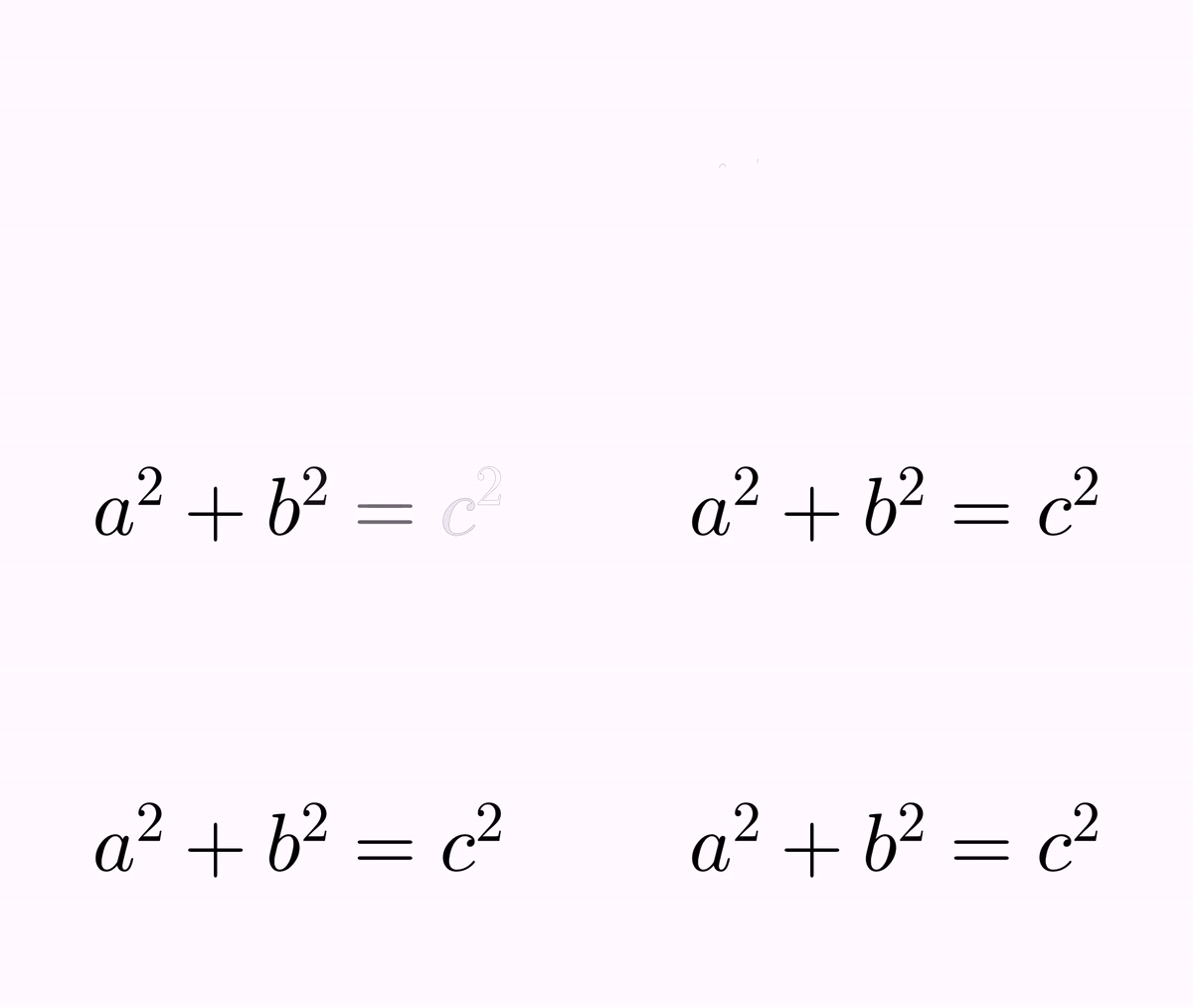
Tip: Try using a longer duration (10 seconds) to see the animation details: the contour is drawn first, then the glyphs are filled.
That stagger can be set with the common delay parameter, which replaces the default one of the strategy. It works for every object made of several parts: the glyphs of a formula or a text, the shapes of a multishape or SVG, and the elements of a group or a compound object:
appear(obj: text, type: "draw", runtime: 2, delay: 0.5)   // each glyph lasts 50% of the time
appear(obj: squares, runtime: 2, delay: 0.5)              // a group or compound, element by element
A delay: 0 is a value of its own, not the absence of the parameter: it cancels the default stagger, so every part is created at the same time. An object drawn in a single stroke, like the square above, has no parts to stagger, and a delay on it is reported and ignored.
Creation Strategies
Specific creation strategies exist for different object types: - Axes - Arrows - Delimiters - Simple shapes - Multi-shape objects
The Transform Animation
The Transform class smoothly transforms one Shape object into another. In the DSL it is the morph(...) command (its default type: "auto" picks the best strategy for you).
Basic Transform Example
def circle = Shape.circle()
    .shift(-1, 0).scale(.5)

def pentagon = Shape.regularPolygon(5)
    .shift(.5, -.5).style("solidblue")

morph(from: circle, to: pentagon, runtime: 3)
scene.waitSeconds(3)
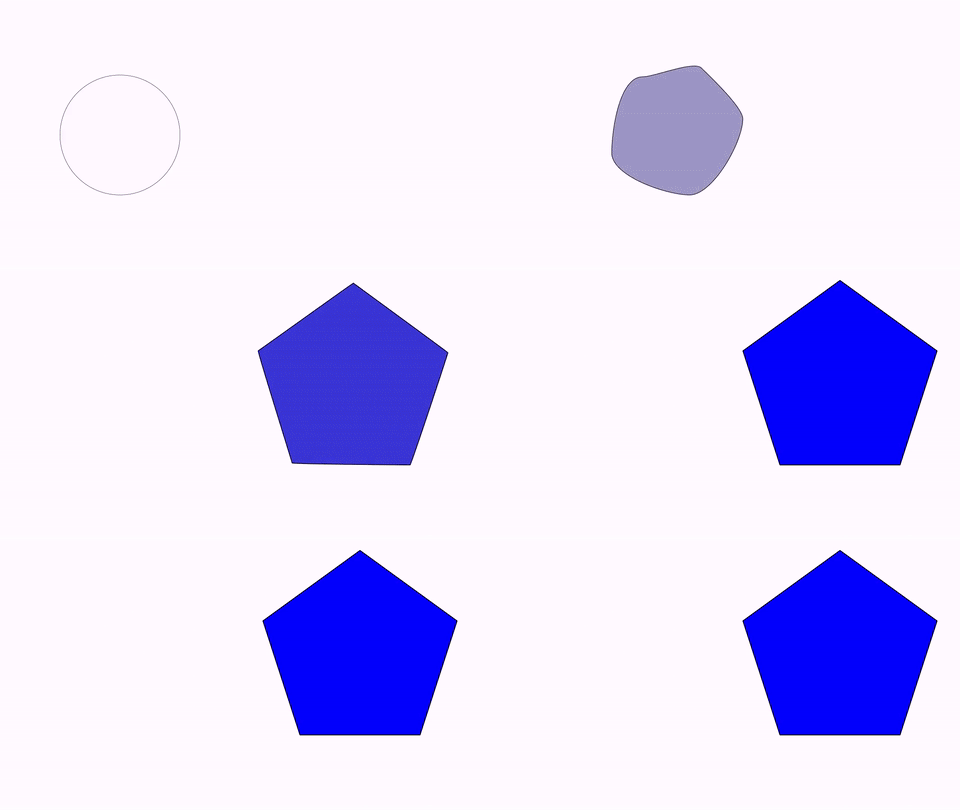
In plain Groovy:
morph(from: circle, to: pentagon, runtime: 3)isplay.transform(3, circle, pentagon).
Note: The transform animation also interpolates drawing parameters like thickness and color.
Important: When transformation from A to B is complete, A is removed from the scene and B is added. Use object B for any subsequent operations.
Understanding Transform Steps
This example shows intermediate transformation states:
def triangle = shape(
      type: "regularpolygon",
      sides: 3,
      style: [drawColor: 'red', fillColor: 'gold', thickness: 20],
      transform: [rotate: PI/6, scale: [.5, 1]]
)
def pentagon = shape(
      type: "regularpolygon",
      sides: 5,
      style: [drawColor: 'blue', fillColor: 'violet'],
      transform: [rotate: PI/4],
      stack: [to: triangle, destinyanchor: "right", gaps: 5],
)
// Create the transformation animation
def anim = Transform.make(2, triangle, pentagon)
anim.setLambda(t -> t)  // Constant velocity
anim.initialize()

for (t in linspace(0, 1, 6)) {//From 0 to 1 in 6 steps
    // Compute the animation at time t
    anim.doAnim(t)
    // Get the intermediate object
    def intermediate = anim.getIntermediateObject().copy()
    //// Add descriptive text below the intermediate object
    def lat = latex(
          text: "{\\tt t=$t}",
          stack: [to: intermediate, destinyanchor: "lower", relativegaps: .5],
    )
    // Add both elements to the scene
    scene.add(intermediate, lat)
}
// Ensure everything is visible
camera.adjustToObjects(triangle, pentagon)
// Save the result
scene.saveImage("intermediateSteps.png")
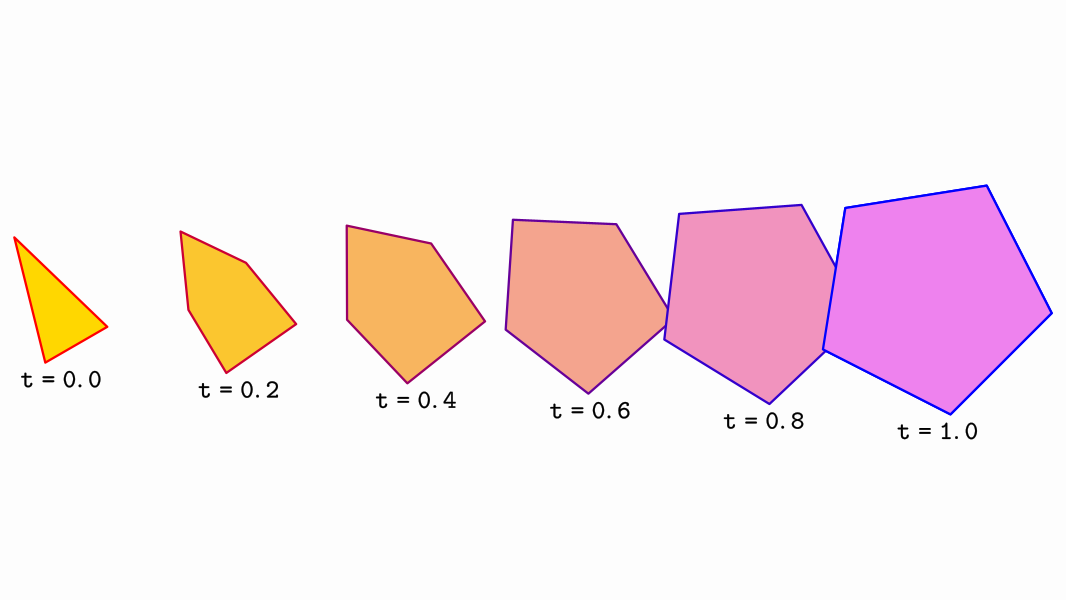
Transform Strategies
The transformation method depends on the source and destination object types. For example, when both shapes are regular polygons with the same number of sides, a similarity transform is used:
def pentagon = shape(type: "regularPolygon", sides: 5,
                     transform: [scale: 0.5, shift: [-1, -1]],
                     style: "solidOrange")

def pentagonDst = shape(type: "regularPolygon", sides: 5,
                        transform: [scale: 0.8, shift: [0.5, -0.5], rotate: 45*DEGREES],
                        style: "solidBlue")

morph(from: pentagon, to: pentagonDst, runtime: 3)
scene.waitSeconds(1)
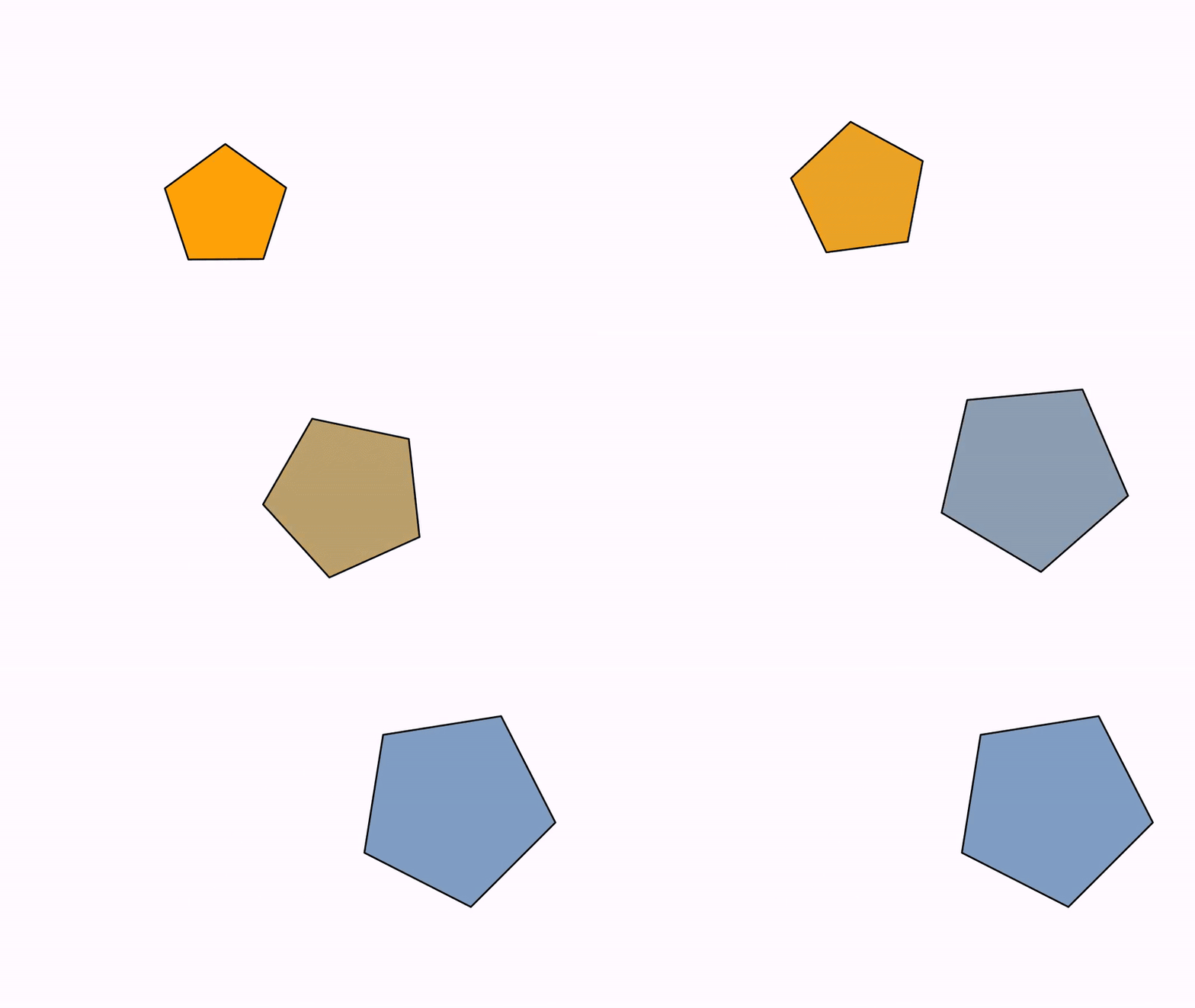
The similarity method ensures the object doesn't get distorted during transformation.
In plain Groovy:
morph(from: pentagon, to: pentagonDst, runtime: 3)isplay.run(Transform.make(3, pentagon, pentagonDst)).
Available Transform Strategies
You can force a specific strategy using .setTransformMethod(method):
Warning: Forcing an incompatible strategy may cause errors or prevent animation.
Currently implemented strategies:
-
INTERPOLATE_SIMPLE_SHAPES_BY_POINT- Point-by-point interpolation for simple shapes (single connected component like squares or circles). Allows path optimization for smoother animation. -
INTERPOLATE_POINT_BY_POINT- General interpolation converting shapes to canonical form. Works with multiple components (e.g., letter "B" has 3 components). -
SIMILARITY_TRANSFORM- Creates a direct similarity between shapes. The first two points of the source transform to the first two points of the destination. (The formerISOMORPHIC_TRANSFORMvalue still works but is deprecated; preferSIMILARITY_TRANSFORM.) -
ROTATE_AND_SCALEXY_TRANSFORM- Similar to a similarity but with non-uniform scaling. Used for rectangle-to-rectangle transforms to prevent distortion. -
FUNCTION_INTERPOLATION- Interpolates between function graphs, x-to-x. -
MULTISHAPE_TRANSFORM- For transforming MultiShape objects (like LaTeXMathObject). -
GENERAL_AFFINE_TRANSFORM- Like a similarity transform but accepts general affine transformations. First three points of source map to first three points of destination. -
ARROW_TRANSFORM- Specialized for transforming arrows, using a similarity transform while properly handling arrow heads.
Comparing Strategies
This example shows why the correct strategy matters:
def sq = Shape.square()
    .center().style("solidRed")

def sq2 = Shape.square()
    .scale(.25, 1).style("solidGreen")
    .rotate(45 * DEGREES)
    .moveTo(Point.at(1, 0))

// Forcing GENERAL_AFFINE_TRANSFORM (not ideal for rectangles)
def tr = Transform.make(10, sq, sq2)  // 10 seconds to see details
tr.setTransformMethod(Transform.TransformMethod.GENERAL_AFFINE_TRANSFORM)
play.run(tr)
scene.waitSeconds(3)
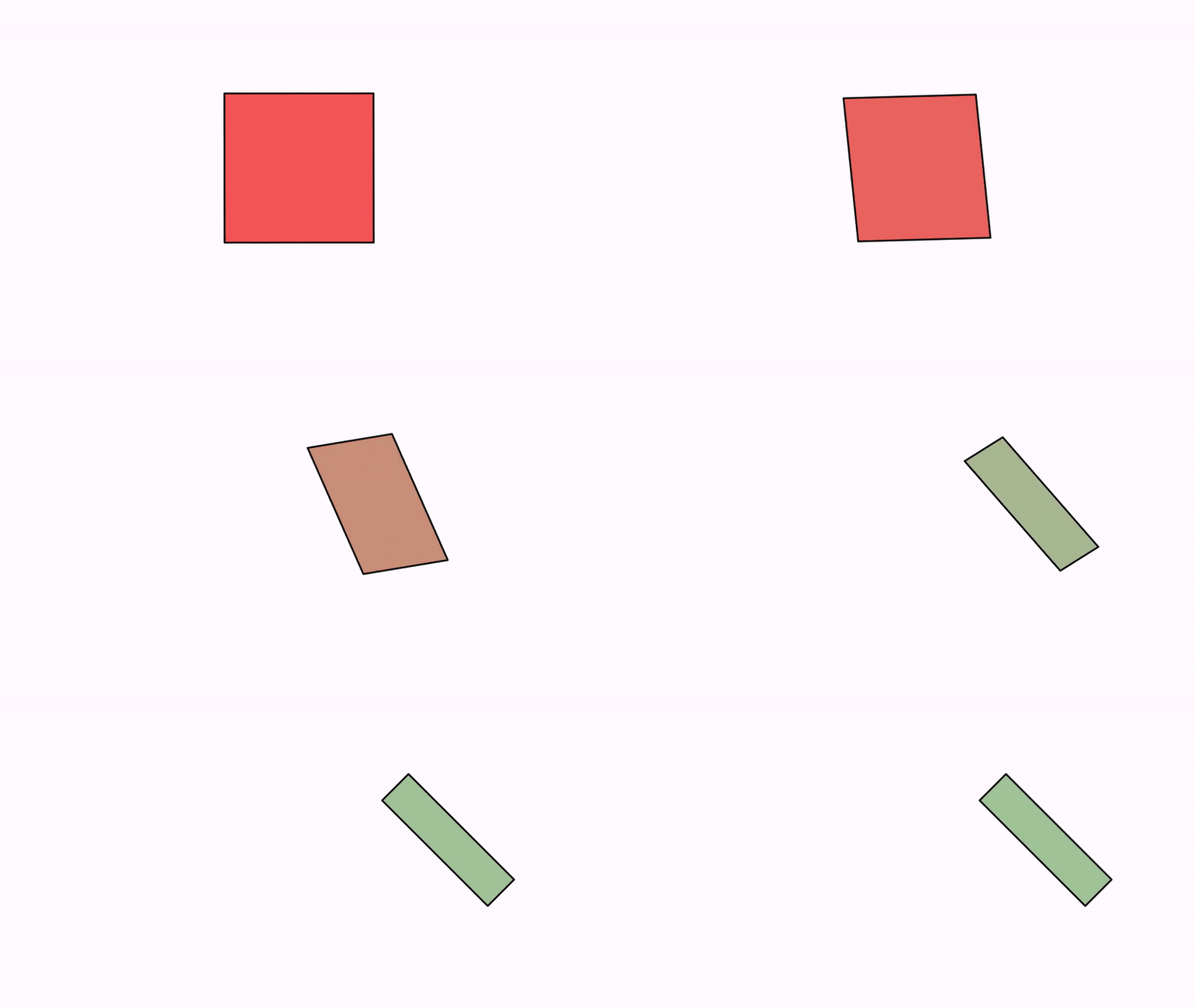
Notice the intermediate steps aren't natural rectangles. This is why ROTATE_AND_SCALEXY_TRANSFORM exists.
Best Practice: Let JMathAnim choose the strategy automatically by removing the setTransformMethod() call:
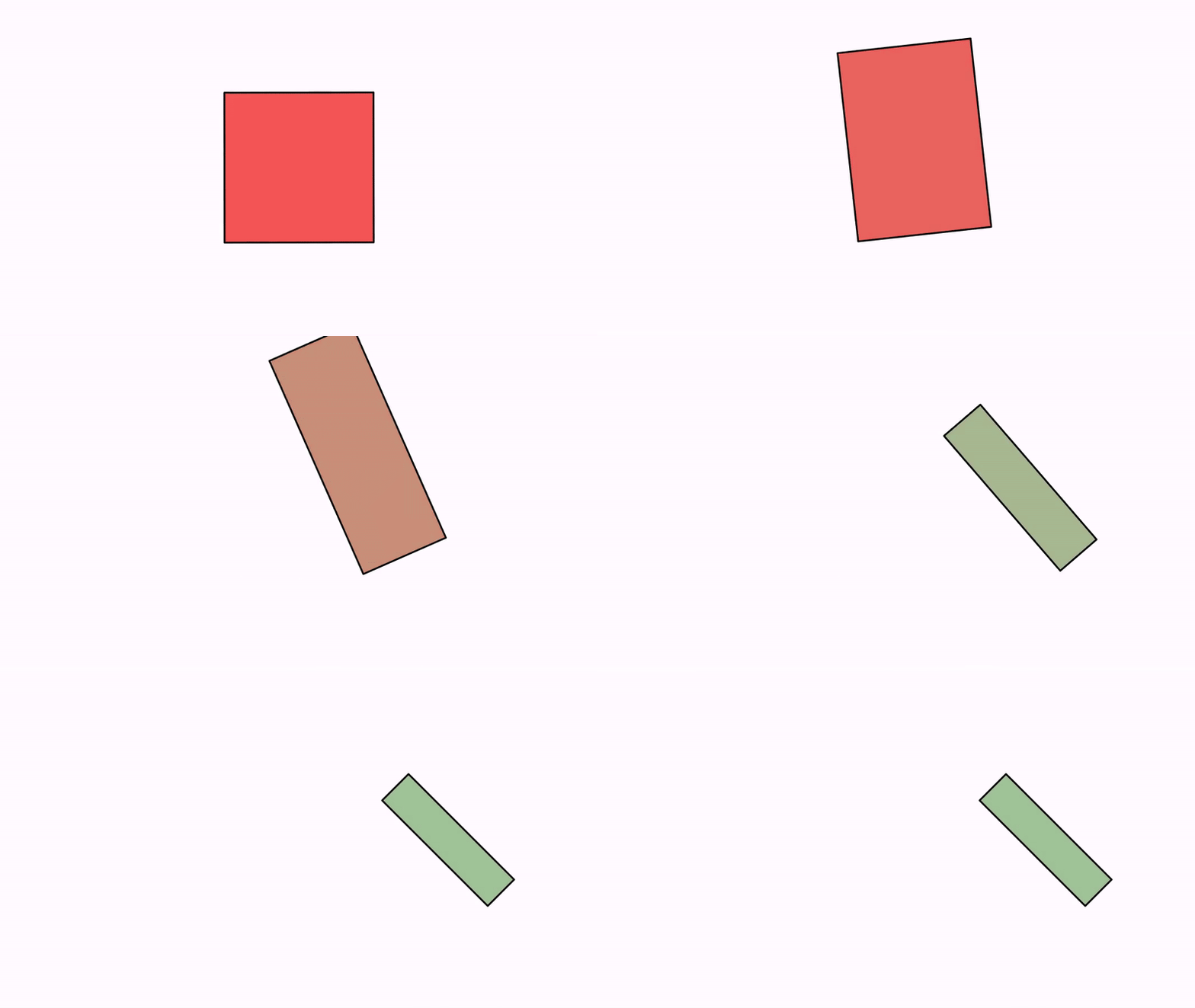
Flip Transforms
A simpler transformation that works with any MathObject is the flip, reached with morph(..., type: "flip"). It scales the first object to 0 (horizontally, vertically, or both) then scales the second one from 0 to 1, creating a flipping effect.
Flip Orientations
horizontal- Flip left-to-rightvertical- Flip top-to-bottomboth- Flip both directions
Example: Flipping Text
def text = LatexMathObject.make("JMathAnim")
def flips = ["horizontal", "vertical", "both"]

// Center all glyphs on screen
// Note: MultiShapeObject and subclasses are iterable
for (s in text) {
    s.center()
}

camera.zoomToObjects(text)

def previous = null
int index = 0

for (s in text) {
    if (previous != null) {
        morph(from: previous, to: s, type: "flip", orientation: flips[index], runtime: 2)
        index = (index + 1) % 3
    }
    previous = s
}
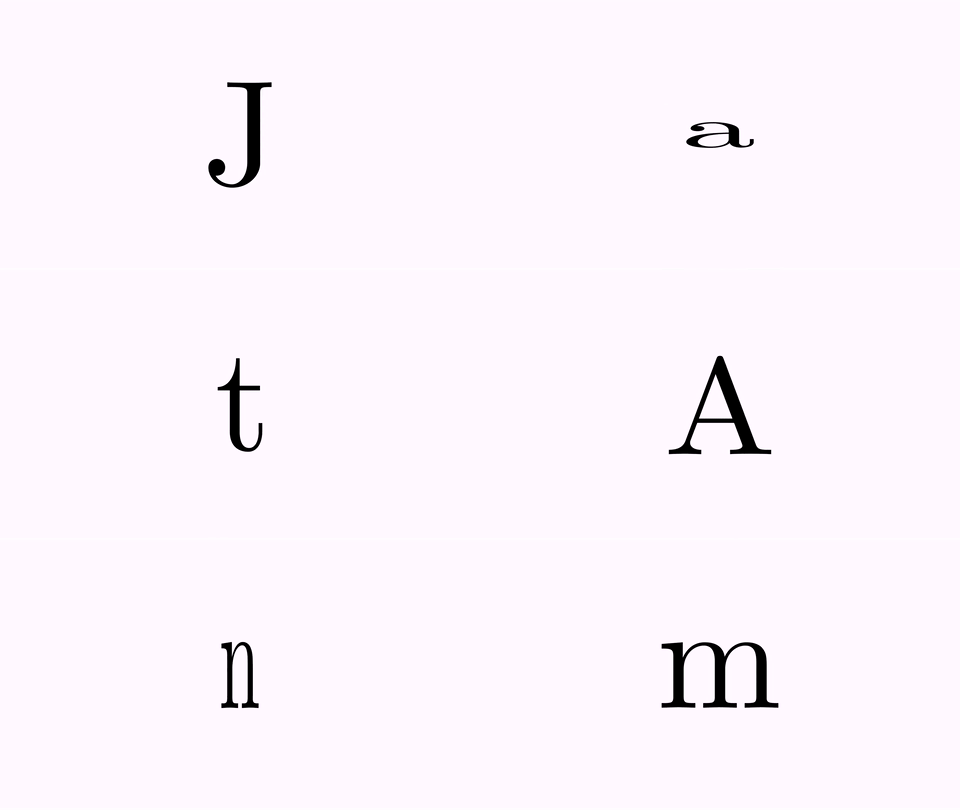
In plain Groovy:
morph(from: previous, to: s, type: "flip", orientation: "horizontal", runtime: 2)isplay.run(FlipTransform.make(2, OrientationType.HORIZONTAL, previous, s)).
Animating Style Changes
Beyond position and shape, you can animate visual properties (style) of objects.
The setColor Animation
Animates color changes. You can specify draw color, fill color, or both. Set to null to leave a color unchanged.
Example: Color Transitions
def circle = shape(
    type: "circle",
    style: [thickness: 8]
)

appear(
    runtime: 1,
    type: "showcreation",
    obj: circle
)

scene.waitSeconds(1)

// Animate fill color to violet (draw color unchanged)
animStyle(
    runtime: 2,
    obj: circle,
    style: [fillcolor: "violet"]
)


scene.waitSeconds(1)

// Animate to the "solidorange" style
animStyle(
    runtime: 2,
    obj: circle,
    style: "solidorange"
)

// Animate to a gradient fill and fixed draw color
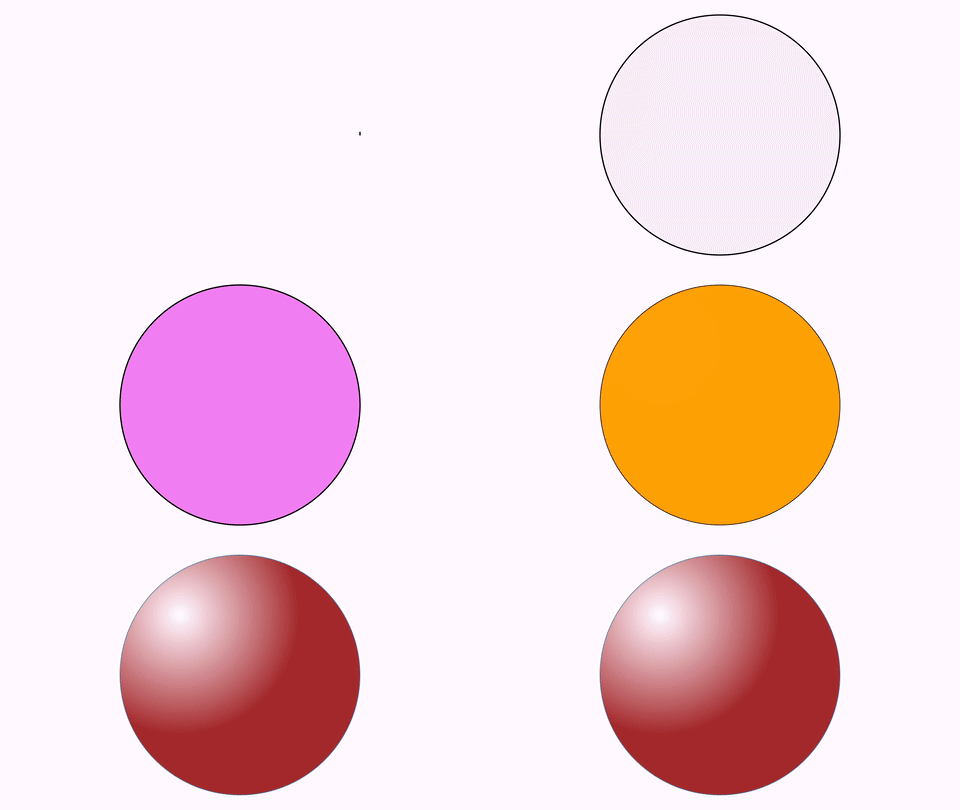
def gradient = radialGradient(
    center: [0.25, 0.75],
    radius: 0.5,
    0.0: "white",
    1.0: "brown"
)

animStyle(
    runtime: 2,
    obj: circle,
    style: [drawColor: "steelblue", fillColor: gradient]
)

scene.waitSeconds(3)
AffineTransform Related Animations
These animations provide animated versions of the affine transformations discussed in the transforming objects chapter.
Affine Transform
Animates a general affine transformation:
axes(//Create an add axes to the scene
      xRange: [-2, 2],
      yRange: [-2, 2],
      style: [thickness: 6, drawColor: 'darkblue', layer: 1]
)

//Create a grid but don't add it to the scene
def gridAux = grid(
      steps: [1, 1],
      divisions: [2, 2],
      center: [0, 0],
      addToScene: false
)
//Get the lines of the grid as a MathObjectGroup
//so we can transform them
def grid = gridAux.getMathObject()

// Create a "B" glyph
def bigB = latex(
      text: "B",
      transform: [height: 1, center: true],
      style: [name: "solidOrange", fillAlpha: .5],
)

// Define transformation points
def A = Point.at(0, 0).drawColor("blue")
def B = Point.at(1, 0).drawColor("blue")
def C = Point.at(0, 1).drawColor("blue")
def D = Point.at(0, .5).drawColor("red")
def E = Point.at(1, 0).drawColor("red")
def F = Point.at(1, 1).drawColor("red")

scene.add(A, B, C, D, E, F)

// Animate creation
appear(obj: [grid, bigB], type: "draw")
scene.waitSeconds(1)

// Animate the affine transform (A,B,C) → (D,E,F)
animAffine(
      type: "affine",
      runtime: 3,
      obj: [grid, bigB],
      from: [A, B, C],
      to: [D, E, F]
)
scene.waitSeconds(1)
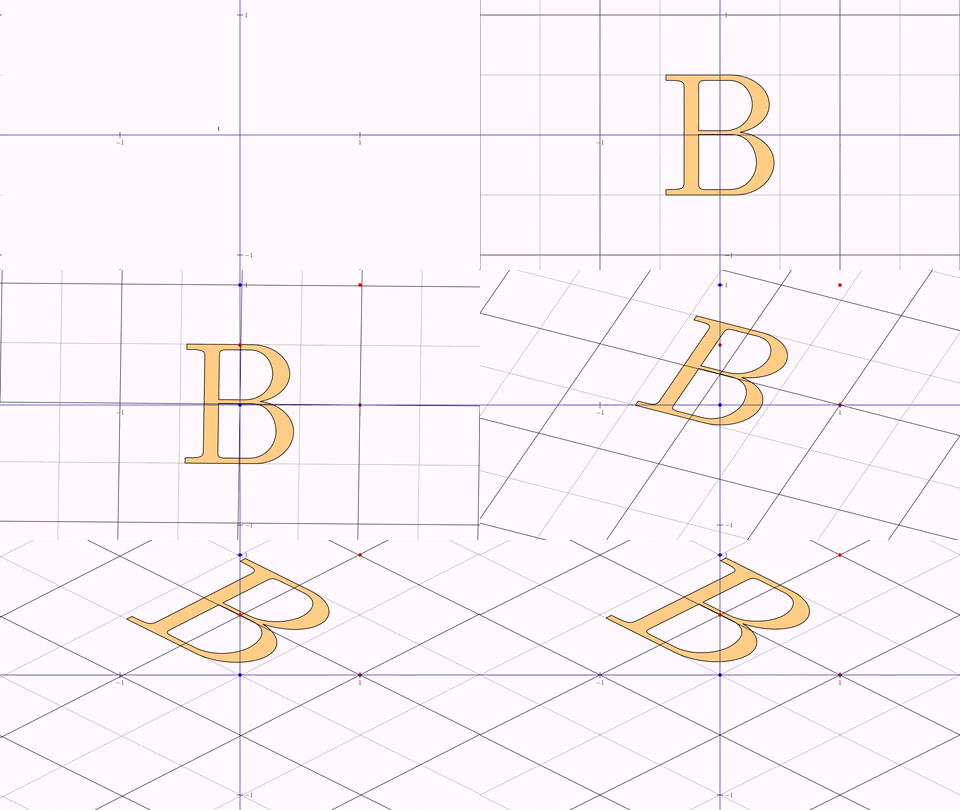
This animation interpolates element-by-element from the identity matrix to the transformation matrix. For special cases (reflection, similarity), JMathAnim uses optimized algorithms for better visual results.
Reflection
Animates a reflection that maps point A to point B:
axes(
      xRange: [-2, 2],
      yRange: [-2, 2],
      style: [thickness: 6, drawColor: 'darkblue', layer: 1]
)

//Create a grid but don't add it to the scene
def gridAux = grid(
      steps: [1, 1],
      divisions: [2, 2],
      center: [0, 0],
      addToScene: false
)
//Get the lines of the grid as a MathObjectGroup
def grid = gridAux.getMathObject()

// A pentagon
def reg = shape(
      type: "regularpolygon",
      sides: 5,
      transform: [center: true],
      style: [fillColor: 'steelblue']
)

// Text label
def text=latex(
    text: "Pentagon",
    transform: [center: true, height: .5],
    style: [name: "solidOrange",fillAlpha: .5, layer: 1],
)

// Origin and destination points for reflection
def A = reg.getPoint(0).drawColor("blue").copy()  // Copy of first vertex
def B = Point.at(1, .5).drawColor("red")

// Add everything to the scene
scene.add(A, B, grid, text)

// Define and play the reflection animation
animAffine(
    type: "reflection",
    runtime: 3,
    obj: [reg, text, grid],
    from: A,
    to: B
)
scene.waitSeconds(2)
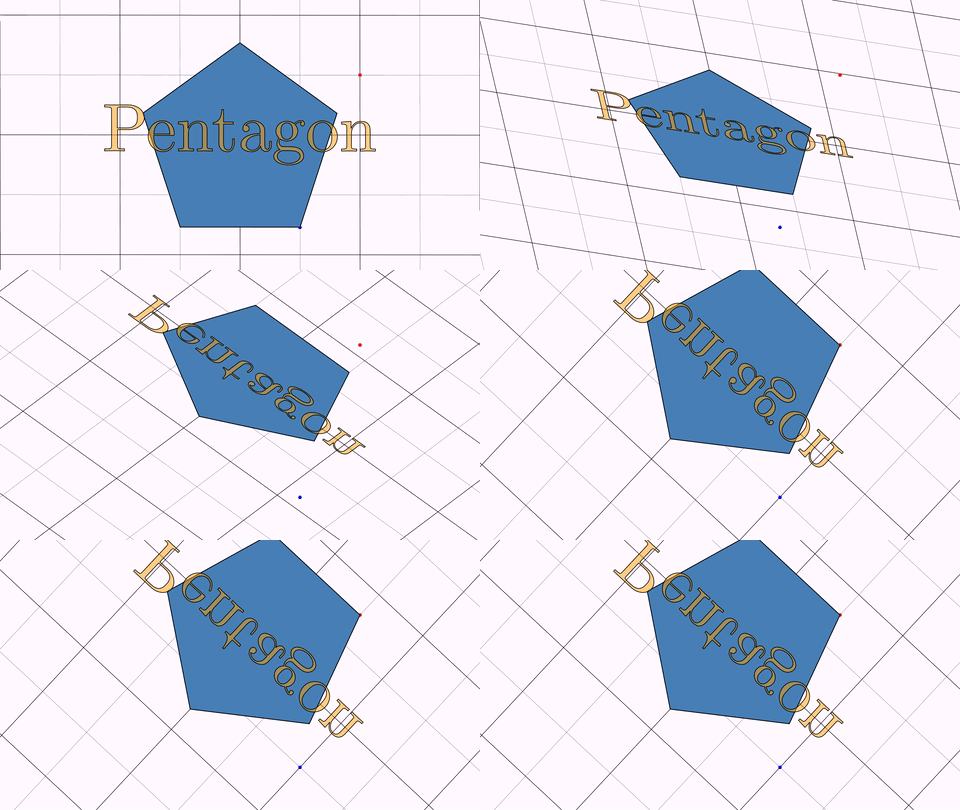
Note: Point A is also transformed since it's part of the shape.
Reflection by Axis
Animates a reflection with a specified axis:
def reg1=shape(
    type: "regularpolygon",
    sides: 6,
    style: "solidred",
    transform: [center: true]
)

def reg2 = reg1.copy()
    .style("solidorange")

scene.add(reg1, reg2)
camera.scale(2)

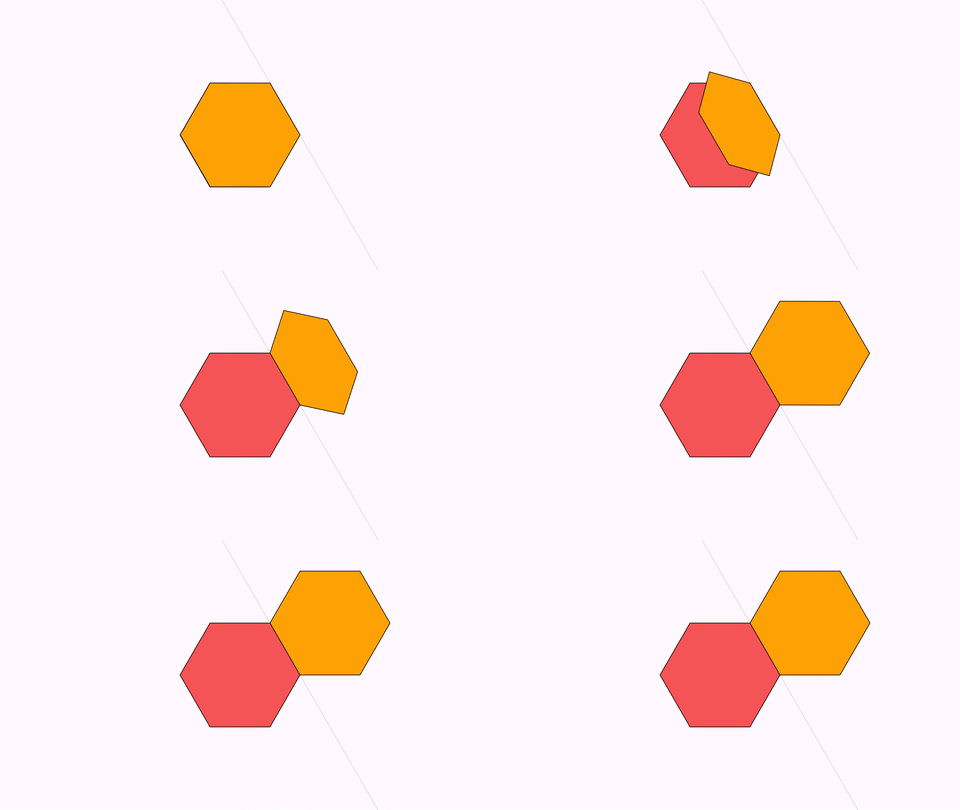
// Use an edge of the hexagon as the reflection axis
def A = reg1.getPoint(1)
def B = reg1.getPoint(2)
line(
    a: A,
    b: B,
    style: [dashstyle: "dotted"],
    addToScene: true
)
animAffine(
    type: "reflectionByAxis",
    runtime: 3,
    obj: reg2,
    axis: [A,B]
)
scene.waitSeconds(2)
Similarity
Direct Similarity
Animates the direct similarity mapping (A,B) → (C,D):
def A = Point.origin().drawColor("blue")
def B = Point.at(1, 0).drawColor("blue")
def C = Point.at(1, .2).drawColor("red")
def D = Point.at(1.8, .6).drawColor("red")

def triangle = shape(
      type: "polygon",
      points: [A.copy(), B.copy(), [0, .5]],
      style: "solidBlue"
)

scene.add(triangle, A, B, C, D)

animAffine(
      runtime: 3,
      type: "similarity",
      obj: triangle,
      from: [A, B],
      to: [C, D]
)
scene.waitSeconds(3)
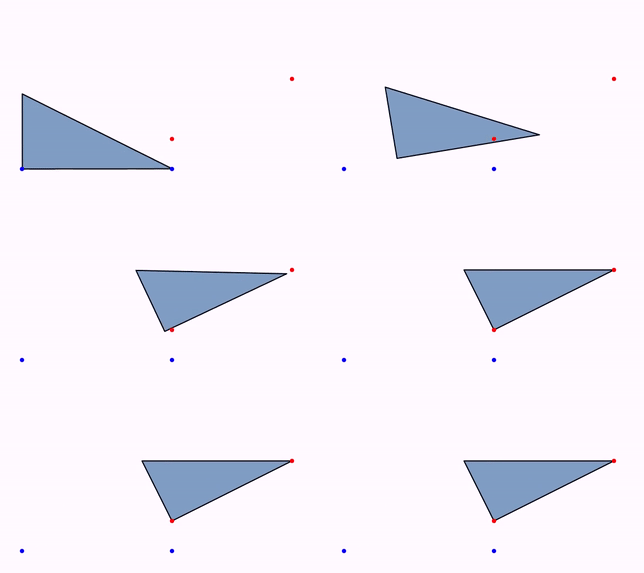
How it works: JMathAnim creates the similarity as a composition of shifting, rotating, and uniform scaling, preserving the shape's form (only size changes).
The former
Commands.isomorphism(...)method still works but is deprecated; preferCommands.similarity(...).
Inverse Similarity
Available since version 0.9.9, this includes a reflection:
// Same setup as above, but use inverseSimilarity
animAffine(
      runtime: 3,
      type: "inverseSimilarity",
      obj: triangle,
      from: [A, B],
      to: [C, D]
)
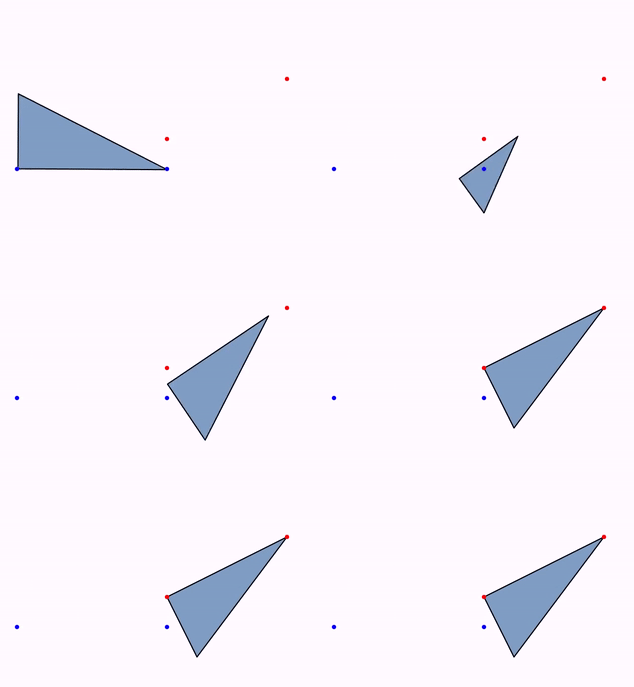
For the similarity and inverseSimilarity types, origin and destiny also accept a Rect, mapping one rectangle to the other. The gui editor has built autocomplete for most DSL commands. You can see a cheatsheet of DSL commands here
TwistTransform
Previous animations aimed for natural-looking intermediate steps when transforming object A into object B. However, when measurements must be preserved (like rectifying a circle arc), point-to-point interpolation won't work. That's why TwistTransform was created.
Purpose and Limitations
Available since version 0.9.12, TwistTransform creates "realistic transforms" that preserve measurements. It has specific requirements:
Requirements:
- Both A and B must be shapes with straight segments
- Both must have the same number of vertices
- Vertices must be properly "aligned" (vertex 0 of A goes to vertex 0 of B, etc.)
- Shapes should be open paths (closed shapes work, but intermediate steps may not appear closed)
Simple Example: Square to Segment
def sq = shape(
    type: "square",
    style: [drawColor: 'steelblue']
)

// Create a segment with 5 points (square has 5 points when opened)
// Same length as square sides
def seg = shape(
      type: "segment",
      from: [0, 0],
      to: [4, 0],
      numpoints: 5,
      style: [drawColor: 'firebrick']
)

camera.adjustToObjects(sq, seg)

// Twist transform: 5 seconds, from sq to seg, using point 0 as pivot
morph(
    type: "twist",
    runtime: 5,
    from: sq,
    to: seg,
    pivotal: 0
)
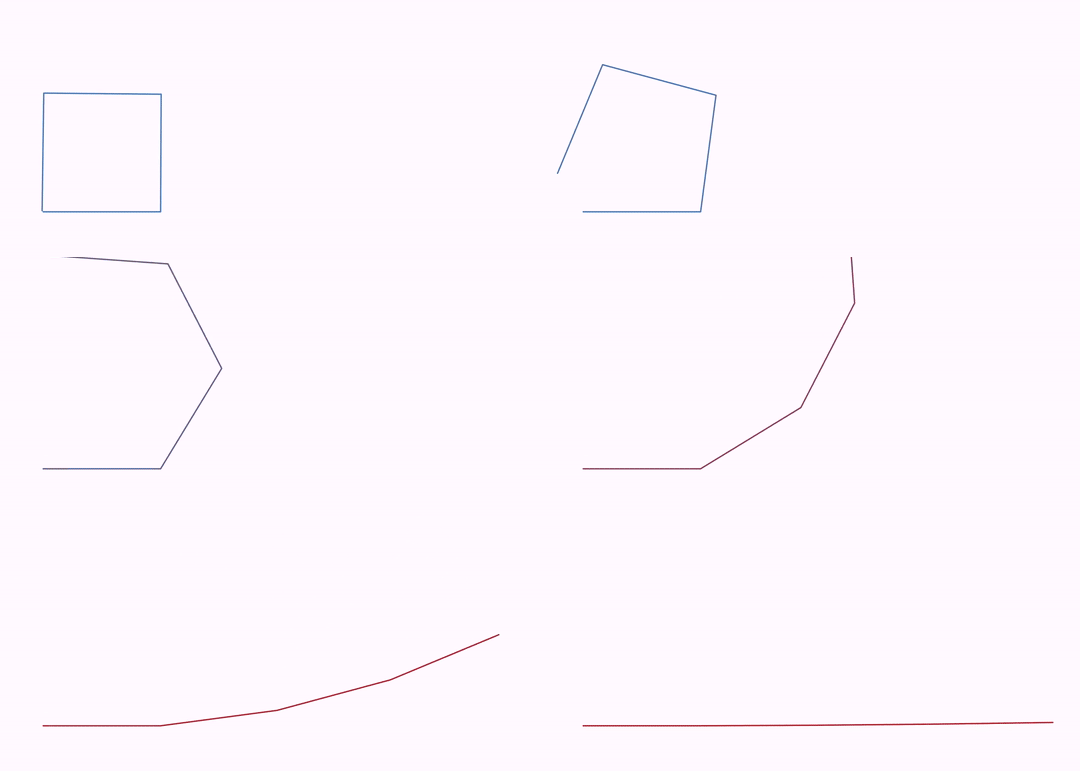
The square unfolds into a segment while preserving side lengths.
Understanding the Pivot Point
The pivot point parameter is crucial and produces different effects. The animation consists of:
- Shift - Moves the pivot point of source to the pivot point of destination
- Angle adjustment - Progressively modifies angles of segments from pivot point to match destination angles. Segments are lengthened/shortened as needed.
- Pre-pivot segments - Same process applied to segments before the pivot point
You can omit the pivot parameter; JMathAnim will use an approximation of the midpoint (size()/2).
Advanced: All three processes can be controlled with custom lambda functions.
Advanced Example: Rectifying a Semicircle
// Semicircle with 50 points (polygonal approximation, not Bézier curves)
def semiCirc = shape(
      type: "arc",
      angle: PI,
      numpoints: 50,
      style: [drawColor: 'steelblue'],
)
PathUtils.rectifyPath(semiCirc.getPath())  // Remove all curvature

// Create segment from (0,0) to (-PI,0)
// Note: (-PI,0) not (PI,0) so first point of segment matches arc's first point
// Using (PI,0) would make the arc "turn around" to match endpoints
def seg = shape(
      type: "segment",
      from: [0, 0],
      to: [-PI, 0],
      numpoints: 50,
      style: [drawColor: 'firebrick'],
      // Position segment below arc
      stack: [to: semiCirc,gaps: .25,destinyanchor: "lower"]
)

camera.centerAtObjects(semiCirc, seg)

morph(
    runtime: 5,
    type: "twist",
    from: semiCirc,
    to: seg
)
scene.waitSeconds(2)
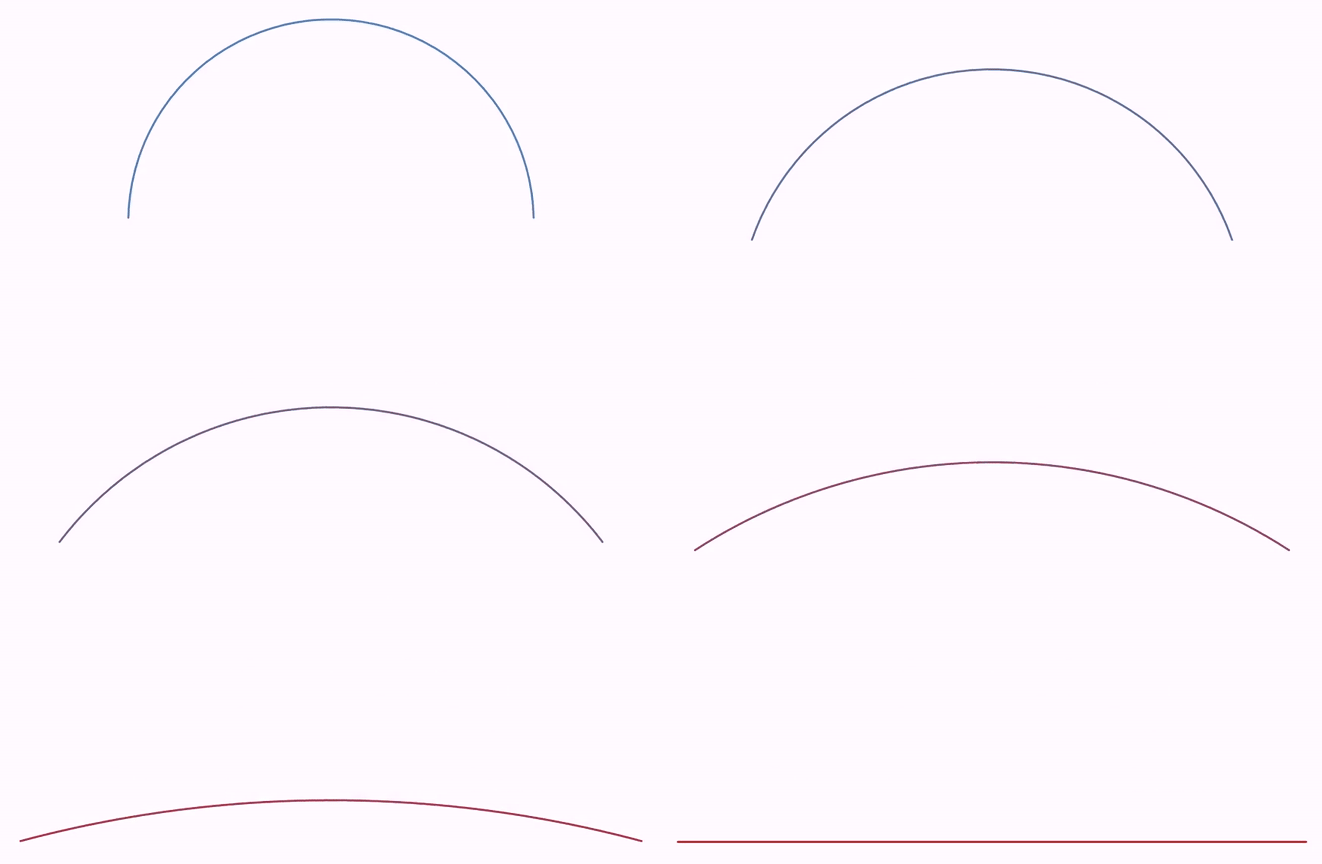
This demonstrates the classic geometric problem of arc rectification, showing how a curved arc can be "unrolled" into a straight segment while preserving its length.
Transforming Math Expressions
LaTeX math expressions support a specialized animation called TransformMathExpression that allows fine-tuning transformations between LatexMathObject instances. This is covered in detail in the mathematical formulas chapter.