Adding labels
If you teach math, you know a figure without labels is like a class list without names: technically complete, practically useless. This chapter gathers in one place all the ways to attach an "A", an "$x$" or a full LaTeX formula to your objects, from quickest to most refined.
As usual, every command shown here has a snippet in the editor (Alt+S, category Objects), so you can insert the skeleton and just fill in the blanks.
The quick way
The DSL builders shape(...) and point(...) accept a label: parameter. The simplest form is just a string:
def A = point(at: [1, 0], label: "$A$")
def sq = shape(type: "square", label: "x")   // LaTeX label at the midpoint of the perimeter
If you need more control, pass a map instead (or a list of maps for several labels):
shape(type: "square",
      label: [text: "x", t: 0.3, style: [drawColor: "blue"]])

shape(type: "square",
      label: [[text: "A", t: 0], [text: "B", t: 0.5]])   // two labels
The t parameter says where on the perimeter the label sits, as a fraction from 0 to 1: in a square, t: 0 is the first vertex, t: 0.125 the middle of the first side, and so on. Remember that autocomplete is your friend! Press ctrl+space inside the `label:[...] parameters list to see a list of available options with a short description.
Inline labels are internal to the object: they move, scale, appear and fade together with it, with zero maintenance on your part. For a triangle with labeled vertices this is all you will ever need.
Labels on corners
There is a catch with t when the label sits exactly on a corner: the placement direction is the normal of one of the two sides, so the label ends up pushed sideways along an edge instead of sitting neatly on the corner. You may be tempted to nudge it with values like t: -0.005. Don't. Use vertex: instead:
def sq=shape(type: "regularpolygon",
             sides: 3,
             label: [
                 [text: "A", vertex: 0],
                 [text: "B", vertex: 1],
                 [text: "C", vertex: 2],
                 [text: "AB", t: 1d/6,scale: .75],
                 [text: "BC", t: 1d/3+1d/6,scale: .75],
                 [text: "CA", t: 2d/3+1d/6,scale: .75],
             ],
             transform: [center: true])   //Center on screen

scene.add(sq)

scene.saveImage("labelVertex.png")
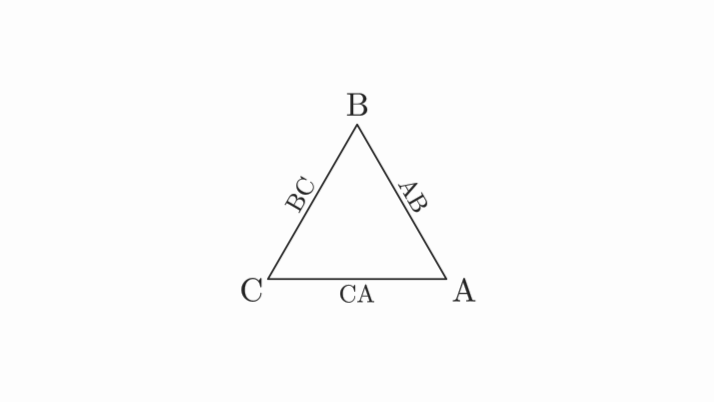
The vertex parameter (an alternative to t/location) anchors the label to the path point with that index and places it along the outward bisector of the corner: for a vertex $P$ with neighbors $Q$ and $R$, the direction is the sum of the unit vectors $\vec{QP}$ and $\vec{RP}$, so the label sits diagonally on the corner, exactly where you would write it on a blackboard. A few details worth knowing:
- Indices wrap circularly:
vertex: -1is the last vertex. - Vertex-anchored labels are never rotated along the path (like point labels), so there is no need to add
rotation: "fixed". - On the endpoint of an open path (a
polyLine, for instance) the label points away from the single neighboring vertex; on a vertex where both edges are collinear (not a real corner) it falls back to the usual normal direction. - It also works in the standalone
label(...)command:label(path: triangle, vertex: 1, text: "B").
Standalone labels. The label(...) command
Sometimes you want the label to live its own life: appear later than the figure, be highlighted on its own, or be removed independently. The standalone label(...) DSL creates a label attached to a path but managed separately:
def hexagon = Shape.regularPolygon(6).center().style("solidblue")

def sideLabel   = label(path: hexagon, t: 1.5 / 6, text: r"$a+b$")
def arrowTip    = label(path: hexagon, t: 0.5 / 6, type: "arrow2")
def equalMarks  = label(path: hexagon, t: 3.5 / 6, type: "equal2")

scene.add(hexagon, sideLabel)
play.fadeIn(arrowTip, equalMarks)   // labels can be animated on their own
As the example shows, a "label" doesn't have to be text: it can also be an arrowhead, equal-length tick marks, or any MathObject you pass with object:. Under the hood these are TippableObject and LabelTip instances; the Advanced: fully custom tips section at the end of this chapter has the full catalog of options (rotation behavior, slope direction, anchors...).
Labels on delimiters
Braces and brackets have their own labeling system, because the label should sit at the tip and survive the delimiter stretching:
def delim = delimiter(
    from: sq.getPoint(2),
    to:   sq.getPoint(1),
    type: "brace",
    gap:  0.05,
    label: r"$x$"
)
There is even addLengthLabelTip("0.00") to display the current length of the delimiter, automatically updated every frame (very satisfying when the object is being scaled). See the Delimiter section for details.
Labels that follow a moving point
For geometric constructions where points get dragged around, CTLatex (the constructible cousin of LatexMathObject) stays permanently stacked to its anchor point:
def A = CTPoint.at(0.3, 0).drawColor("blue")
scene.add(A, ctLatex(anchor: A, text: r"$A$"))
play.shift(2, 0, -0.5, A)   // the label follows without complaints
More on this in the Constructible objects chapter.
Labels on constructible objects
The ct... builders accept the very same inline label:, and place it on the object they draw: on
the dot for a point, along the path for a line, a segment, a circle or a conic.
def A = ctPoint(at: [0, 0], label: r"$A$")
def B = ctPoint(at: [2, 0], label: r"$B$")
def s = ctSegment(a: A, b: B, label: [text: r"$c$", t: 0.5])
def c = ctCircle(center: A, through: B, label: [text: r"$\Gamma$", t: 0.25])
Being internal objects, these labels follow the construction: move a defining point and every label
of every object depending on it is placed again, with no updaters of your own. ctLatex(...) is the
exception and needs no label, as it already is a LaTeX object stacked to its anchor.
Advanced: fully custom tips
Everything above is the friendly, everyday face of a single underlying mechanism: the TippableObject. A tippable object marks a specific point along a path (given as a fraction of its perimeter) and places something there (a symbol, a piece of text, an arrowhead, or an arbitrary MathObject). The label(...) DSL you have been using is just the comfortable front door to it; when you need total control (exact rotation, which side of the curve, custom anchoring), you can reach for the class directly. LabelTip is the specialized subclass for LaTeX labels.
This example puts six different tips around a hexagon and then rotates it, so you can watch how each one behaves:
def hexagon = Shape.regularPolygon(6).center().style("solidblue")

// Arrow head at midpoint of one side
def tip1 = TippableObject.arrowHead(hexagon, 0.5 / 6, ArrowType.ARROW2)
        .setSlopeDirection(SlopeDirectionType.POSITIVE)
        .layer(1)

// Rotating LaTeX label
def tip2 = LabelTip.make(hexagon, 1.5 / 6, r"$a+b$",false)
        .color("darkslateblue")
        .layer(1)

// Non-rotating LaTeX label
def tip3 = LabelTip.make(hexagon, 2.5 / 6, r"$x$",false)
        .setRotationType(RotationType.FIXED)
        .color("firebrick")
        .layer(1)

// Equal length marks (2 marks)
def tip4 = TippableObject.equalLengthTip(hexagon, 3.5 / 6, 2)
        .layer(1)

// Custom shape tip aligned with contour
def tip5 = TippableObject.make(
        hexagon, 4.5 / 6,
        SlopeDirectionType.POSITIVE,
        Shape.circle().scale(0.05).style("solidOrange")
).layer(1)

// Custom shape tip aligned away from contour
def tip6 = TippableObject.make(
        hexagon, 5.5 / 6,
        SlopeDirectionType.POSITIVE,
        Shape.square().scale(0.1).style("solidRed")
)
tip6.setAnchor(AnchorType.LEFT).layer(1)
scene.add(hexagon)

play.moveIn(3,ScreenAnchor.CENTER, tip1, tip2, tip3, tip4, tip5, tip6)
play.rotate(5, PI, hexagon)
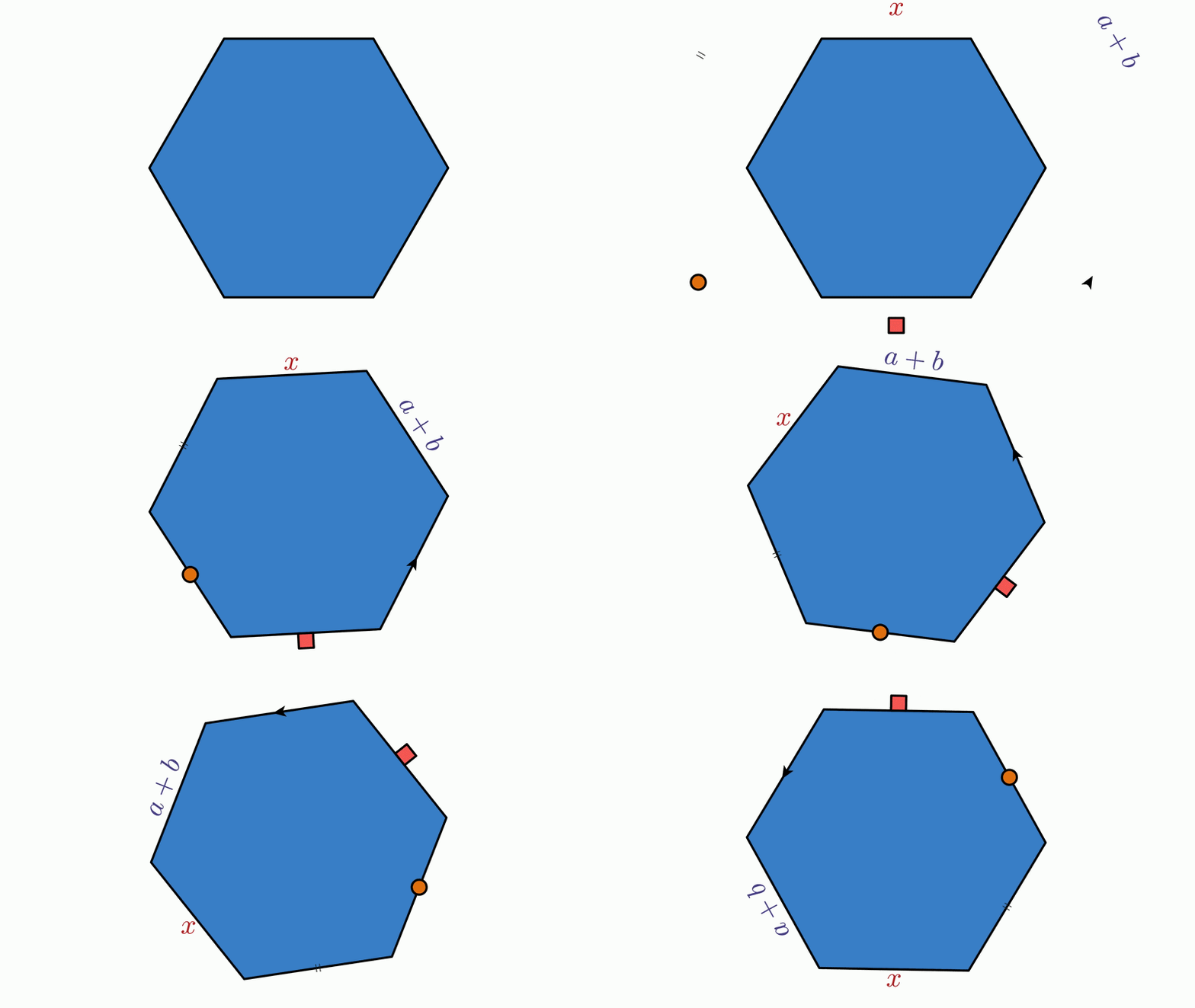
The same six tips can be built with the label(...) DSL (the recommended way unless you need a method that only the class exposes). Pass exactly one of text (a LaTeX label), type (an arrowhead or equal marks) or object (any MathObject as the tip):
def tip1 = label(path: hexagon, t: 0.5 / 6, type: "arrow2", slopeDirection: "positive").layer(1)
def tip2 = label(path: hexagon, t: 1.5 / 6, text: r"$a+b$", style: [color: "darkslateblue"]).layer(1)
def tip4 = label(path: hexagon, t: 3.5 / 6, type: "equal2").layer(1)
def tip5 = label(path: hexagon, t: 4.5 / 6, object: shape(type: "circle", transform: [scale: 0.05], style: "solidOrange")).layer(1)
Understanding the position parameter:
- The position is a fraction of the shape's perimeter.
- 0.5 / 6 means "halfway along the first side" of a 6-sided shape.
- 1.5 / 6 means "halfway along the second side", and so on.
- Positions wrap around (circular indexing), so 6.5 / 6 is the same as 0.5 / 6.
Slope direction decides which side of the curve the tip sits on:
- POSITIVE: the tip points to the left of the contour direction.
- NEGATIVE: the tip points to the right of the contour direction.
Which one should I use?
| Situation | Use |
|---|---|
| Vertices/sides of a figure, label always visible | Inline label: in the DSL builder |
| Label with its own animations (fade in later, highlight...) | Standalone label(...) |
| Label on a brace/bracket, possibly showing its length | delimiter(..., label: ...) / addLengthLabelTip |
| Vertices/sides of a construction (points, lines, circles) | Inline label: in the ct... builder |
| Label following a point in a dynamic construction | ctLatex(anchor: ...) |
| Text placed freely on screen (titles, comments) | Plain latex(...) + stack() (see Math formulas) |