A Groovy survival kit
JMathAnim scripts are written in a language called (ominious music...) Groovy. Don't panic: you don't need to "learn programming" to make great animations. Well at least in a deep way. You need about a dozen ideas, and this chapter contains all of them. Think of it as the phrasebook you take on a trip abroad: enough to order coffee, buy train tickets, and animate a pentagon.
Two pieces of good news before we start:
- A script is just a list of instructions executed from top to bottom, like a recipe. No hidden magic.
- The editor writes half of the code for you. Whenever there is an easier, point-and-click way to do something, we will tell you. Keep an eye out for the "Let the editor do it" boxes.
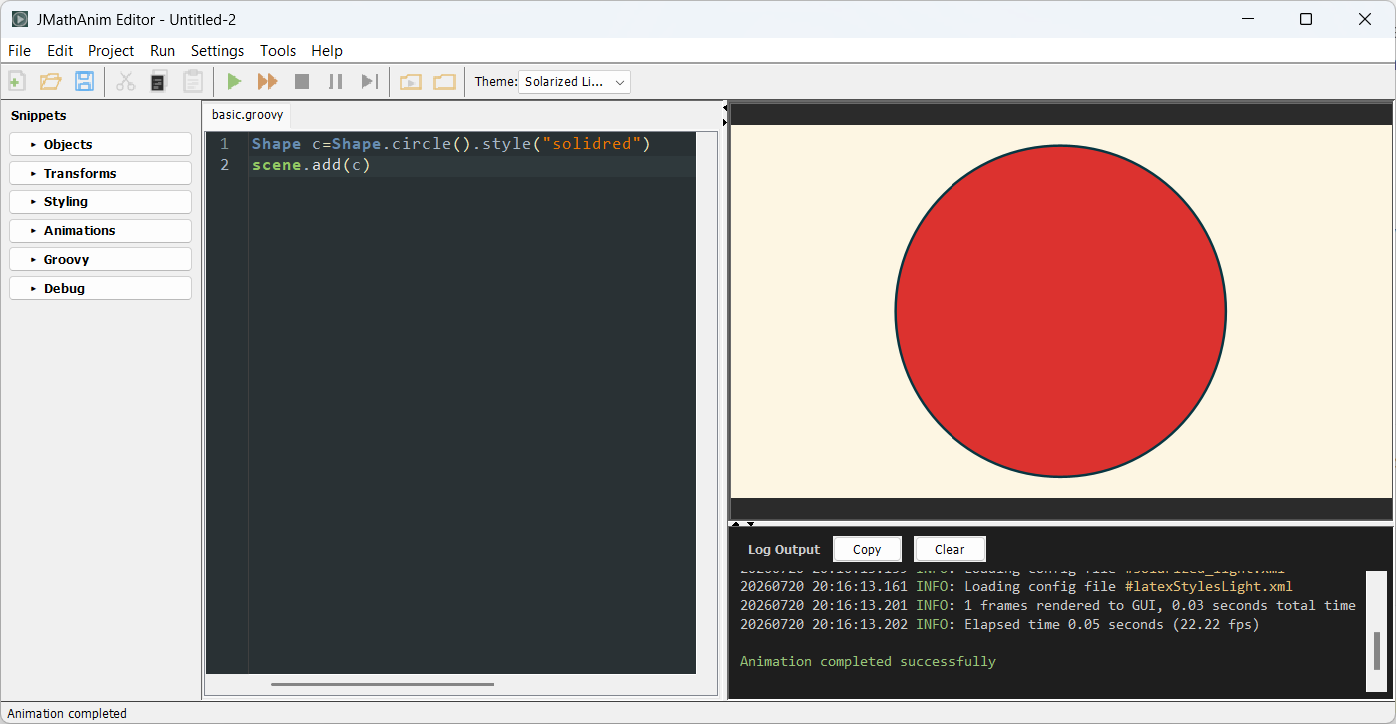
Anything after // on a line is ignored by JMathAnim. Use it generously; the person most likely to read your script in 6 months is you!
// This defines a unit circle (ignore me, I'm just a comment)
def c = Shape.circle()
Variables: giving names to your objects
If you plan to do anything with an object (move it, color it, animate it), you need a way to refer to it later. That's what a variable is: a name tag. In Groovy you create one with def:
def c = Shape.circle()   // "c" is now our circle
def teacher = "Emmy"     // variables can hold text too
def sides = 5            // ...or numbers
def f={x -> x*x}         // ...or even functions!
Names are case-sensitive (circle1 and Circle1 are different things), can't contain spaces, and can't start with a digit. Choose descriptive names: hypotenuse beats h2x every single time.
Numbers, PI and DEGREES
Numbers work as you would expect, with +, -, *, / and parentheses. Decimals use a point: 0.5 (you can even write it as .5, and you will see that a lot in this manual).
Two constants you will use constantly:
PIis π. A full turn is2*PI, the constantHALFPI=π/2 is also defined.- Angles in JMathAnim are measured in radians. If radians make your students cry, just write
45*DEGREESand the conversion is done for you.
def sq = Shape.square().rotate(45*DEGREES) // no tears were shed
For anything fancier there is the Math toolbox: Math.sin(x), Math.cos(x), Math.sqrt(x), Math.random() (a random number between 0 and 1), etc. You can check the Apache Commons Math library for a full reference of all its methods.
Text (strings) and the special r"..." strings
Text goes between quotes, single or double, your choice:
def color1 = "steelblue"
def color2 = 'tomato'
LaTeX code is a special case: it is full of \ and $ symbols, which Groovy normally tries to interpret. To avoid a fencing match of backslashes, JMathAnim adds raw strings: put an r before the quotes and everything inside is taken literally:
def t = LatexMathObject.make(r"$e^{i\pi}+1=0$") // clean and readable
Triple quotes r'''...''' allow multi-line LaTeX code, handy for long formulas.
When you need a whole batch of small formulas, put the r before the bracket instead of repeating it on every string. Everything inside becomes raw, nested lists and maps included:
def labels = r["$a$", "$b$", "$\alpha$"]
def names  = r[first: "$x_1$", rest: ["$x_2$", "$x_3$"]]
This form asks for two elements at least, since r["key"] could also be reading the entry of a map called r. For a single formula the prefix goes on the string, where it belongs: [r"$\pi$"].
Let the editor do it: you rarely need to type LaTeX blind. Place the cursor inside a LaTeX string and open Tools → LaTeX Editor... (
Ctrl+Shift+L): you get a live preview while you type, automatically or pressingalt+C, and the Insert Code button (alt+I) puts the corrected string back into your script, both in Groovy and DSL syntax.
Calling methods
Objects know how to do things, and you ask them with a dot: object.method(arguments).
def c = Shape.circle()
c.fillColor("tomato")   // "hey circle, fill yourself with tomato (color, not sauce)"
c.scale(0.5)            // "now shrink to half size"
c.shift(1, 0)           // "and move one unit to the right"
Most methods politely return the same object, so you can chain calls with dots and read them like a sentence:
def c = Shape.circle().fillColor("tomato").scale(0.5).shift(1, 0)
You can split a long chain across lines (start the new line with the dot) to keep things readable:
def c = Shape.circle()
    .fillColor("tomato")
    .scale(0.5)
    .shift(1, 0)
Both forms are identical. Choose whichever your eyes prefer.
Getters without the get: a Groovy shortcut
Many methods just read a property of an object, and by Java tradition their names start with get: getCenter(), getWidth(), getMathView()... Groovy lets you drop the get and the parentheses and access them as if they were plain properties (just lowercase the first letter after get):
def view = camera.getMathView()   // the classic way (perfectly valid)
def view = camera.mathView        // the Groovy shortcut (exactly the same thing)

// It also works in chains:
def corner = obj.getBoundingBox().getUpperLeft()
def corner = obj.boundingBox.upperLeft            // same result, fewer parentheses

def w = circle.getWidth()
def w = circle.width                              // you get the idea
Both spellings are 100% interchangeable, so use whichever you find more readable. And when the
class has the matching setXxx(), the same short form also writes:
sq.width = 2                  // calls setWidth(2), scaling the shape
loc.numPoints = 200           // calls setNumPoints(200)
If you cannot remember the name, do not look it up: type the dot and press Ctrl+Shift+G in the
editor. The method search lists what that object accepts and writes the chosen call at the caret,
already in the short form when there is one.
Writing a position, not only reading it
The anchor points of an object can also be assigned, and the object moves so that the anchor
lands where you say. The right-hand side takes any of the forms the DSL accepts for a point:
[x, y], [x, y, z], a Vec, a Point, or the "random" keyword.
c.upper = [0, 1]              // shifts c until the top of its bounding box is at (0,1)
c.center = Vec.to(0, 0)       // same as c.moveTo([0, 0])
c.lowerRight = someOtherPoint
camera.center = [1, 0]
The whole family is available: center, upper, lower, left, right, upperLeft,
upperRight, lowerLeft, lowerRight, zTop and zBottom, mirroring the getters above.
The methods moveTo, shift and setToAnchor("upper", [0, 1]) take the same coordinate forms.
Lists
Square brackets create a list. You will meet them when a command expects coordinates or several values:
def coords = [1, 2]        // a list with 2 numbers, often used as a point (1,2)
def levels = [0.5, 1, 1.5] // three levels for a contour plot
Ranges are a lovely shortcut for consecutive numbers: 0..5 means the range 0, 1, 2, 3, 4, 5 (and 0..<5 stops at 4). You will occasionally see *0..5 in this manual, which "unpacks" the range as if you had typed 0, 1, 2, 3, 4, 5 by hand. Groovy magic.
Maps and the DSL format
A map is a list of labeled values, written as name: value pairs. This is exactly the syntax used by the JMathAnim DSL commands you have seen in the editor chapter:
def s = shape(
    type: "circle",                          // parameter "type", value "circle"
    style: [fillColor: "tomato"],            // a map inside a map!
    transform: [scale: 0.5, shift: [1, 0]],
)
The nice thing about maps: parameters have names, so the code documents itself, order doesn't matter, and you only write the ones you need. JMathAnim will set reasonable default values for the omitted ones.
Let the editor do it: you don't need to memorize any DSL parameter. Press
Alt+S(or browse the snippets sidebar) to insert a ready-made DSL block, and pressCtrl+Spaceinside the block to see and add the available parameters. You can also autocomplete values for certain parameters (for example, it will show the available options in the type parameter of the DSL shape block). The DSL cheatsheet lists everything in one place.
Operator shortcuts
JMathAnim teaches Groovy a few extra tricks so that common operations read like plain math. None of these are required (there is always a longhand method that does the same), but they make scripts shorter and clearer. Here is the whole toolbox.
Lists as vectors. Anywhere a Vec is expected you can write a plain list of 2 or 3 numbers, and you can convert one explicitly with as Vec:
def v = [1, 2] as Vec        // same as Vec.to(1, 2)
def w = [1, 2, 3] as Vec     // 3D vector (yes, someday, maybe, a 3D version of JMathAnim will raise...)
Scaling a list. A number times a list scales every element, and dividing does the same. The result is a plain list, so it still works anywhere a vector is expected, and it is not limited to 2 or 3 elements:
def half = 0.5 * [1, 3]      // [0.5, 1.5]
def back = [1, 3] / 2        // [0.5, 1.5]
def p = point(at: 0.5 * [1, 3])
Note that + between lists is still Groovy's own concatenation ([1, 2] + [3, 4] is [1, 2, 3, 4], and the DSL relies on it to join lists of objects). If you want to add two vectors, work with Vec: ([1, 3] as Vec) + [1, 0].
Cartesian product of two lists. Multiplying two lists gives every pair, with the first list as the outer one. Handy for grids, replacing a pair of nested loops:
def pairs = [1, 2] * [3, 5]           // [[1,3], [1,5], [2,3], [2,5]]

def dot = point()                     // prototype at the origin
scene << ((0..<5) * (0..<4)).collect { dot + it }   // 20 points, one per pair
Each pair is itself a [i, j] list, so it can be fed straight to the shifting + of the previous section. Groovy also has [list1, list2].combinations(), which does the same for any number of lists but varies the first one fastest.
Vector arithmetic. Vec objects (and lists standing in for them) understand the usual operators. Multiplication and division by a Vec act component by component:
def a = Vec.to(1, 2)
def b = a + [1, 0]     // the same as def b=a.add(1,0)
def c = a - b          // vector difference, the same as b.to(a)
def d = 3 * a          // scale by a number (a * 3 also works). The same as a.copy().scale(3)
def e = a / 2          // -> (0.5, 1)
def f = -a             // opposite vector -> (-1, -2)
def g = a * b          // component-wise product (1*2,2*2)
def x = a[0]           // read a component: a[0]=a.x, a[1]=a.y, a[2]=a.z
def (x,y)=a           // equivalent to def x=a.x and def y=a.y
def list = a as List   // turn it back into a list [x, y, z]
Moving and scaling objects with +, -, *, /. Applied to a MathObject, these return a transformed copy and leave the original untouched (unlike .shift() / .scale(), which modify the object in place):
def v=Vec.to(1,.5)
def c = Shape.circle()
def right = c + v   // a copy shifted 1 units to the right and .5 units up; c is unchanged
def left  = c - [2, 0]   // a copy shifted to the left
def big   = c * 2        // a copy scaled by 2 (2 * c works too)
def small = c / 2        // a copy scaled by 1/2
Numbers and scalars are interchangeable. Wherever these operators expect a number, a scalar(...) (or any other measured value, like a distance or an angle) can be used instead, and the same goes for the shorthand calls shape(t), curve(t), polygon(t) and colorScale(t):
def t = scalar(.25)
def big  = c * t          // scale by the current value of t
def col  = cs(t)          // color of the scale at that position
def p    = curve(t)       // point of the curve at that parameter
The value is read at that very moment, so what you get is a snapshot, not a live link: if t changes later, big does not follow. To keep it linked, put the expression inside an always block or an updater.
Adding to the scene or a group with <<. The << operator is a compact add. It accepts a single object or a list, and returns the container so you can chain:
scene << circle                 // same as scene.add(circle)
scene << [circle, square, dot]  // add several at once, same as scene.add(circle, square, dot)
group << triangle               // add to a MathObjectGroup, same as group.add(triangle)
Indexing with []. Square brackets reach inside compound objects. On a group they return the n-th element; on a shape they return its n-th path point; on a constructible polygon or triangle, its n-th vertex; on a multi-shape object (a LatexMathObject, for example) the n-th subshape. A range returns a list, and a negative index counts from the end:
def first = group[0]        // the first element of a MathObjectGroup, same as group.get(0)
def last  = group[-1]       // the last one
def part  = group[0..2]     // a list with the first three elements
def named = group["title"]  // the element stored under that name, same as group.get("title")
def p = shape[2]            // the third JMPathPoint of a Shape, same as shape.get(2)
def some = shape[1..3]      // a list of JMPathPoints 1, 2 and 3
def glyph = formula[4]      // the fifth glyph of a LatexMathObject
def vertex = tri[0]         // the first vertex of a ctTriangle, same as tri.getVertex(0)
def knob  = slider["knob"]  // a named piece of any composite object
A String index also works on objects that are not groups: it returns the piece registered under that name, which is how the parts of a composite object (the marker of a slider, the ticks of an axes) are reached. obj.parts() lists the names available, and obj.parts(knob: [color: "red"]) styles them; see the Styling chapter for the whole parts: map.
Groups and multi-shape objects are also iterable, so all the usual Groovy collection methods work on them directly:
group.each { it.fillColor("orange") }
def centers = formula.collect { it.getCenter() }
Combining animations with + and >>. + plays animations at the same time (an AnimationGroup), >> plays them one after another (a Concatenate). Both accept a list on the right hand side:
play(shift(1, c1, [1, 0]), fadeIn(1, c2))       // simultaneously
play(shift(1, c1, [1, 0]) + fadeIn(1, c2))       // same as above
play(shift(1, c1, [1, 0]) >> fadeIn(1, c2))      // one after the other
play(anim1 >> [anim2, anim3])                    // chain a whole list
Mixing colors with * and +. Colors can be scaled by a number and added, so a weighted average is written just like in math (weights adding up to 1 give a plain interpolation):
def purple = .5 * JMColor.parse("red") + .5 * JMColor.parse("blue")
def soft   = .3 * JMColor.parse("black") + .7 * JMColor.parse("white")
Every component, alpha included, is scaled and added separately, and the result is clamped to the 0-1 range.
Collection aliases: map, filter, reduce, flatMap. Groovy names these collect, findAll, inject and collectMany; if you are used to the other names, both work:
def doubled = [1, 2, 3].map { it * 2 }        // same as .collect
def evens   = (1..10).filter { it % 2 == 0 }  // same as .findAll
def total   = [1, 2, 3].reduce { a, b -> a + b }   // same as .inject
Calling an object like a function. Some objects can be called with parentheses, as if they were the mathematical object they represent:
def p = shape(0.5)          // point at 50% of the path length, any shape or path
def level = contour(1.5)    // the contour line at height 1.5 of a ContourPlot
def q = curve(1.2)          // point of a ParametricCurve at its own parameter t = 1.2
def r = curve(t)            // the same, reading the value of a Scalar (see animScalar)
Watch the difference in the last two lines: for a ParametricCurve the number is its own parameter t, the one in the tRange you gave it, not a percentage of the path. So a curve defined with tRange: [0, PI] reaches its end at curve(PI), while curve(0.5) is still near the start. Taking a Scalar makes it read nicely inside an updater driven by animScalar:
def t = Scalar.make(0)
always(obj: P, dependsOn: t) { it.moveTo(curve(t)) }
animScalar(obj: t, from: 0, to: PI, runtime: 10, lambda: "linear")
Converting to a Shape with as Shape. Turns a shape-like object into a plain Shape; on a multi-shape object (like a LatexMathObject) it merges every subpath into a single connected Shape:
def s = someShape as Shape          // as a plain Shape
def merged = formula as Shape       // all glyphs merged into one path
The other conversions with as. The same operator builds the basic objects from a list, and takes a container apart into a plain list:
def v = [1, 2] as Vec                    // Vec.to(1, 2)
def P = [1, 2] as Point                  // Point.at(1, 2); v as Point works too
def g = [c1, c2, c3] as MathObjectGroup  // MathObjectGroup.make(c1, c2, c3)
def cs = ["aliceblue", "orangered"] as ColorScale   // stops spread over [0, 1]
def cs2 = [[0, "red"], [0.5, "blue"]] as ColorScale // pairs keep their position
def g1 = [a1, a2] as AnimationGroup      // animGroup(anims: [a1, a2], run: false)
def g2 = [a1, a2] as JoinAnimation       // animJoin(anims: [a1, a2], run: false)
def coords = v as List                   // [x, y, z]
def parts = g as List                    // the elements of a group...
def glyphs = formula as List             // ...or of a LaTeX object, one per glyph
def obj = g as CompoundMathObject        // the members of a group, as a single object
as CompoundMathObject is the one that changes what the thing is. A group is a container of citizens: adding it to the scene adds its members one by one, and the group itself draws nothing. A compound is the scene object and its members become pieces internal to it, reachable by the names they carried in the group. The pieces are the very same objects, not copies, so take them out of the scene first if you had added them on their own. The block form is compound(from: g), which also lets you style and lay out the result in the same call.
The two animation ones take children built with run: false, and they only build: nothing is played and nothing is registered in an open play/sequence block, so the result is yours to compose or to play later. Use animGroup(...) / animJoin(...) when you also need parameters of your own, such as the delay of a group or the runtime and the gap of a sequence.
Labelling an object with label(...). Any object a label can be attached to (points, shapes, connectors...) accepts the same named parameters as the label(...) DSL call, so you can label an object you built with the plain API:
def B = Point.at(1, 0)
B.label(r"$B$")                                  // shorthand for [text: ...]
B.label(text: r"$B$", anchor: "left", scale: .75)
B.label(Shape.circle().scale(.1))                // any object as the label
The label becomes an internal object of its owner: it is drawn, updated and animated together with it, and must not be added to the scene on its own. Retrieve it later with B.getInternalObject("label0"), or name it yourself with a key: entry.
Placing an object with stack(...). The same named parameters as the stack: block of the DSL, applied to any object:
def tag = LatexMathObject.make(r"$A$")
tag.stack(to: box, destinyAnchor: "upper", relativeGaps: .2)
tag.stack(screen: "rupper", gaps: .1)
tag.stack(point: [1, 0])
Exactly one destination (to, screen or point) is required; gaps and relativeGaps are mutually exclusive. It returns the object itself, so you can keep chaining. It works on anything stackable, which includes every object and also a plain Rect:
def r = box.boundingBox.stack(to: tag, destinyAnchor: "right")
Transforming and styling with transform(...) and style(...). The same sub-maps the DSL builders accept, applied to an object you already have:
box.transform(scale: 1.5, shift: [1, 0], rotate: PI/4, center: true)
box.style(drawColor: "steelblue", thickness: 2, fillAlpha: .3, dashStyle: "dashed")
box.style(name: "solidblue", thickness: 4)     // a registered style, then overrides
Both return the object, so they chain with each other and with the plain API. style("solidblue") with a single String keeps its usual meaning (load a registered style): the map version is an addition, not a replacement.
transform(...) also takes an AffineJTransform directly, so a transform built once can be reused on several objects:
def tr = affineTransform(type: "reflection", from: A, to: B)
box.transform(tr)
tag.transform(tr)
Arranging a group with layout(...). On a group, the parameters of the layout(...) DSL call arrange its elements right away:
mg.layout(type: "random", distribution: "poisson", rect: r)
mg.layout(type: "flow", width: 4, gaps: [.1, .1])
Updaters with always(...) and updater(...). always runs your closure on every frame, receiving the object; updater registers one of the predefined updaters:
tag.always(dependsOn: box) { it.stack(to: box, destinyAnchor: "upper") }
tag.always { it.rotate(.01) }                  // no parameters needed
tag.updater(type: "stackTo", to: box, destinyAnchor: "upper", gaps: .1)
Both accept the same keys as the always(...) and updater(...) DSL calls, with obj: filled in for you, and return the created updater.
Repeating things. Loops.
Half the fun of animating with code is doing something 50 times without copy-pasting 50 lines. Two idioms cover almost every need.
"Do this N times":
30.times {
    def sq = Shape.square()
        .moveTo(Vec.random())
        .fillColor("random")
        .scale(0.2)
    scene.add(sq)
}
Everything between { and } is repeated 30 times. Inside the braces there is a free bonus variable called it that counts the repetitions, starting at 0:
5.times {
    scene.add(Shape.regularPolygon(3 + it).shift(1.2 * it, 0))
    // it = 0, 1, 2, 3, 4, triangle, square, pentagon, hexagon, heptagon
}
camera.adjustToAllObjects()//This ensures everything is visible on screen
"For each n from a to b": when you want the counter to have a proper name, or to iterate over a range:
for (n in 3..8) {
    scene.add(
        Shape.regularPolygon(n)
    .fillColor("random")
    .fillAlpha(.3) //30% opacity in fill
    )
}
camera.adjustToAllObjects()
Passing functions as parameters
Sometimes JMathAnim asks you for a function, for example to plot a graph. You write it between braces, with the variables, an arrow, and the formula:
def fg = FunctionGraph.make({ x -> Math.sin(2*x) }, -2, 2)   // f(x) = sin(2x)
def cp = ContourPlot.make({ x, y -> x*x + y*y }, 0.5, 1, 2)  // f(x,y) = x²+y²
Read { x -> Math.sin(2*x) } as "the function that takes x and returns sin(2x)". That's what is called a closure in Groovy: a formula you can hand over as an ingredient.
When things go wrong (they will, and it's fine, breath!)
Programming is 20% writing and 80% wondering why line 7 is angry at you. Typical beginner tripwires:
- Case matters:
fillcoloris notfillColor. Methods and class names uses the camel case convention, capitalizing the first letter of a word. For example,LatexMathObject,MathObjectGroup, or methods.setLayoutor.adjustToAllObjects(). Note that the first word of a method is not capitalized. Anyway, when in doubt,Ctrl+Spaceautocompletes the correct spelling. It is a good practice to use camel case in your variable names to avoid confusions. - Every
(needs its), every"its closing", every{its}. The editor highlights matching pairs to help you count. - Using a variable before creating it: the recipe is read top to bottom, so
defyour circle before animating it.
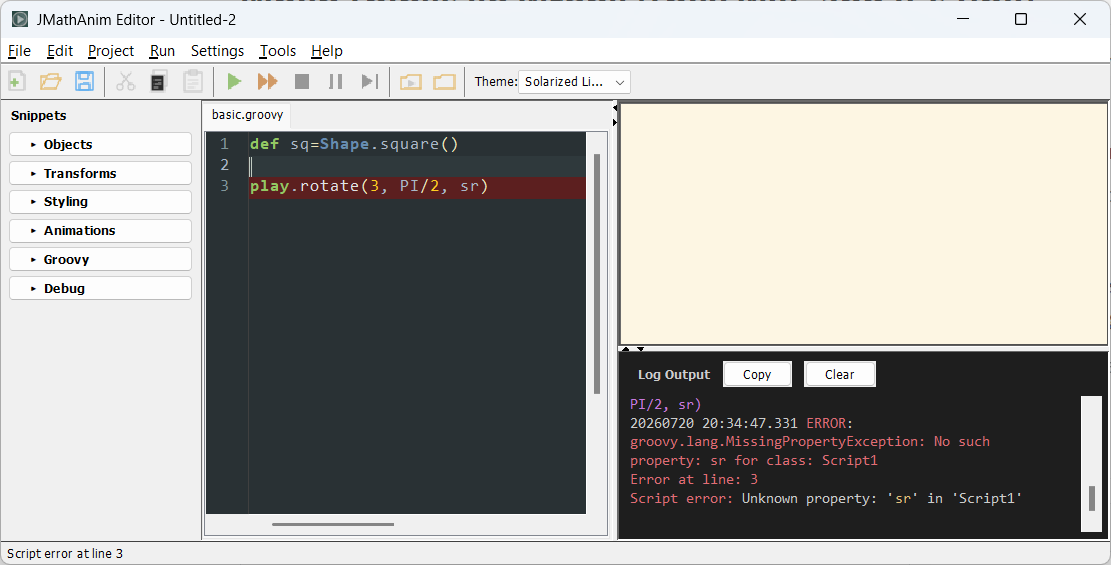
When a script fails, look at the log window below the preview: the error message includes the line number, and during execution the editor highlights the line being run in green, which makes it easy to see how far the script got. In this example we mispelled sq and tried to animate sr instead, which is an undefined variable.
Cheat table: let the editor type for you
| You want to... | The editor way |
|---|---|
| Create an object or animation without remembering syntax | Snippets: Alt+S or the sidebar |
| See which parameters a DSL block accepts | Ctrl+Space inside the block |
| Pick a color visually | Tools → Color Editor... (Ctrl+Shift+K) |
| Write/fix a LaTeX formula with live preview | Tools → LaTeX Editor... (Ctrl+Shift+L) |
| Color parts of a formula by clicking on them | Tools → LaTeX Style Editor... (Ctrl+Shift+E) |
| Animate one formula into another by clicking glyph pairs | Tools → Transform LaTeX... (Ctrl+Shift+T) |
| Run a quick preview | F5 |
| Render the final HD video | Shift+F5 |
| Open the folder with the generated video | Ctrl+Shift+M |
And that's the whole survival kit. With variables, dots, loops and Alt+S you can already follow every chapter of this manual. Whenever you meet a strange symbol in an example, come back here; it's almost certainly one of the friends above.