Advanced topics
A grab bag of tools that don't fit anywhere else but will save your day sooner or later: skipping already-tested parts of a long video, objects that update themselves, trails, sounds, and more. The first section alone is worth bookmarking.
Disabling and enabling animations
Suppose you are writing a rather long animation. Usually, this process involves several test runs to check if everything goes as planned. If you are fine tuning the last part of the animation, you don't need to run it all the way from the beginning to do this. Instead, you can add these methods to your code:
disableAnimations();
//...animation code that is already tested and don't need to see it again before generating the final movie
enableAnimations();
//...animation code that I want to preview
The disableAnimations() and enableAnimations() methods allow you to temporarily disable animations and frame generation. Updating and object creation are done, but the non-essential parts, like drawing, writing to a movie, or performing the animations, are omitted, dramatically increasing speed. You can also use this to generate a movie with only specific parts of the sketch.
Updaters
An updater is an object that automatically recomputes the state of a MathObject on every frame, based on other objects it depends on. Updaters are instances of the abstract class Updater, and they are attached to the object they modify with the MathObject methods registerUpdater(updater) and unregisterUpdater(updater).
An Updater subclass must implement the following methods:
//The objects this updater depends on. The scene uses this list to work out
//the correct update order, so that dependencies are always updated first.
public List<Versionable> getDependencies();

//Applied before the object's own update pass. Return true if something changed.
public abstract boolean applyBeforeUpdate();

//Applied after the object's own update pass. Return true if something changed.
public abstract boolean applyAfterUpdate();
The object being modified is available inside the updater through the getMathObject() method. Most updaters do their work in applyAfterUpdate() and simply return false from applyBeforeUpdate().
Returning the correct dependency list from getDependencies() is what keeps everything consistent: JMathAnim uses it to order the update queue, so an updater that reads from an object B is always run after B itself has been updated.
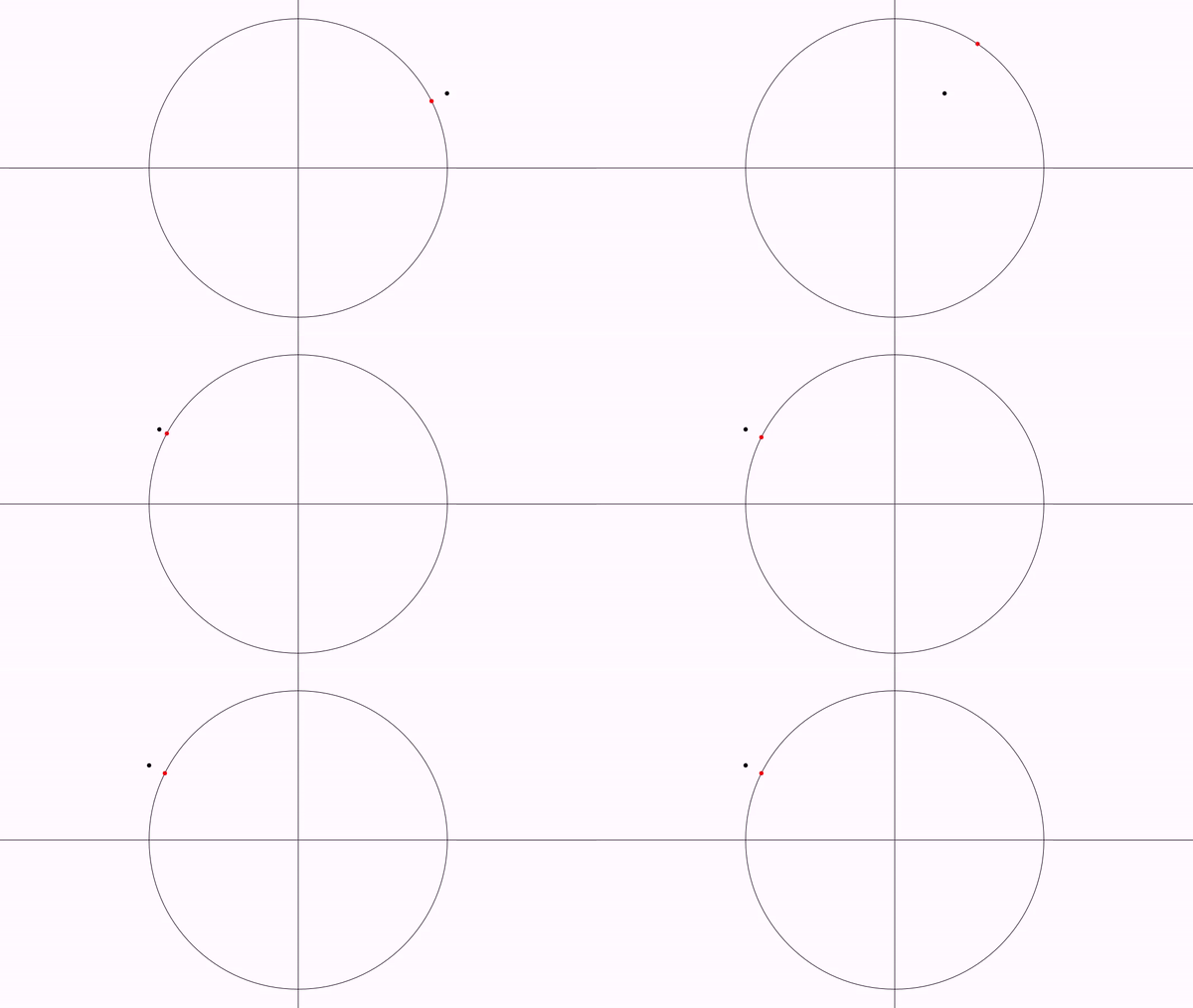
For example, let's suppose we have the following simple animation, where a Point object named A moves from the point (1, .5) to (-1, .5):
add(Axes.make(),Shape.circle());
Point A = Point.at(1, .5);
play.shift(3,-2,0,A);
waitSeconds(3);
We want a second point that automatically locates itself at the normalized coordinates of point A, that is, the projection of A onto the unit circle. We write an Updater that reads A and repositions its own object accordingly:
class NormalizeUpdater extends Updater {

    private final Point sourcePoint;

    public NormalizeUpdater(Point sourcePoint) {
        this.sourcePoint = sourcePoint;
    }

    @Override
    public List<Versionable> getDependencies() {
        //Declare that we read from sourcePoint, so that it is updated before us
        return Collections.singletonList(sourcePoint);
    }

    @Override
    public boolean applyBeforeUpdate() {
        return false;
    }

    @Override
    public boolean applyAfterUpdate() {
        double norm = sourcePoint.v.norm();
        if (norm == 0) return false;
        //Move our object to the normalized coordinates of sourcePoint
        getMathObject().moveTo(sourcePoint.v.copy().scale(1 / norm));
        return true;
    }
}
and modify the scene, attaching an instance of this updater to a new point:
add(Axes.make(), Shape.circle());
Point A = Point.at(1, .5);
Point B = Point.origin().drawColor("red");
B.registerUpdater(new NormalizeUpdater(A));
add(B);
play.shift(3, -2, 0, A);
waitSeconds(3);
Generates the following animation:
The always DSL
Writing a whole Updater subclass for a small piece of per-frame code is cumbersome. The always DSL registers an AlwaysUpdater, whose body is simply a closure. The previous example becomes:
def A = point(at: [1, 0.5])
def B = point(at: [0, 0], style: [drawColor: "red"])

always(obj: B, dependsOn: A) { obj ->
    double norm = A.v.norm()
    if (norm == 0) return false // nothing changed
    obj.moveTo(A.v.copy().scale(1 / norm))
    true//An actual change has been made
}

scene.add(axes(), shape(type: 'circle'), B)
animShift(runtime: 3, obj: A, vector: [-2, 0])
Parameters:
obj:the object the updater is registered on, or a list of objects (an independent updater is created for each one). Besides aMathObject, aCamerais also accepted: see below.dependsOn:the object, or list of objects, the closure reads from. This is the equivalent ofgetDependencies(): it makes JMathAnim update those objects before this one, and marks this one as dirty when they change. It cannot be deduced from the closure, so omitting it typically results in a one-frame lag.when:"after"(default) runs the closure after the object update,"before"runs it before, which is what you need when the closure prepares data consumed by the object's own update.action:the closure, when you prefer to pass it as a named parameter instead of a trailing block.
The closure receives the object being updated. Its returned value is the "something changed" flag: a boolean is used as is, and any other value (including none) means true. Returning false when there is nothing to do prevents the whole dependency chain from being recomputed on that frame.
The call returns the created Updater (or a list of them), so it can be detached later with obj.unregisterUpdater(u).
always on a camera
A camera is not a MathObject, but it is updated on every frame too, so obj: also accepts one. This registers an AlwaysCameraUpdater on it, which is the general-purpose version of the predefined camera updaters described below:
def t = scalar(0)

//The view stays rotated by the current value of t
always(obj: camera) { cam -> cam.setRotation(t.value) }

animScalar(obj: t, from: 0, to: 2*PI, runtime: 5)
The closure receives the camera, and fixedCamera works the same way. Camera updaters run after the whole object update pass, so the camera always sees the objects in their final state for the frame. As a consequence, dependsOn: and when: have no meaning there and are ignored with a warning, and the returned value is not used. Detach it later with camera.unregisterUpdater(u).
A couple of caveats: the closure runs on every frame, so avoid creating objects inside it (use addOnce for per-frame objects), and never call animations or waitSeconds from it. Also prefer absolute repositioning (moveTo) over accumulating changes (shift), which can oscillate when the object reads from itself.
Predefined updaters
JMathAnim has some built-in updaters that maybe useful:
The updater DSL
All the predefined updaters can be registered with a single call, without dealing with registerUpdater or with the camera object:
updater(type: 'stackTo', obj: circ1, to: sq, destinyAnchor: 'right', gaps: 0.1)
updater(type: 'chase', obj: chaser, to: target, speed: 2)
updater(type: 'rect', obj: text, style: [drawColor: 'gold'])
updater(type: 'cameraAdjust', gaps: 0.1)
updater(type: 'cameraFollow', obj: P)
updater(type: 'cameraDeadZone', obj: P, margins: 0.3, smooth: 0.15)
type: |
What it does | Parameters |
|---|---|---|
stackTo |
Permanently stacks the object to another one | to (required), destinyAnchor (default center), originAnchor, gaps |
move |
Moves the object towards another one | to (required), direction: center (default) / right / left / upper / lower, speed in math units per second (0 = instant) |
rect |
Draws the bounding box of the object | style |
cameraAdjust |
Zooms out so the objects stay visible | obj (none = all scene objects), gaps |
cameraFollow |
Centers the camera at an object every frame | obj (exactly one) |
cameraDeadZone |
Moves the camera only when the objects reach the outer margin | obj, margins as a fraction of the view (default 0.25), smooth in (0,1] |
For the object types, obj accepts a list, in which case an independent updater is created for each element. The camera types accept camera: 'fixed' to register on the fixed camera. The call returns the created updater (or the list of them), so it can be detached later with obj.unregisterUpdater(u) or camera.unregisterUpdater(u).
Camera always adjusted to objects
With the AlwaysAdjusted updater, you can force the camera to show all objects in the scene. The camera will zoom out when needed, but not zoom in. It is registered on the camera itself, and admits the horizontal and vertical gaps, plus an optional varargs of the objects to keep visible (if none is given, all objects in the scene are considered). For example:
camera.registerUpdater(AlwaysAdjusted.make(.1, .1));
See the Cameras chapter for more details on camera updaters.
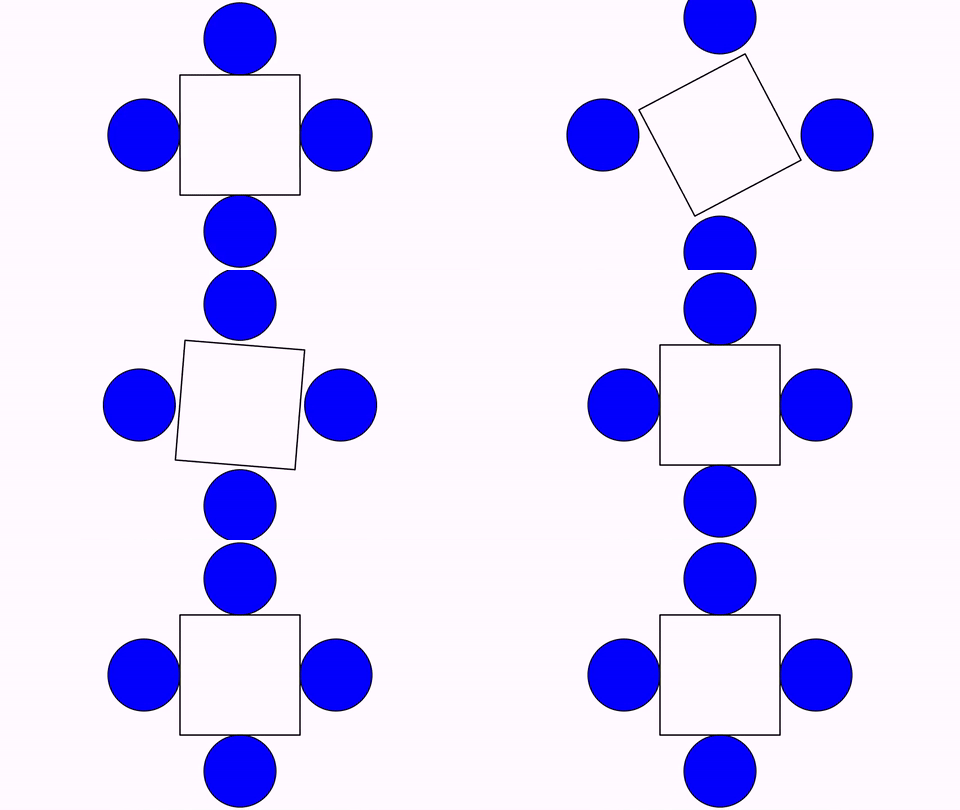
Stacks permanently an object to another
Shape circ1=Shape.circle().scale(.3).fillColor("red").thickness(8);
Shape circ2=circ1.copy();
Shape circ3=circ1.copy();
Shape circ4=circ1.copy();
Shape sq=Shape.square().center().thickness(8);
add(sq,circ1,circ2,circ3,circ4);

//Stacks permanently the LEFT of circ1 with the RIGHT of sq
circ1.registerUpdater(StackToUpdater.make(sq).withDestinyAnchor(AnchorType.RIGHT));

//Stacks permanently the RIGHT of circ2 with the LEFT of sq
circ2.registerUpdater(StackToUpdater.make(sq).withDestinyAnchor(AnchorType.LEFT));

//Stacks permanently the LOWER of circ3 with the UPPER of sq
circ3.registerUpdater(StackToUpdater.make(sq).withDestinyAnchor(AnchorType.UPPER));

//Stacks permanently the UPPER of circ4 with the LOWER of sq
circ4.registerUpdater(StackToUpdater.make(sq).withDestinyAnchor(AnchorType.LOWER));

play.rotate(3, 90*DEGREES, sq);
waitSeconds(3);
Trail
A trail is a Shape subclass that records the position of a marker point every time it moves. Let's draw a cycloid using a combined shift and rotate animation:
double circleRadius = .25;
Shape circle = Shape.circle()
    .scale(circleRadius)
    .fillColor("royalblue")
    .stack()
    .toScreen(ScreenAnchor.LEFT)
    .rotate(-90 * DEGREES);//Rotate it so that point 0 touches the floor

//By default a circle shape has 4 point, so point 0 and 2 make a diameter
Shape diameter = Shape.segment(circle.getPoint(0), circle.getPoint(2)).layer(1).thickness(3);
//Note that, as diameter is created with point instances of the Shape circle, we don't need to animate diameter, only circle

//The "floor". An horizontal line that we put right under the circle
Line floor = Line.XAxis()
    .stack()
    .withDestinyAnchor(AnchorType.LOWER)
    .toObject(circle);
add(floor, diameter);//Add everyhing (no need to add circle because it will automatically added with the shift and rotate animation)

Trail trail = Trail.make(circle.getPoint(0));//The Trail object
trail.layer(1)
    .thickness(6)
    .drawColor(JMColor.parse("tomato"));
add(trail);
//Ok, time to move this!
Animation shift = Commands.shift(10, 4 * PI * circleRadius, 0, circle).setLambda(t -> t);
Animation rotate = Commands.rotate(10, -4 * PI, circle).setUseObjectState(false).setLambda(t -> t);
playAnimation(shift, rotate);
waitSeconds(1);
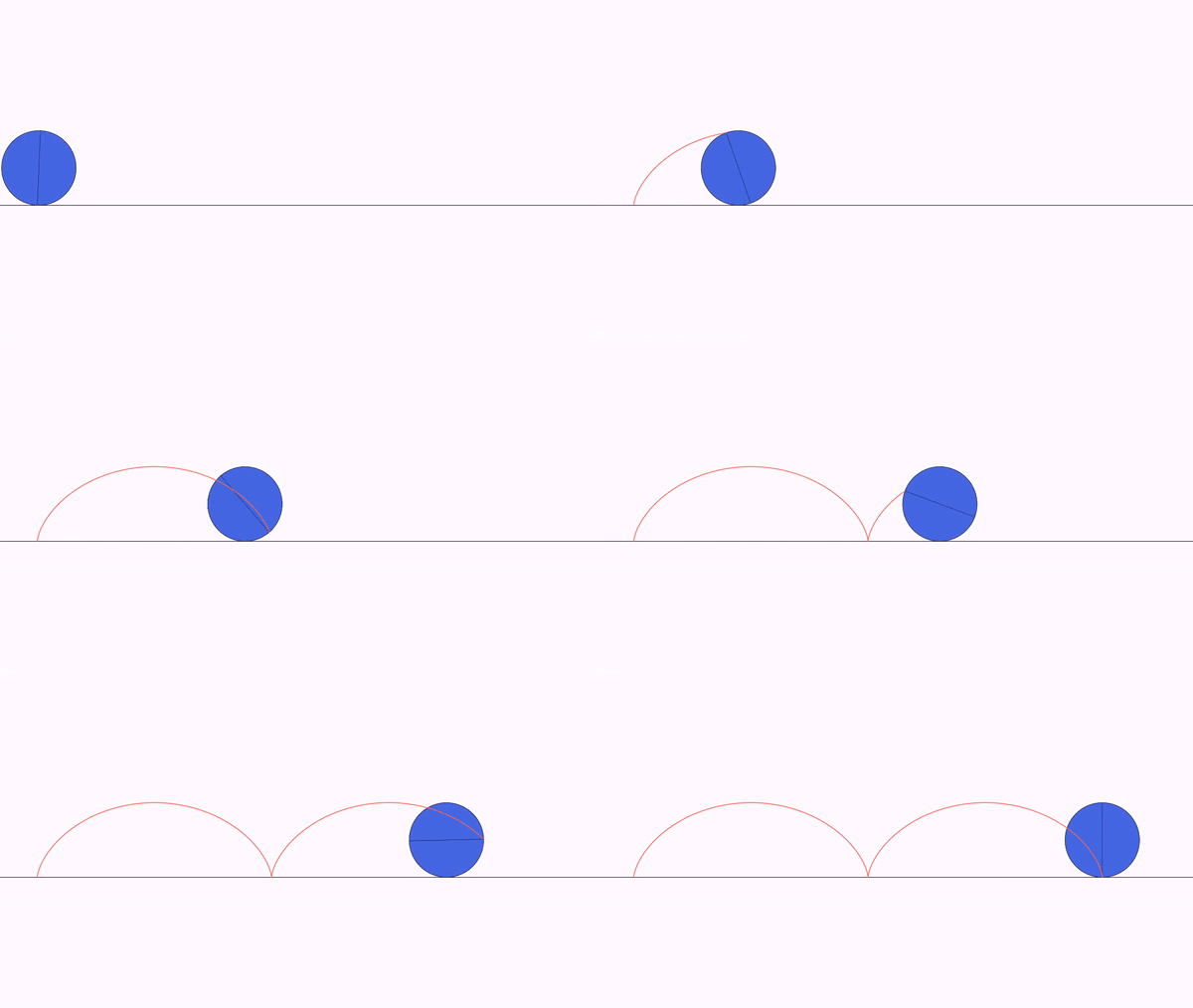
A trail can also be created with the trail DSL, which applies the style and adds it to the scene in the same call:
def t = trail(
    marker: circle.getPoint(0),
    style: [drawColor: 'tomato', thickness: 6],
    layer: 1,
    addToScene: true
)
The marker parameter is the object being followed (its center is the point recorded every time it moves). The trail begins at the position the marker has when the trail is created, so the first movement is drawn from where it started.
The recording happens once per frame, so a movement faster than the frame rate is drawn with the points it managed to reach. There is one exception worth knowing, because it is the one that shows: at the handover between two animations joined with animJoin / sequence the objects are read again even if no frame falls exactly there, so a marker turning a corner draws the corner and not a bevel across it. A trail only grows while it belongs to the scene, hence the addToScene: true. With pen: 'up' the trail starts with the pen raised and records nothing until t.lowerPen() is called; t.raisePen() lifts it again, and the next segment after lowering the pen is left invisible, so the trail can be drawn in separate strokes.
Starting the trail where you want: startHere()
A trail records a point every time the marker has moved since the last one, so a marker standing still adds nothing however many frames go by. Two cases are still worth knowing: everything the marker walked through before the interesting part is in the trail, so if it travelled to its starting place during a previous animation the first real point draws a segment coming out of that journey. And even with nothing recorded before, an animation never renders its initial state (its first frame is already one step in, t = dt), so the trail starts one frame late, which is visible when the path is supposed to close on itself.
Both cases are solved with one call, right before the animation that must be recorded:
derivedCurve.startHere()      //forget everything recorded; start at the marker's position now
animScalar(obj: t, from: 0, to: PI, runtime: 10, lambda: "linear")
startHere() discards what the trail has drawn so far and restarts it at the marker's current position. The marker is brought up to date before being read (one update pass, the same one that runs on every frame), so it also works when the marker is placed by updaters that have not run yet. That extra pass is global, so bear in mind that any other trail in the scene may record a point and speed-based updaters advance one step.
Locus: the trail you do not have to play
A Trail records where its marker has been, one point per frame, which is why it only exists once
the movement has been played. A Locus answers the same question the other way round: give it a
point of a construction and one of the values that construction depends on, and it sweeps that
value over a range and draws the curve the point describes, all at once, without advancing a single
frame.
scene.add(shape(type: "circle", style: [drawColor: 'gray70']))
//Original circle, inmutable
def cOrig=ctCircle(center: [1,0], radius: .5)
def angle=scalar(0)
def speed=scalar(4)
def sc2=scalar(expression: "r*t", vars: [t: angle,r: speed])

//c1: original circle rotated around origin
def c1=ctTransformedCircle(circle: cOrig, center: [0,0],angle: angle)
def cCenter=ctPoint(type: "center", of: c1)

//c2: circle rotated around c1
def c2=ctTransformedCircle(
    circle: c1, center: cCenter,
    angle: sc2,
    style: [drawColor: 'gray70'])

//Point 0 of c2
def P=ctPoint(at: c2.mathObject[0],
    style: [drawColor: 'blue', thickness: 40])

def locus=locus(
    trace: P,
    param: sc,
    range: [0, 2 * PI]
    )

scene.add(cCenter,c2,P,locus)

camera.scale(2)

//Animate the circle to show the construction
animScalar(
    runtime: 5,
    obj: sc,
    from: 0,
    to: 2*PI
)
sc.setValue(0)//Set sc to 0 again
scene.waitSeconds(1)

//Animate the Locus depending on the parameter speed
animScalar(
    runtime: 5,
    obj: b,
    from: 4,
    to: 2
)

scene.waitSeconds(2)
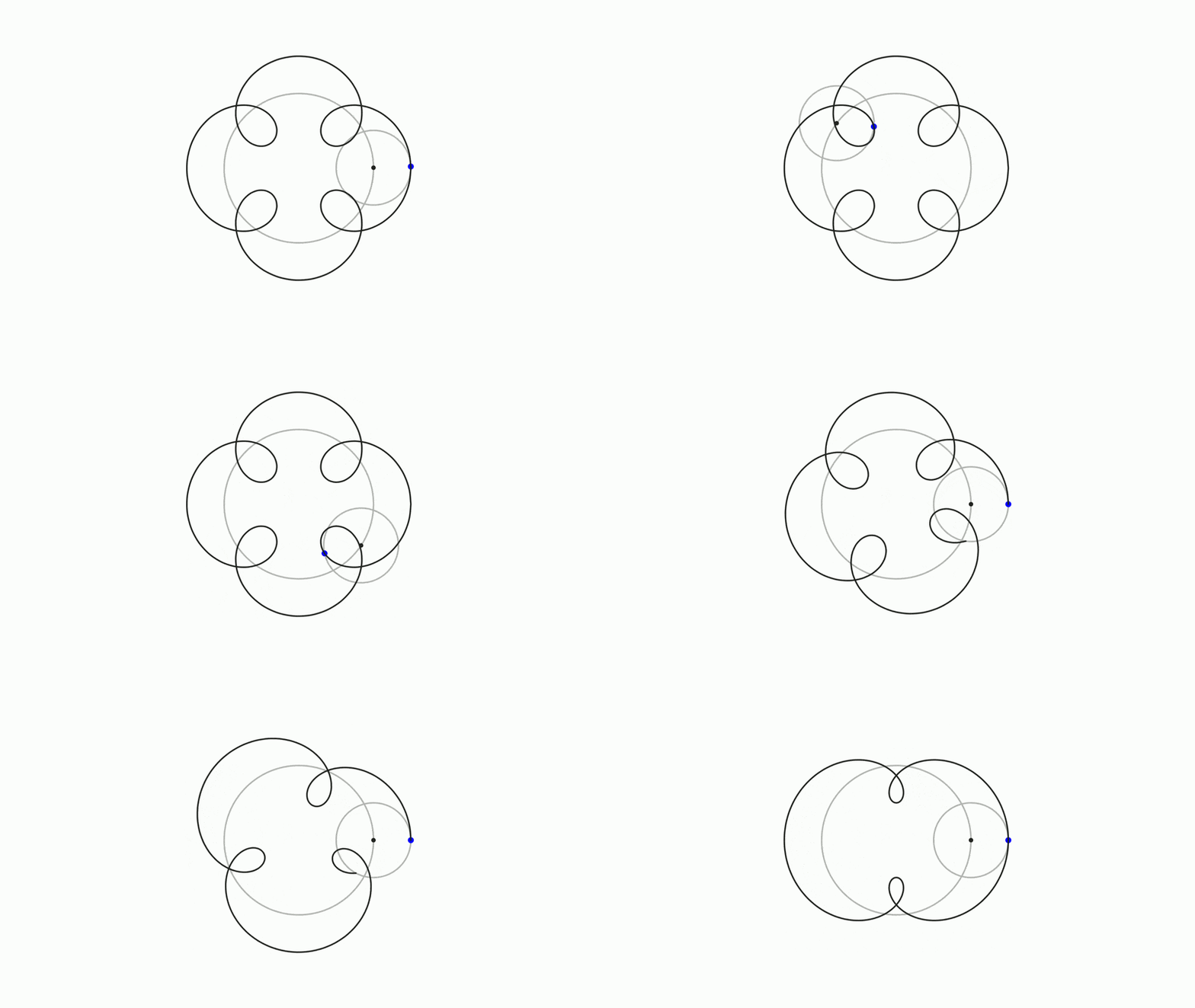
trace is the object whose position is drawn, by its center, and param is the value to sweep,
which the traced object has to depend on. range is the interval it is swept over, given either as
a pair or as from:/to:, and numPoints (100 by default) says how finely.
This is the case a parametricCurve does not cover. When the trajectory can be written as a
formula, parametricCurve is the right tool and it costs nothing. A locus earns its place when the
point comes from a construction with no closed formula in the script: an intersection of two
conics, a circumcentre, a point of tangency, or anything imported from a Geogebra file. There the
formula would have to be worked out by hand, and the CT objects already know it.
What it does and does not recompute
Sweeping the parameter is how the curve is drawn, so animating the parameter does not recompute
the locus: that is the ordinary case, a point running along a curve that stays where it is. What
does recompute it is a change in any other input of the construction, which is what picks the curve
out of its family: move the line in the example above and the locus follows it. live: false
freezes it, turning it into an ordinary shape that costs nothing per frame, and recompute()
forces a rebuild.
The parameter is put back to the value it had, and the construction recomputed with it, before the call returns, so sweeping it is not a movement of the scene and nothing else notices.
What has to be constructible
The construction is driven by recomputing the objects between the parameter and the traced
point, not by updating them: the sweep advances no frame, so running an updater tens of times
inside a single frame would be wrong, and one that accumulates would be corrupted by it. The
practical consequence is that those objects have to be constructible ones. A link of the chain
whose position comes from an always updater does not follow the parameter while the locus is
sampled, and the curve comes out wrong. If nothing at all is found to depend on the parameter, the
locus says so in the log and stays empty.
Which objects those are is worked out first from the declared dependencies, walking down from the traced point until the parameter is found. That is the exact answer, but it is not always available, and the reason is worth knowing because the case is common. A dependency list records what an object reads, never the geometry it writes, so a point built on a piece of a construction,
def P = ctPoint(at: c3.mathObject[0]) // a path point of the shape c3 draws
hangs off a vector that depends on nothing: walking down from P stops there, and the parameter
that moves c3 is nowhere in sight even though moving it plainly moves P. When that happens the
question is put the other way round to the scene's dependency graph, which does keep the reverse
edges: everything that depends on the parameter is driven, and the traced object is recomputed
last. Two things follow from using the graph. The objects being driven have to be in the scene,
since the graph only holds what is reachable from it, and the curve is resolved on the first
frame rather than at the moment of the call, because the graph is empty until the first update
pass.
Two more things a construction does that a formula does not. It can be undefined: an
intersection that does not exist reports NaN, and those samples are dropped and cut the stroke
instead of being drawn. And it can jump, changing branch from one sample to the next;
maxJump sets the distance above which two consecutive samples are taken to be a jump and the
stroke is cut, instead of a segment being drawn across the whole scene.
The addOnce method
A useful method when creating procedural animations is the addOnce(obj) method. This method adds the specified object(s) to the scene but removes them after they are drawn, so they only "live" for a frame. This method may be useful when you need to create an object for every frame, draw it, and remove it because you will use another object in the next frame.
Current status of methods implemented to MathObjects
Not all MathObject and Animation combinations are compatible. Below is a table that shows, at the current version of the library, what you can and cannot do:
| MathObject | Affine transforms related: Shift, scale, rotate , grow in, shrink out, highlight | ShowCreation animation | Transform animation |
|---|---|---|---|
| Point | Yes | Yes (fadeIn is used) | No |
| Shape | Yes | Yes | Yes |
| Line | Yes | Yes | Yes |
| Axes | No | Yes | No |
| LatexMathObject | Yes | Yes | Yes (also you can use the specialized TransformMathExpression method) |
| Arrow | Yes | Yes | Yes (delegates in the similarity transform) |
| Delimiter | No (you have the transform the anchor points instead) | Yes | No (transform anchor points instead) |
Sounds
Since version 0.9.7-SNAPSHOT, JMathAnim can add sounds to created videos. To do so, an external ffmpeg executable is needed. You can define the path where this executable is at the setupSketch() method with the command config.setFfmpegExecutable(path) where path is a String with the full path to the ffmpeg executable, like C:\ffmpeg\bin\ffmpeg.exe in Windows or /usr/bin/ffmpeg in Linux.
To add a sound to a specific moment of the animation, you can use the command playSound. For example
playSound("pop.wav");
Will add the given sound at the current frame. Note that adding a sound doesn't stop the animations. They are simply added to the current frame.
The sound DSL
One call covers the two ways of adding a sound, and which one you get depends on a single parameter, at:
sound(file: "pop.wav")                 // at the current frame
sound(file: "pop.wav", pitch: 1.5)     // the same, played higher
With at, the call builds a PlaySoundAt animation instead, which plays the sound when it reaches that fraction of its runtime. That is how a sound is synchronized with a moment inside another animation: build both with run: false and group them.
def anim = animRotate(obj: sq, angle: 90 * DEGREES, runtime: 6, run: false)
animGroup(anims: [anim, sound(file: "whoosh.mp3", runtime: 6, at: 0.4, run: false)])
The runtime of the sound should match the animation it travels with, since at is a fraction of it. By default the sound is played when the time parameter is strictly greater than at, which is what you want when the lambda stays flat at the beginning (allocateTo, restrictTo): with strict: false a parameter equal to at already fires it, so a flat start would play the sound on the first frame instead of where it was meant to. The two paragraphs below explain that trap in terms of the underlying class.
The sound file is loaded using the ResourceLoader class, so usual conventions are used. In this case, JMathAnim will look for the file pop.wav in the directory project_dir/resources/sounds. Remember that you can use the "!" modifier to specify an absolute path.
As ffmpeg is used as an external command to process the sound files, all the most common formats are supported, like wav, mp3, ogg or flac.
When adding a sound to the animation, and after the video is created, JMathAnim will process all the added sounds and merge them into the created video, so extra time will be spent. If you don't want to add any sound at all to the animation, you can disable it with the config command:
config.setSoundsEnabled(false);
Another method to add a sound is with the animation PlaySoundAt. This is useful when you want to play a sound at a specific time in an animation. For example, suppose you have this animation of a square moving and rotating from the previous chapters, where rotating happens between 40% and 60% of the animation.
Shape sq = Shape.square().scale(.5).style("solidblue").moveTo(Point.at(-1, 0));
AnimationGroup ag = AnimationGroup.make(
    Commands.shift(6, 2, 0, sq),
    Commands.rotate(6, PI * .5, sq)
            .setUseObjectState(false)
            .setLambda(UsefulLambdas.smooth().compose(UsefulLambdas.allocateTo(.4, .6)))
);
playAnimation(ag);
Suppose you want the square to translate quietly, but the rotation makes a rotationSound.mp3 , which is located at the home_project/resources/sounds directory. You can achieve this if you define this animation and play it with the original one:
playAnimation(ag, PlaySoundAt.make(6, .4, "rotationSound.mp3"));
Another (wrong) way of achieving this may be using lambdas, using the following definition:
PlaySoundAt.make(6, 0, "rotationSound.mp3").setLambda(UsefulLambdas.allocateTo(.4, .6));
but if you create the animation, the sound will be played at the start of the animation. What happened here? Well, the PlaySoundAt.make defines an animation that will play the sound when runtime is greater or equal to the given time, in this case, 0. The allocate function evaluated at any t<.4 will return 0, so the animation will play the sound at the first animation frame.
To prevent this, the makeStrict method creates an animation where the sound will be played after the runtime parameter is strictly greater than a given one. So, if you want to make the following code right, you should use:
PlaySoundAt.makeStrict(6, 0, "rotationSound.mp3").setLambda(UsefulLambdas.allocateTo(.4, .6));