Transforming Objects
This chapter covers how to position, scale, rotate, and arrange objects in your animations. All classes inheriting from MathObject support these transformations, and most methods return the object itself, enabling method chaining.
How to read this chapter: the essentials are shift, moveTo, stack, scale and rotate (with those five you can place anything anywhere). The stack() method in particular is the workhorse of tidy scenes ("put this label under that rectangle, with a small gap"), so give it a proper read. Affine transforms and layouts are powerful but optional; skim them and return when you need a reflection or a grid of 54 numbered squares.
Table of Contents
- Positioning Objects
- Shift
- MoveTo
- Stack
- Stack to Screen
- Aligning Objects
- Scaling Objects
- Rotating Objects
- Affine Transforms
- Similarity Transformations
- Reflections
- General Affine Transforms
- Layouts
- BoxLayout
- PathLayout
- SpiralLayout
- HeapLayout
- PascalLayout
- FlowLayout
- Composing Layouts
Positioning Objects
Shift
The shift() method moves an object by a specified vector, adding the vector to the object's current position.
Basic Usage
// Shift using a Vec object
def circle=shape(
    type: "circle",
    transform: [shift: Vec.to(1,1)]
)
//in Groovy syntax:
def circle = Shape.circle().shift(Vec.to(1, 1))  // Center at (1, 1)

// Shift using x, y coordinates (simpler)

def square=shape(
    type: "square",
    transform: [shift: [-3, 0]]
)
//in Groovy syntax:
def square = Shape.square().shift(-3, 0)  // Lower-left at (-3, 0)
Method Chaining: When using Groovy syntax, since shift() returns the object, you can chain operations:
def shape = Shape.circle()
    .shift(1, 0)      // Move right
    .shift(0, 1)      // Then move up
    .scale(2)         // Then scale
Groovy shortcut: the
+and-operators produce a shifted copy while leaving the original untouched (whereas.shift()moves the object in place):def right = circle + [2, 0]ordef left = circle - Vec.to(2, 0). See Operator shortcuts in the Groovy chapter.
MoveTo
The moveTo() method positions an object so its center aligns with specific coordinates. Unlike shift(), which is relative, moveTo() sets an absolute position.
// Move center to (3, 3)
def pentagon = shape(
    type: "regularpolygon",
    sides: 5,
    transform: [moveto: [3, 3]]
)
//in Groovy syntax:
def pentagon = Shape.regularPolygon(5).moveTo(3, 3)
Understanding Centers:
- moveTo() uses the bounding box center
- For regular polygons, this may differ from the geometric center
- Use .getCentroid() for true geometric center if needed
Stack
Stacking is JMathAnim's most powerful relative positioning tool: it places an object next to another object, next to a fixed point, or against the edge of the screen, with precise control over anchors and gaps. In the DSL you express it with a stack: map; behind the scenes it is powered by the stack() method, which you can still call directly in Groovy when you need it.
Basic Stacking
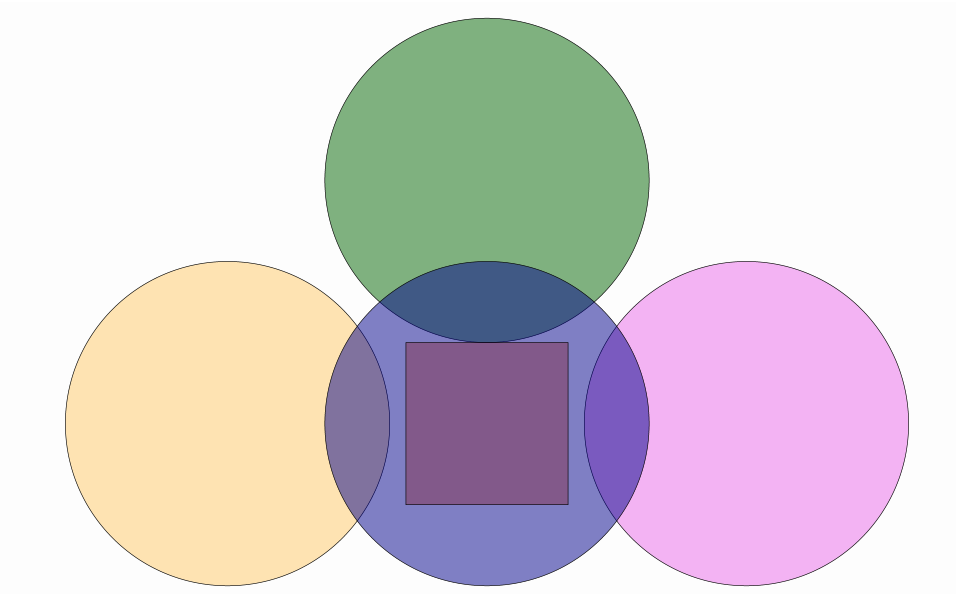
The DSL way is to give each object a stack: map when you create it. The map says where to attach it and, optionally, the gap and the anchors:
def square = shape(type: "square", style: [fillColor: "darkred", fillAlpha: 0.3])

// Each circle is positioned around the square as it is created
def circle1 = shape(type: "circle", style: [fillColor: "orange",    fillAlpha: 0.3],
                    stack: [to: square, destinyAnchor: "left",  gaps: 0.1])
def circle2 = shape(type: "circle", style: [fillColor: "violet",    fillAlpha: 0.6],
                    stack: [to: square, destinyAnchor: "right", gaps: 0.1])
def circle3 = shape(type: "circle", style: [fillColor: "darkgreen", fillAlpha: 0.5],
                    stack: [to: square, destinyAnchor: "upper"])
def circle4 = shape(type: "circle", style: [fillColor: "darkblue",  fillAlpha: 0.5],
                    stack: [to: square])   // CENTER is the default

scene.add(circle1, circle2, circle3, circle4, square)
camera.adjustToAllObjects()
In plain Groovy: the same positioning exists as a fluent method chain on an object, ending in a
toObject/toPoint/toScreencall. For instance,circle1's line above is equivalent to:circle1.stack().withDestinyAnchor(AnchorType.LEFT).withGaps(0.1).toObject(square)This form is handy when you need to reposition an object that already exists (see also the
apply(...)shortcut below). The last calling method must be.toObjector.toScreen.
The stack: map
A stack: map needs exactly one destination key, plus optional anchor and gap keys:
| Key | What it does |
|---|---|
to |
Destination object (stack next to it) |
screen |
A screen anchor (upper_left, center, ...): stack relative to the camera view |
point |
A fixed point [x, y] |
destinyAnchor |
Which side of the destination to attach to (default center) |
originAnchor |
Which part of the moving object touches it (default: opposite of destinyAnchor) |
gaps |
Absolute gap in math units: 0.1, or [h, v] |
relativeGaps |
Gap as a fraction of the object's size: 0.1, or [h, v] |
If originAnchor is omitted, it defaults to the opposite of destinyAnchor:
rightdestiny →leftoriginupperdestiny →lowerorigincenterdestiny →centerorigin
Anchor values (case-insensitive, prefix-matching):
- Cardinal: left, right, upper, lower, center
- Corners: upper_left, upper_right, lower_left, lower_right
- Aligned: left_and_aligned_upper, right_and_aligned_lower, etc.
The three destination keys, one example each:
// Next to another object, on its right, with a gap
stack: [to: targetObject, destinyAnchor: "right", gaps: 0.1]

// At a fixed point
stack: [point: [1, 1], gaps: 0.1]

// Relative to the camera view (a screen corner)
stack: [screen: "upper_left", gaps: 0.2]
Stacking objects that already exist. The
stack:map runs when the object is created. To stack objects made earlier (one or many at once), pass the same map to theapply(...)command:apply(obj: [a, b], stack: [to: c, destinyAnchor: "left", gaps: 0.1])In plain Groovy, the
stack:map mirrors a fluent method chain:.withDestinyAnchor(...)/.withOriginAnchor(...)/.withGaps(...)/.withRelativeGaps(...)to configure, then one of.toObject(...)/.toPoint(...)/.toScreen(...)to finish it off.
Example: Aligned Sequence
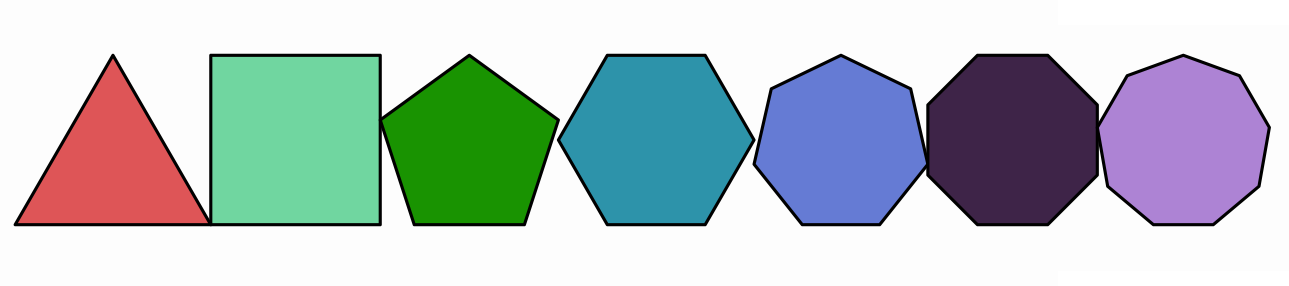
Because stack: is evaluated as each object is built, it composes beautifully inside a loop. Here every polygon is stacked to the left of the previous one, aligned along the bottom:
def previousPol = shape(type: "regularPolygon", sides: 3,
                        style: [fillColor: "random", thickness: 20],
                        addToScene: true)

for (n in 4..9) {
    // Each new polygon stacks onto the previous one, which then becomes the reference
    previousPol = shape(type: "regularPolygon", sides: n,
                        style: [fillColor: "random", thickness: 20],
                        stack: [to: previousPol, destinyAnchor: "left_and_aligned_lower"],
                        addToScene: true)
}

camera.adjustToAllObjects()
Tip: For complex layouts, consider using MathObjectGroup with layouts (covered later in this chapter).
The Groovy method moveTo(p) is equivalent to stacking to a point: stack().toObject(P).
Advanced Stacking Example
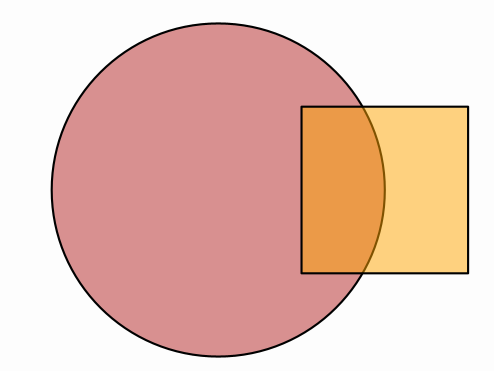
Set both originAnchor and destinyAnchor when you want to control exactly which part of the moving object meets which part of the destination. Here the square's center is placed on the circle's right:
def circle = shape(type: "circle",
                   transform: [scale: 0.5],
                   style: [thickness: 8, fillColor: "firebrick", fillAlpha: 0.5],
                   addToScene: true)

def square = shape(type: "square",
                   transform: [scale: 0.5],
                   style: [thickness: 8, fillColor: "orange", fillAlpha: 0.5],
                   stack: [to: circle, originAnchor: "center", destinyAnchor: "right"],
                   addToScene: true)
Stack to Screen
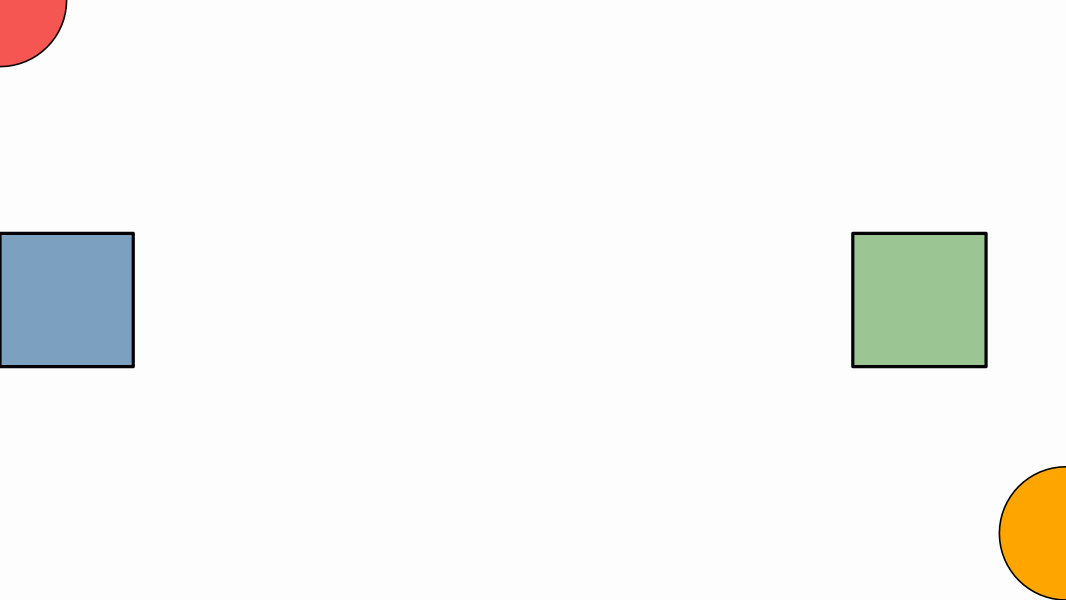
Position objects relative to the current camera view with a stack: [screen: ...] map:
// Touching the left edge
def square1 = shape(type: "square", transform: [scale: 0.5], style: "solidblue",
                    stack: [screen: "left"])

// At the right edge, with a gap
def square2 = shape(type: "square", transform: [scale: 0.5], style: "solidgreen",
                    stack: [screen: "right", gaps: 0.3])

// The circle's center pinned to the upper-left corner
def circle1 = shape(type: "circle", transform: [scale: 0.25], style: "solidred",
                    stack: [screen: "upper_left", originAnchor: "center"])

// The circle's bottom pinned to the lower-right corner
def circle2 = shape(type: "circle", transform: [scale: 0.25], style: "solidorange",
                    stack: [screen: "lower_right", originAnchor: "lower"])

scene.add(square1, square2, circle1, circle2)
Available screen anchors:
- Edges: left, right, upper, lower
- Corners: upper_left, upper_right, lower_left, lower_right
- Center: center
Shortcut for centering: centering an object on screen is common enough to have its own shortcut. All of these are equivalent:
shape(type: "circle", transform: [center: true])   // DSL
// or, on an existing object:
object.center()                                     // Groovy
object.stack().toScreen(ScreenAnchor.CENTER)        // the long Groovy form
Aligning Objects
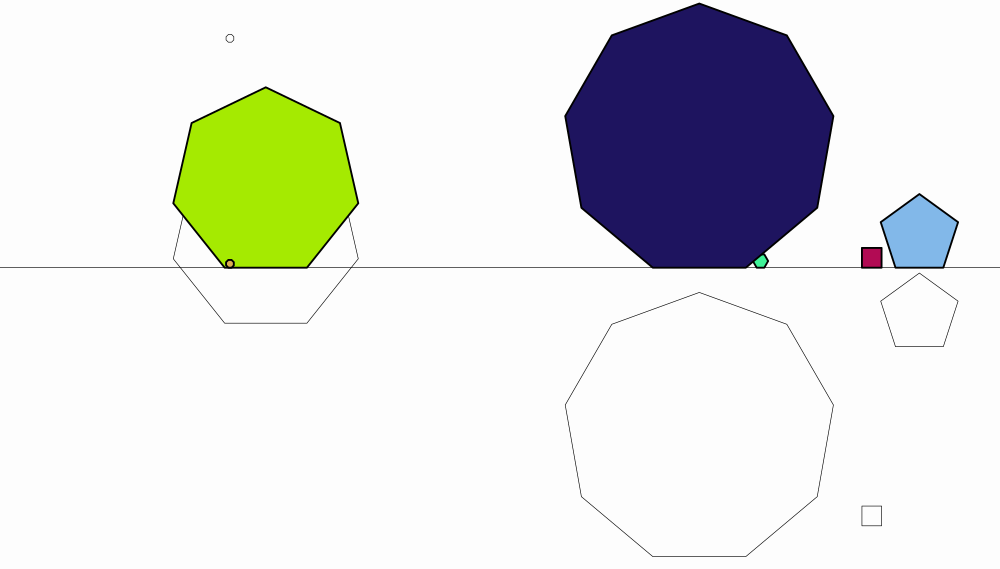
The align() method aligns one object with another using a specific alignment type. We show you an example using Groovy syntax:
def floor = Line.XAxis()
scene.add(floor)

// Create random polygons and align them to the floor
for (n in 4..9) {
    def pol = Shape.regularPolygon(n)
        .moveTo(Point.random())
        .scale(Math.random() * 0.5)

    def pol2 = pol.copy()
        .fillColor("random")
        .thickness(6)
        .align(floor, AlignType.LOWER)  // Align bottom to floor

    scene.add(pol, pol2)
}

camera.adjustToAllObjects()
Available Alignment Types:
- LEFT - Align left edges
- RIGHT - Align right edges
- UPPER - Align top edges
- LOWER - Align bottom edges
- HCENTER - Align horizontal centers
- VCENTER - Align vertical centers
- BASELINE - Align both text baselines, the line the letters sit on
- BASELINE_TO_LOWER - Put the text baseline on the lower side of the other object
The two baseline types are the ones to use with LatexMathObject: the lower and upper sides
of a bounding box move with the descenders and ascenders the text happens to
contain, so "aqua" and "blue" aligned by LOWER look displaced, while aligned by
BASELINE they read as one line. Only LaTeX objects compiled with JLaTeXMath
know their baseline; any other object falls back to LOWER.
Scaling Objects
All MathObject instances can be scaled uniformly or non-uniformly. Scaling can be performed around a specific center or the object's bounding box center.
Basic Scaling
// Uniform scaling (all dimensions by same factor)
def circle = Shape.circle().scale(2)  // 2× larger
def circle=shape(type: "circle",transform: [scale: 2]) //The DSL way

// Non-uniform scaling (different x and y factors)
def ellipse = Shape.circle().scale(0.5, 1)  // Ellipse: 50% width, 100% height
def ellipse=shape(type: "circle",transform: [scale: [0.5, 1]]) //The DSL way
// Scaling around a specific point
def pentagon = Shape.regularPolygon(5)
    .shift(0, 1)
    .scale(Point.at(0, 0), 1.3, 0.2)  // Scale around origin
Groovy shortcut: the
*and/operators produce a scaled copy while leaving the original untouched (whereas.scale()scales in place):def big = circle * 2(or2 * circle) anddef small = circle / 2. See Operator shortcuts in the Groovy chapter.
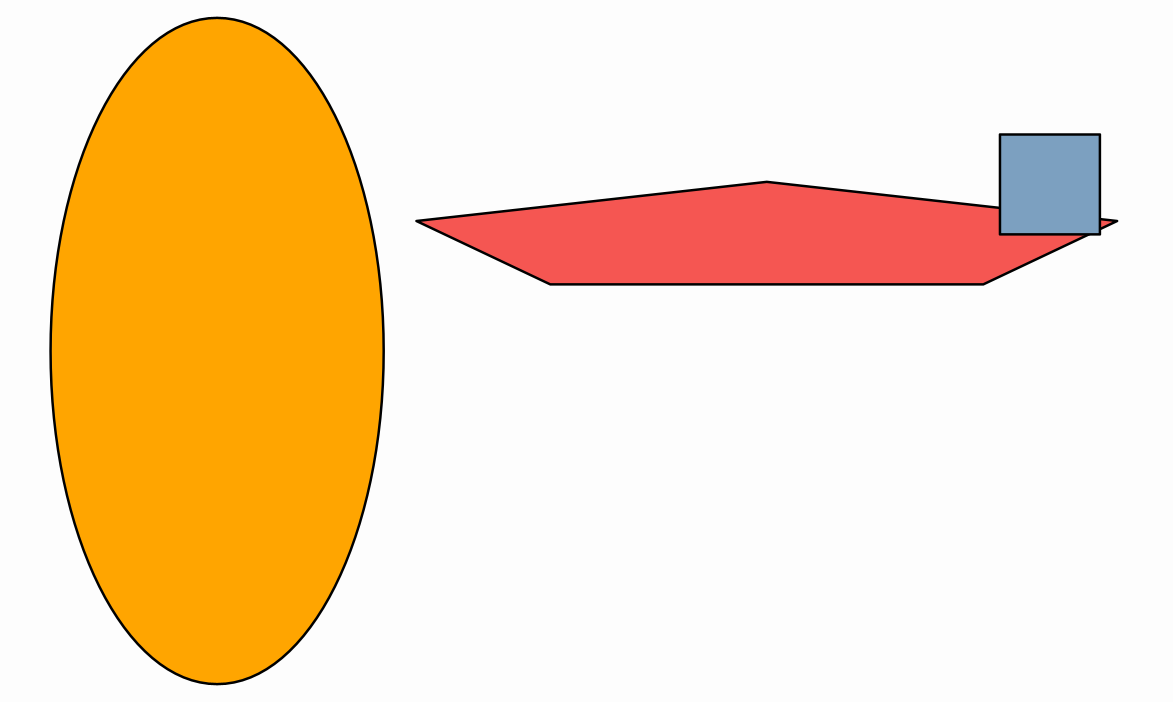
Detailed Example
// Circle scaled to ellipse
def s1 = Shape.circle()
    .style("solidorange")
    .shift(-1, 0)
    .scale(0.5, 1)  // 50% width, 100% height

// Pentagon scaled around origin
def s2 = Shape.regularPolygon(5)
    .style("solidred")
    .shift(0, 1)
    .scale(Point.at(0, 0), 1.3, 0.2)

// Square uniformly scaled
def s3 = Shape.square()
    .style("solidblue")
    .shift(1, 0)
    .scale(0.3)  // 30% of original size

scene.add(s1, s2, s3)
Scale Center Behavior
Default: If no center is specified, objects scale around their bounding box center.
// These are equivalent when object is at origin:
shape.scale(2)
shape.scale(shape.getCenter(), 2)
Custom center: Specify a point to create different scaling effects:
// Scale away from origin
shape.scale(Point.origin(), 2, 1)

// Scale around top-right corner
def corner = shape.getBoundingBox().getUpperRight()
shape.scale(Point.at(corner), 1.5)
Rotating Objects
The rotate() method rotates objects by a specified angle. Rotation can be around a custom center or the object's bounding box center.
Basic Rotation
// Rotate around object's center
def square = Shape.square().rotate(45 * DEGREES)

// Rotate around a specific point
def ellipse = Shape.circle()
    .scale(0.5, 1)
    .rotate(Vec.to(0.5, 0), 30 * DEGREES)
Note: Always use * DEGREES to convert degree values to radians, as all angle methods expect radians.
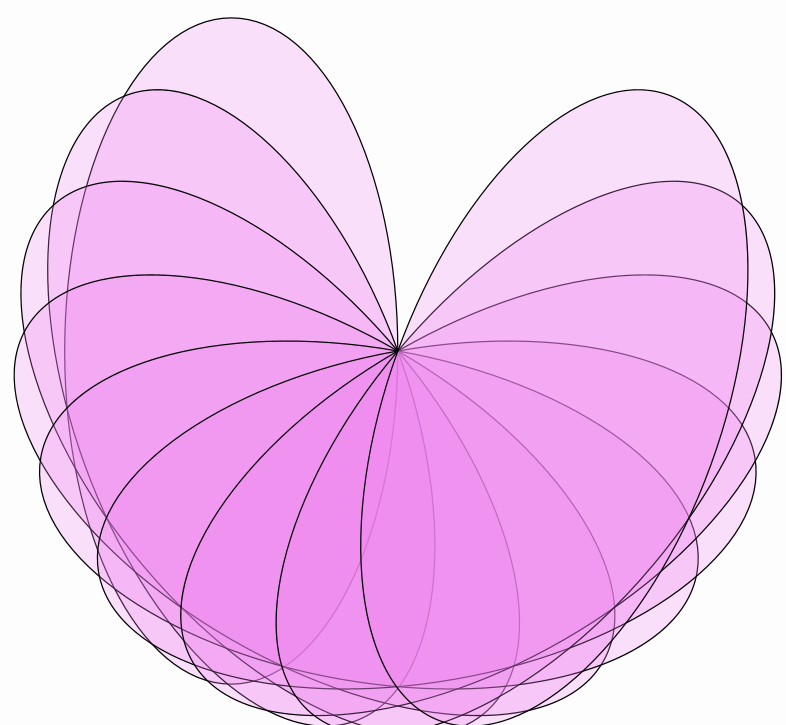
Example
def ellipse = Shape.circle()
    .scale(0.5, 1)
    .fillColor("violet")
    .fillAlpha(0.25)

def rotationCenter = Vec.to(0.5, 0)

// Create spirograph pattern
for (int n = 0; n < 180; n += 20) {
    scene.add(
        ellipse.copy()
            .rotate(rotationCenter, n * DEGREES)
    )
}
Rotation Behavior
Default center: If not specified, rotation occurs around the bounding box center:
// These are equivalent:
shape.rotate(45 * DEGREES)
shape.rotate(shape.getCenter(), 45 * DEGREES)
Affine Transforms
Affine transformations are the mathematical foundation for shift, rotate, and scale operations. The AffineJTransform class provides advanced transformation capabilities for complex positioning and animation.
DSL shortcut: besides the
transform:map available when an object is created, you can transform objects that already exist (one or many at once) with theapply(...)DSL command:apply(obj: [a, b], transform: [scale: 2, shift: [1, 0], rotate: PI/4]). See Restyling objects withapply(...)in the Styling chapter.
You can apply an affine transform in plain Groovy using the applyTransform which modifies the object, or using getTransformedObject that returns a transformed copy.
// Modify the original object
transform.applyTransform(object)  // Returns void

// Create a transformed copy
def newObject = transform.getTransformedObject(object)  // Original unchanged
In the DSL layer you can apply transforms in several ways and places:
Creating the object:
def tr = affineTransform(
      type: "similarity",
      from: [[0, 0], [1, 0]],
      to: [[0, 0], [1, -.5]]
)
def sq = shape(type: "square",
      transform: [affine: tr])
In a shorter way:
def sq = shape(type: "square",
      transform: [affine: [
              [0, 0], [1, 0],
              [0, 0], [1, -.5]]
      ]
)
After the object is created:
def sq = shape(type: "square")

apply(obj: sq,
      transform: [affine: [
              [0, 0], [1, 0],
              [0, 0], [1, -.5]]
])
In the creation of the affine transform object:
def sq = shape(type: "square")
def tr = affineTransform(
    apply: sq,
    type: "similarity",
    from: [[0, 0], [1, 0]],
    to: [[0, 0], [1, -.5]]
)
The transform tag in DSL takes the following parameters:
transform: tr  //Takes an AffineJTransform object
transform: [a, b, c, r, s, t]//Only affine that maps (a,b,c) into (r,s,t)
transform: [r, s, t]//Same as before, but a=(0,0), b=(1,0), c=(0,1)
transform: [a, b, s, t]//Only direct simmilarity that maps (a,b) into (s,t)
Basic Transform Constructors
// Translation
def translateTransform = AffineJTransform.createTranslationTransform(Vec.to(1, 2))
translateTransform.applyTransform(object)// Equivalent to: object.shift(1, 2)

// Rotation
def rotateTransform = AffineJTransform.create2DRotationTransform(
    Point.origin(),
    45 * DEGREES
)
rotateTransform.applyTransform(object)// Equivalent to: object.rotate(Point.origin(), 45 * DEGREES)

// Scaling
def scaleTransform = AffineJTransform.createScaleTransform(
    Point.origin(),
    2.0,      // x scale
    1.5,      // y scale
    1.0       // z scale (for future 3D support)
)
scaleTransform.applyTransform(object)// Equivalent to: object.scale(Point.origin(), 2, 1.5)
Similarity Transformations
Similarity transforms preserve shape and proportions but may change size, position, and orientation. They combine translation, rotation, and uniform scaling.
Direct Similarity Transform
Maps two points to two other points using the unique direct (orientation-preserving) similarity transform.
def square = shape(type: "square",
      transform: [shift: [-1.5, -1]],
      style: [fillColor: 'darkgreen', fillAlpha: .1])

// Define source points
def A = point(at: square[0], // Lower-left
      style: [color: 'blue', thickness: 70])
def B = point(at: square[1], // Lower-right
      style: [color: 'blue', thickness: 70])

// Define destination points
def C = point(at: [1.5, -1], // Lower-left
      style: [color: 'red', thickness: 70])
def D = point(at: [1.7, 0.5], // Lower-right
      style: [color: 'red', thickness: 70])

scene.add(A, B, C, D)

// Create interpolated transforms (alpha from 0 to 1)
linspace(0, 1, 10).each { //For it=0,1,2,3,4,5 do...
    def transform = affineTransform(
          type: "similarity",
          from: [A, B],
          to: [C, D],
          alpha: it
    )
    scene.add(transform.getTransformedObject(square))
}
The former
AffineJTransform.createDirect2DIsomorphic(...)method still works but is deprecated; preferAffineJTransform.createDirect2DSimilarity(...).
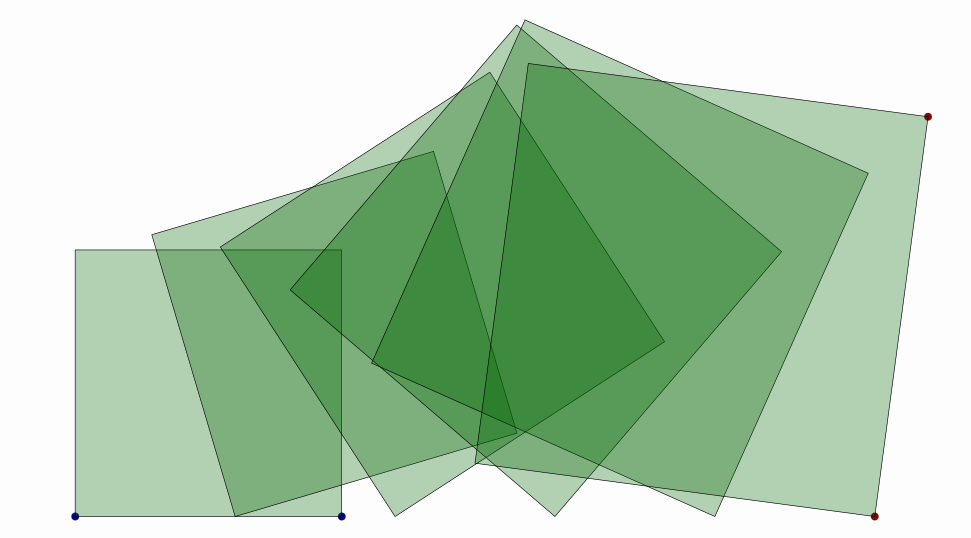
The alpha parameter goes from 0 to 1 and it is useful to get properly interpolated transforms between 0 (identity) and 1 (full transform). The precise interpolation method depends on the transform, intended to be "natural". The default value for alpha is 1.
Inverse Similarity Transform
Creates an orientation-reversing transform (includes reflection). We show you an example using Groovy syntax (no DSL):
def bigR = LatexMathObject.make("R").get(0)
    .scale(8)
    .center()
    .fillColor("steelblue")
    .fillAlpha(0.3)

def bbox = bigR.getBoundingBox()

// Source points
def A = Point.at(bbox.getLowerLeft()).drawColor("darkblue")
def B = Point.at(bbox.getUpperLeft()).drawColor("darkblue")

// Destination points
def C = Point.at(3.5, -1).drawColor("darkred")
def D = Point.at(3.7, 0.5).drawColor("darkred")

scene.add(A, B, C, D)

// Create inverse similarity transform sequence
linspace(0,1,6).each {//For it from 0 to 1 in 6 steps...
    def transform = AffineJTransform.createInverse2DSimilarity(
        A, B, C, D, it
    )
    scene.add(transform.getTransformedObject(bigR))
}

camera.adjustToAllObjects()
The former
AffineJTransform.createInverse2DIsomorphic(...)method still works but is deprecated; preferAffineJTransform.createInverse2DSimilarity(...).
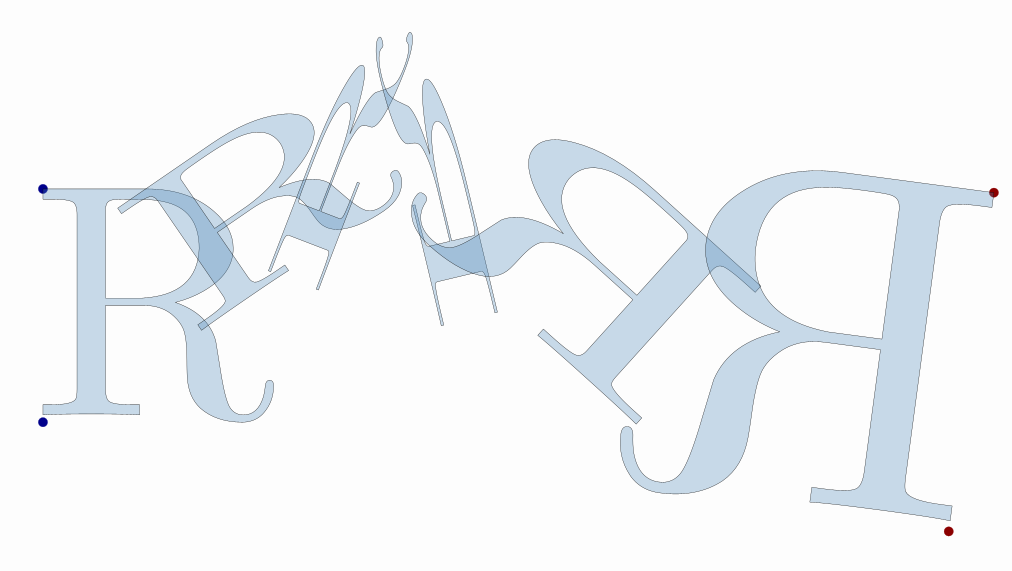
Key difference: Inverse transforms include reflection, flipping the orientation of objects.
Reflections
Create mirror reflections across lines defined by two methods:
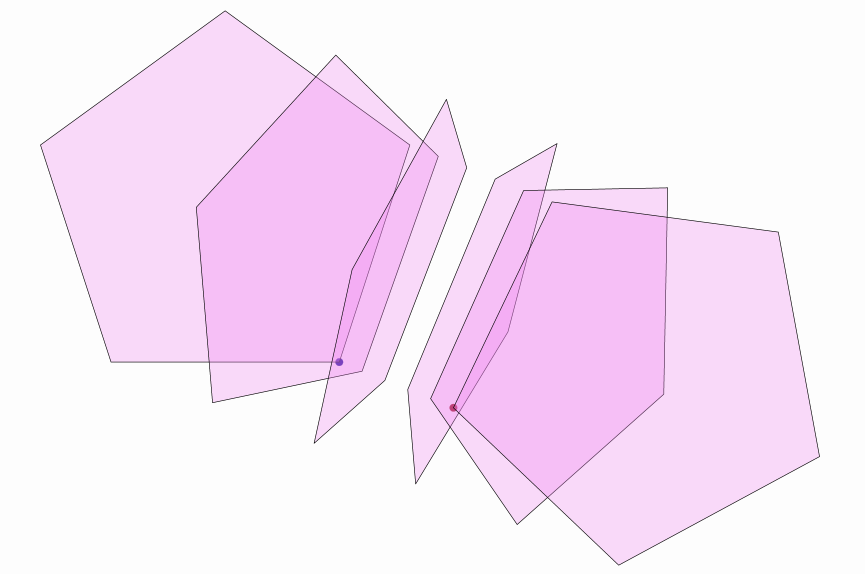
Reflection by Point Mapping
Reflects so that point A maps to point B (reflection axis is the perpendicular bisector).
def pentagon = shape(type: "regularpolygon", sides: 5,
      style: [fillColor: 'violet', fillAlpha: .3])

def A = point(at: pentagon[1], style: [color: 'blue', thickness: 70])
def B = A + [0.5, -0.2] //copy of A shifted (0.5, -0.2)
B.style(color: "red")
scene.add(A, B)

// Create reflection sequence
linspace(0, 1, 6).each {//For it from 0 to 1 in 6 steps...
    def transform = affineTransform(
          type: "reflection",
          from: A,
          to: B,
          alpha: it
    )
    scene.add(transform.getTransformedObject(pentagon))
}

camera.adjustToAllObjects()
Reflection by Axis
Reflects across a line defined by two points.
def square = shape(type: "centeredsquare",
      style: [fillColor: 'orange', fillAlpha: .3])

def reflectionAxis = line(a: [0, -.5], b: [.5, 0.5],
      style: [drawColor: 'blue', dashstyle: "dashed"])

scene.add(square, reflectionAxis)

// Create reflection
def transform = affineTransform(
    type: "reflectionByAxis",
    axis: reflectionAxis
)
scene.add(transform.getTransformedObject(square))
camera.adjustToAllObjects()
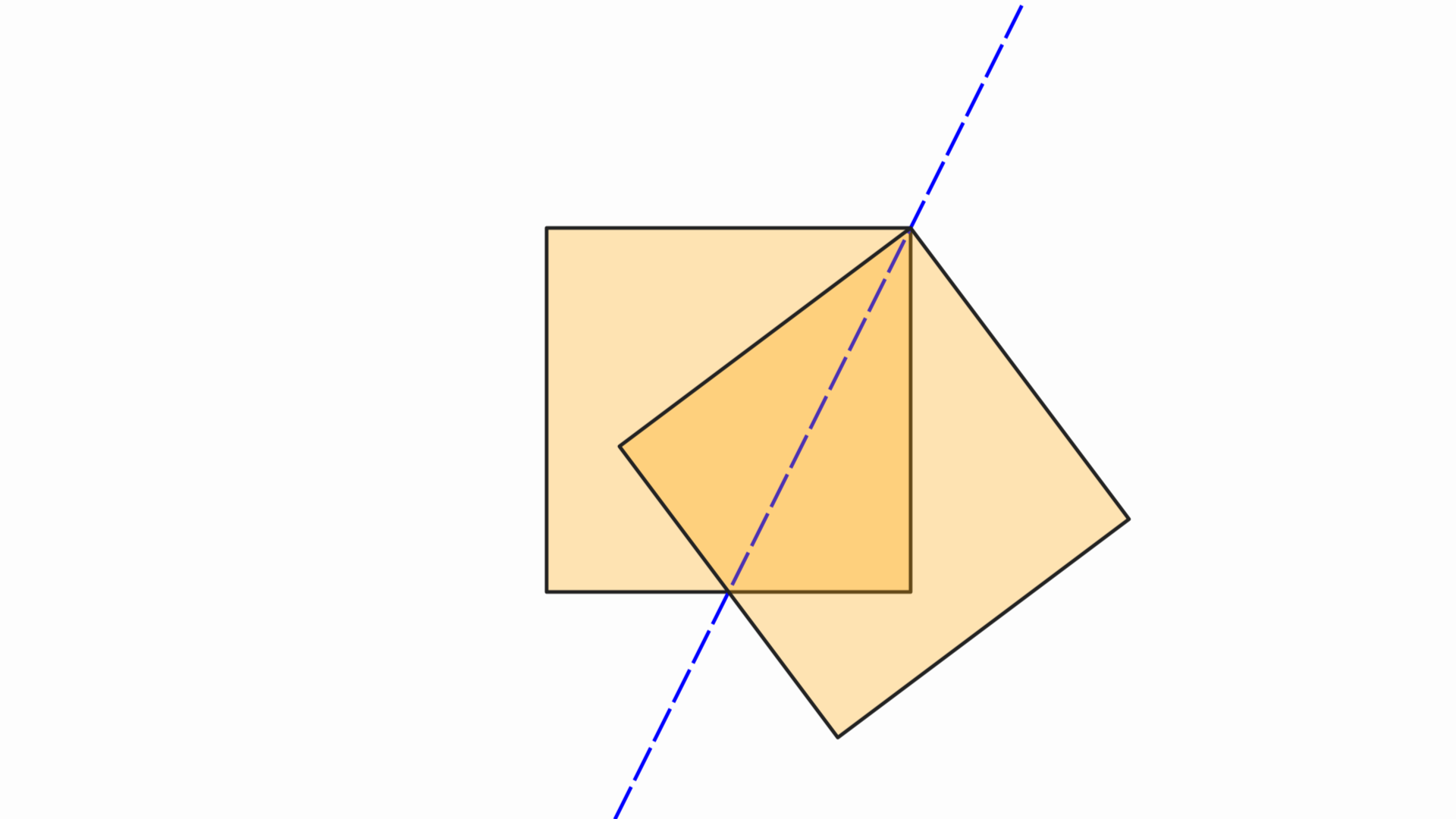
Tip: Use
createReflection(A, B, alpha)when you know where a point should map to, andcreateReflectionByAxis(E1, E2, alpha)when you know the reflection line.
General Affine Transforms
The most general affine transform maps three non-collinear points to three other points.
def square = shape(
      type: 'square',
      style: [drawColor: 'brown', thickness: 4]
)

def circle = shape(
      type: 'circle',
      transform: [scale: 0.5, shift: [0.5, 0.5]],
      style: [fillColor: 'orange', fillAlpha: 0.1]
)

// Source triangle (square vertices) and destination triangle
def (A, B, C) = [[0, 0], [1, 0], [0, 1]].collect {
    point(at: it, style: [drawColor: 'darkblue', thickness: 70], layer: 1)
}
def (D, E, F) = [[1.5, -0.5], [2, 0], [1.75, 0.75]].collect {
    point(at: it, style: [dotstyle: 'plus', thickness: 70, drawColor: 'darkgreen'])
}

scene.add(square, circle, A, B, C, D, E, F)

// Ghost the interpolated affine transforms from source to destination triangle
linspace(0, 1, 6).each {
    def transform = affineTransform(
          type: "affine",
          from: [A, B, C],
          to: [D, E, F],
          alpha: it
    )

    scene.add(
          transform.getTransformedObject(square),
          transform.getTransformedObject(circle)
      }

camera.adjustToAllObjects()
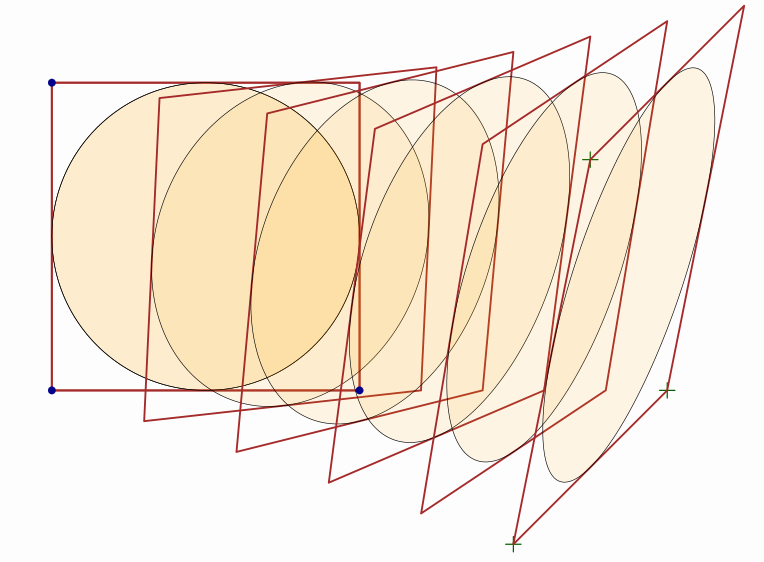
Important: The three source points (A, B, C) must not be collinear (not on the same line), and the same applies to destination points (D, E, F).
Layouts
Layouts automatically arrange multiple objects in MathObjectGroup instances. They're essential for creating organized, visually appealing arrangements.
Basic Layout Usage
def group=group(
    obj: [obj1, obj2, obj3],
    layout: [type: "simple",layout: "lower",gaps: .1]
)
or in Groovy sintax:
def group = MathObjectGroup.make(obj1, obj2, obj3)
group.setLayout(LayoutType.LOWER, 0.1, 0.1)  // Type, horizontal gap, vertical gap
All the layouts below can also be built with the DSL layout(...) command, which returns a GroupLayout you pass to group.setLayout(...). The animated version is the animSetLayout(...) DSL, covered in the Animations chapter.
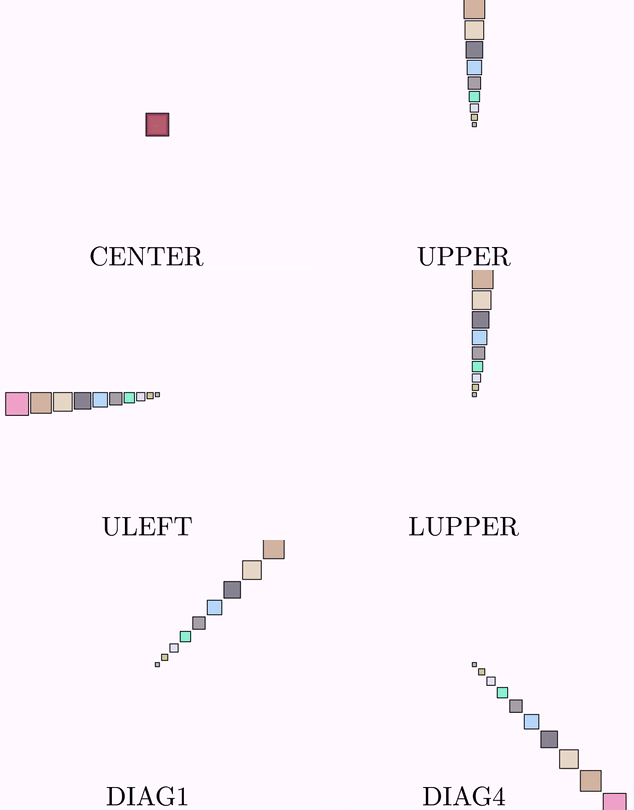
Standard Layout Types
The LayoutType enum provides several built-in layouts:
Cardinal Directions:
- CENTER - Stack centered
- LEFT - Align left edges
- RIGHT - Align right edges
- UPPER - Align top edges
- LOWER - Align bottom edges
Corner Alignments:
- URIGHT, DRIGHT - Align upper/lower with right edges
- ULEFT, DLEFT - Align upper/lower with left edges
- LUPPER, RUPPER - Align left/right with top edges
- LLOWER, RLOWER - Align left/right with bottom edges
Diagonal Arrangements:
- DIAG1 - 45° diagonal (upper-right)
- DIAG2 - 135° diagonal (upper-left)
- DIAG3 - 225° diagonal (lower-left)
- DIAG4 - 315° diagonal (lower-right)
Layout Demonstration
// 10 squares of increasing size, random fill
def squares = (0..<10).collect {
    shape(
        type:      'square',
        transform: [scale: 0.2 + 0.1 * it],
        style:     [thickness: 6, fillColor: 'random', fillAlpha: 0.5]
    )
}
double totalHeight = squares.sum { it.getHeight() }

def boxes = group(obj: squares)

// Zoom to fit them all
camera.scale(2 * totalHeight / camera.getMathView().getHeight())
scene.add(boxes)

def layoutName = latex(text: '.', transform: [scale: 7])
scene.add(layoutName)

// Cycle through all layouts
for (layout in LayoutType.values()) {
    boxes.setLayout(layout, 0.1)
    layoutName.setLatex(layout.name())
    apply(obj: layoutName, stack: [screen: 'lower', relativegaps: 0.2])
    scene.waitSeconds(1)
}
The BoxLayout
Arranges objects in a grid/matrix pattern with configurable direction and dimensions.
def numBoxes = 16

def refPoint = point(style: [thickness: 40, drawColor: 'red'], layer: 1)
scene.add(refPoint)

//Create a MathObjectGroup with numbered boxes
def boxes = (0..<numBoxes).collect { n ->
    def square = shape(
          type: 'square',
          transform: [scale: 0.25],
          style: [fillColor: 'violet', fillAlpha: 1 - (n + 1) / numBoxes, thickness: 6]
    )
    def text = latex(text: "$n", stack: [to: square], layer: 1)
    group(obj: [square, text])
} as MathObjectGroup
//Apply the layout

apply(obj: boxes,
      layout: [
          type: 'box', size: 4,
          gaps: 0.1,
          refPoint: refPoint//Optional
      ]
)

scene.add(boxes)
camera.zoomToAllObjects()
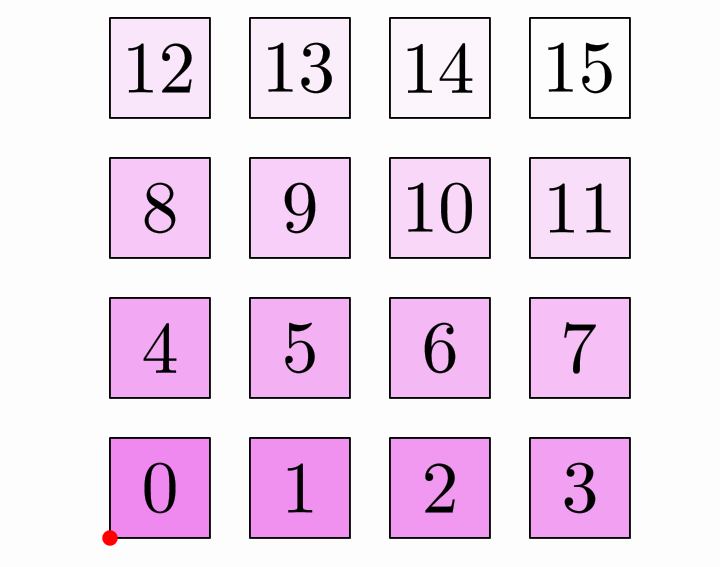
You can also create the layout using the DSL, with the layout(...) command (the result is passed to group.setLayout(...) exactly as above):
def layout = layout(apply: group, type: "box", corner: refPoint, size: 4, gaps: [0.1, 0.1])

//Or you can omit the "apply" tag and use Groovy syntax:
group.setLayout(layout)
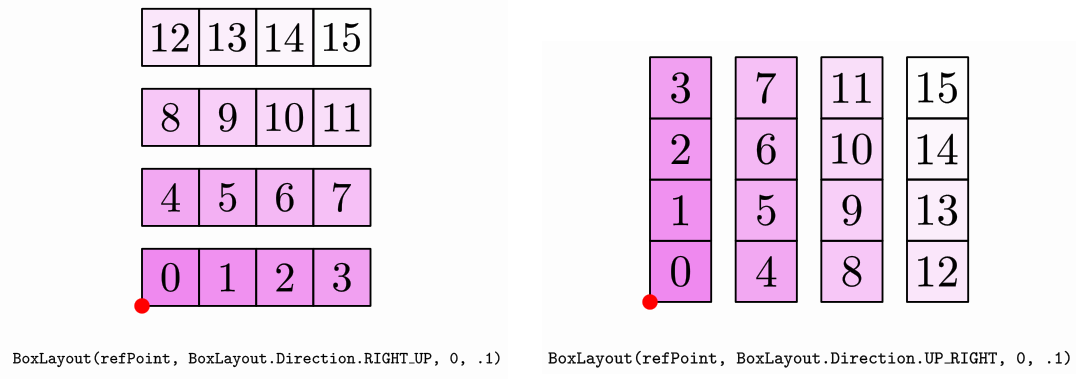
Box Layout Directions
You can add the parameter direction to control the fill order:
layout: [type: 'box',
          size: 4, gaps: 0.1,
          refPoint: refPoint,
          direction: "down_right"
      ]
In Groovy syntax, use the setBoxDirection() method:
layout.setBoxDirection(BoxDirection.RIGHT_UP)  // Fill rows left→right, then down→up
layout.setBoxDirection(BoxDirection.LEFT_DOWN) // Fill rows right→left, then up→down
layout.setBoxDirection(BoxDirection.UP_RIGHT)  // Fill columns bottom→top, then left→right
Direction naming: [FIRST]_[SECOND]
- FIRST - Direction to fill the current row/column
- SECOND - Direction to move to next row/column
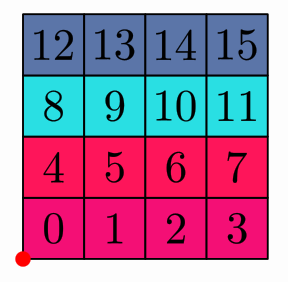
Working with Rows and Columns
// Access individual rows as groups
for (row in layout.getRowGroups(group)) {
    row.fillColor("random")  // Color each row differently
}

// Access individual columns
for (column in layout.getColumnGroups(group)) {
    column.drawColor("random")  // Color each column differently
}
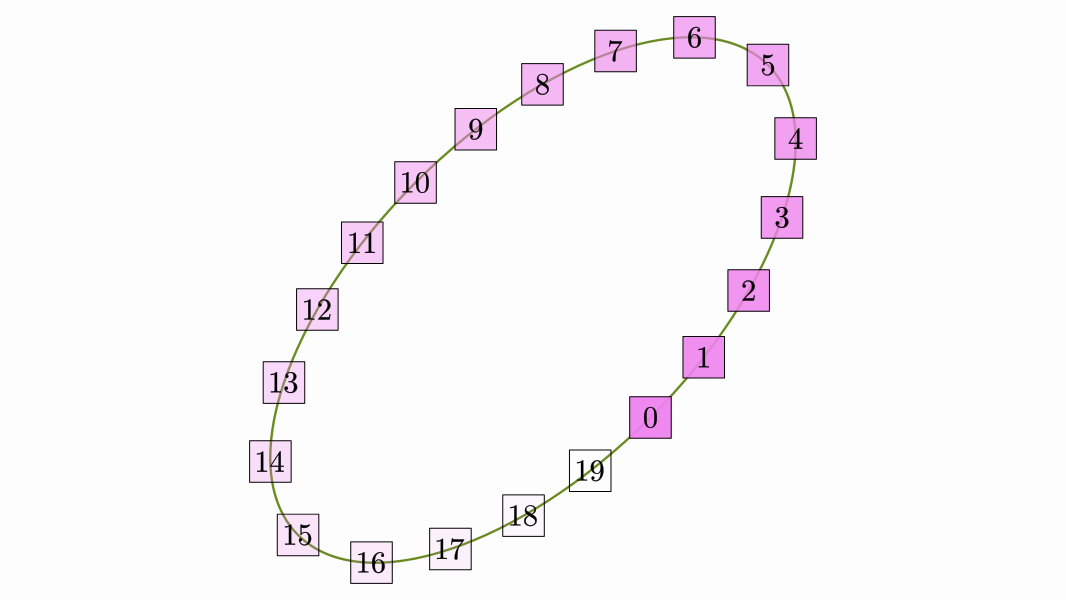
The PathLayout
Arranges objects following a given path.
def numBoxes = 20

//Create a MathObjectGroup with numbered boxes
def cs=colorScale(
    name: "viridis",
    from: 0,
    to: numBoxes-1
)
def boxes = (0..<numBoxes).collect {
    def square = shape(
          type: 'square',
          transform: [scale: 0.25],
          style: [fillColor: cs(it), fillAlpha:.25,thickness: 10]
    )
    def text = latex(text: "$it", stack: [to: square], layer: 1)
    group(obj: [square, text])
} as MathObjectGroup

//println path
def ellipsePath = shape(
    type:      'circle',
    transform: [scale: [1, 2], rotate: -45 * DEGREES],
    style:     [drawColor: 'olivedrab4'],
    addToScene: true
)

//Apply the layout

apply(obj: boxes,
      layout: [
          type: "path",
          path:ellipsePath
      ]
)

scene.add(boxes)
camera.zoomToAllObjects()
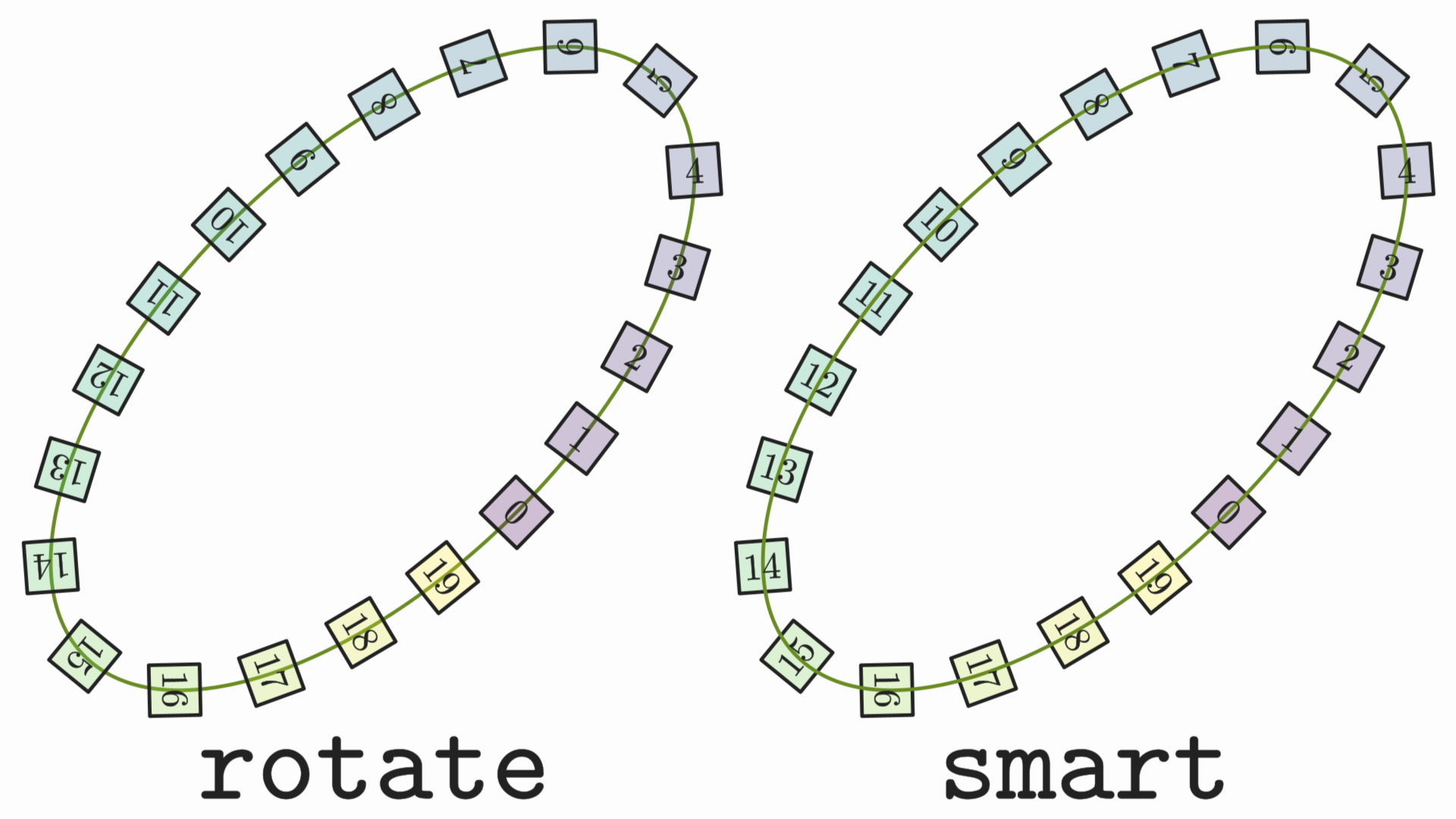
Gives the following result:
By default, objects are not rotated following the path. You can set this behaviour with the parameter rotation or the Groovy .setRotationType method.
The SpiralLayout
Arranges objects in a spiral pattern radiating from a center point.
def numBoxes = 20

//Create a MathObjectGroup with numbered boxes
def cs=colorScale(
    0:"thistle",
    (numBoxes-1):"yellowgreen"
)
def boxes = (0..<numBoxes).collect {
    def square = shape(
          type: 'square',
          transform: [scale: 0.25],
          style: [fillColor: cs(it),thickness: 10]
    )
    def text = latex(text: "$it", stack: [to: square], layer: 1)
    group(obj: [square, text])
} as MathObjectGroup

def refPoint = point(
      at: [0, 0],
      style: [drawColor: 'red', thickness: 40, layer: 1],
    addToScene: true
)

//Apply the layout

apply(obj: boxes,
      layout: [
          type: "spiral",
          gaps:.1,
          refpoint: refPoint
      ]
)

def centers=boxes.collect {it.center}
shape(type: "polyline", points: centers, addToScene: true, layer: -1)

scene.add(boxes)
camera.zoomToAllObjects()
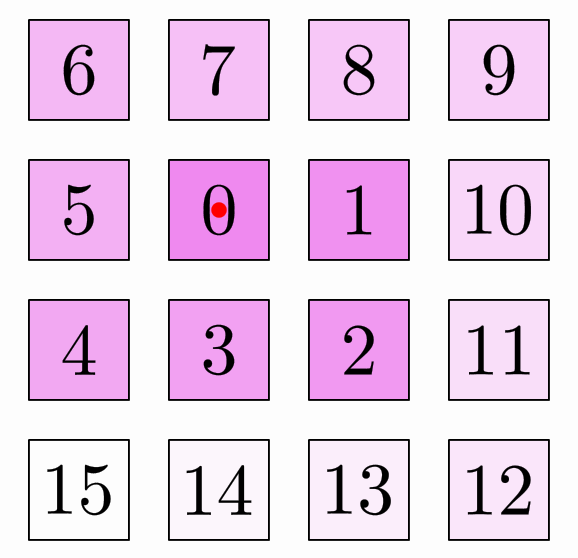
Spiral Orientations
RIGHT_CLOCKWISE- Start right, spiral clockwiseRIGHT_COUNTERCLOCKWISE- Start right, spiral counter-clockwiseLEFT_CLOCKWISE- Start left, spiral clockwiseLEFT_COUNTERCLOCKWISE- Start left, spiral counter-clockwiseUP_CLOCKWISE- Start up, spiral clockwiseUP_COUNTERCLOCKWISE- Start up, spiral counter-clockwiseDOWN_CLOCKWISE- Start down, spiral clockwiseDOWN_COUNTERCLOCKWISE- Start down, spiral counter-clockwise
Controlling Spiral Aperture
def numBoxes = 50 //More boxes, more fun

//Create a MathObjectGroup with numbered boxes
def cs=colorScale(
    0:"thistle",
    (numBoxes-1):"yellowgreen"
)
def boxes = (0..<numBoxes).collect {
    def square = shape(
          type: 'square',
          transform: [scale: 0.25],
          style: [fillColor: cs(it),thickness: 10]
    )
    def text = latex(text: "$it", stack: [to: square], layer: 1)
    group(obj: [square, text])
} as MathObjectGroup

def refPoint = point(
      at: [0, 0],
      style: [drawColor: 'red', thickness: 40, layer: 1],
    addToScene: true
)

//Apply the layout

apply(obj: boxes,
      layout: [
          type: "spiral",
          gaps:.1,
          spiralgap: 1, //This parameter controls the aperture (default 0)
          refpoint: refPoint
      ]
)

def centers=boxes.collect {it.center}
shape(type: "polyline", points: centers, addToScene: true, layer: -1)

scene.add(boxes)
camera.zoomToAllObjects()
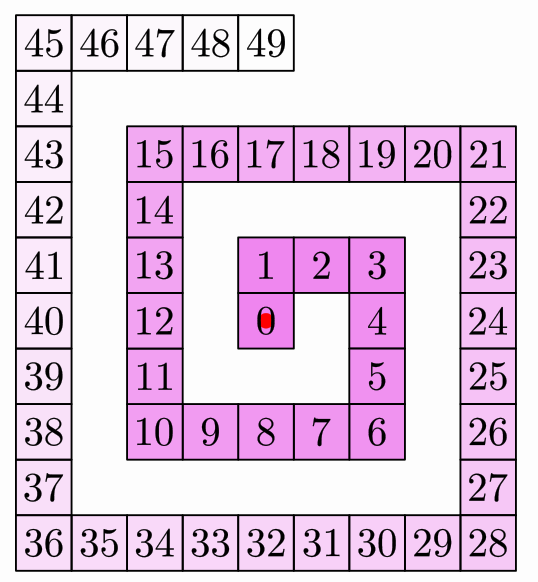
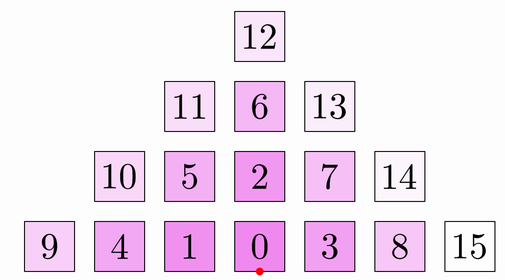
The HeapLayout
Creates a triangular pile arrangement, like stacking blocks. Use the following parameters in the previous code instead of the spiral layout, with 16 boxes:
apply(obj: boxes,
      layout: [
          type: "heap",
          gaps:.1,
          refpoint: refPoint
      ]
)
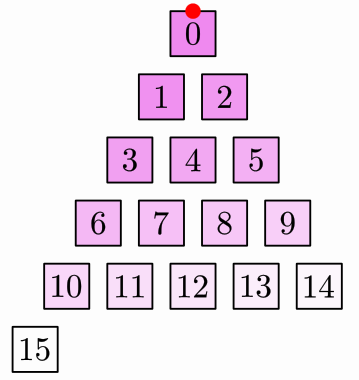
The PascalLayout
Arranges objects in the pattern of Pascal's triangle, with 15 boxes:
layout: [type: "pascal",
         refpoint: refPoint,
         gaps: .1 //Horizontal and vertical gap
        ]
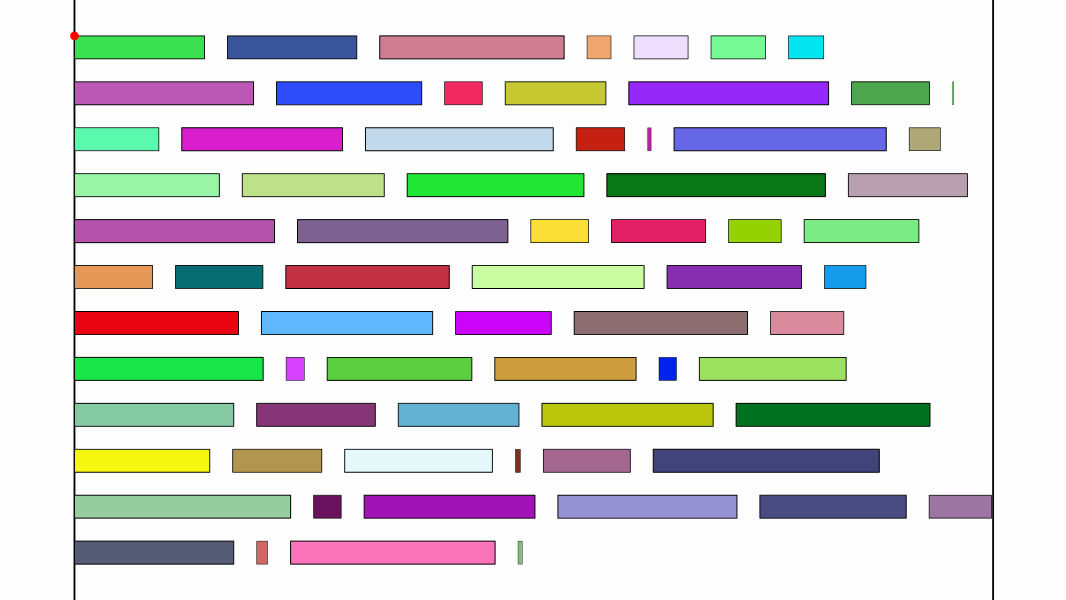
The FlowLayout
Similar to BoxLayout but creates new rows automatically when a maximum width is exceeded, like text wrapping.
int numBars = 70
def col1 = JMColor.parse('burlywood')
def col2 = JMColor.parse('white')

double maxWidth = 4
def corner = point(
    at: [0, 0],
    style: [thickness: 40, drawColor: 'red', layer: 1]
)

// 70 bars of random width, colored by interpolation, each with its number
def bars = group(
      obj: (0..<numBars).collect { n ->
          def bar = shape(
                type:      'square',
                transform: [scale: [Math.random() + 0.25, 0.1]],
                style:     [fillColor: col1.interpolate(col2, n / numBars)]
          )
          def text = latex(text: "$n", transform: [height: bar.getHeight() * 0.8], stack: [to: bar])
          group(obj: [bar, text])
      },
      layout: [type: 'flow', refPoint: corner, width: maxWidth, gaps: [0.1, 0.1], direction: 'right_down']
)

// Visual width indicators
scene.add(corner)
scene.add(Line.YAxis() + corner) //left vertical line
scene.add(Line.YAxis() + (corner + [maxWidth, 0])) //right vertical line


scene.add(bars)
camera.adjustToObjects(bars)
You can also create the layout using the DSL:
def flowLayout = layout(type: "flow", corner: corner, width: maxWidth,
                        gaps: [0.1, 0.1], direction: "right_down")
bars.setLayout(flowLayout)
Composing Layouts
The ComposeLayout combines two layouts for complex hierarchical arrangements.
def composedLayout = ComposeLayout.make(
    outerLayout,  // Layout for positioning groups
    innerLayout,  // Layout within each group
    groupSize     // Number of elements per group
)
Let's see it with an example: The inner layout is a box and the outer is a pascal layout:
int numBoxes = 54

def refPoint = point(at: [0, 0], style: [thickness: 40, drawColor: 'red'], layer: 1)
scene.add(refPoint)

//Create a MathObjectGroup with numbered boxes
def cs = colorScale(
      name: "viridis",
      from: 0,
      to: numBoxes - 1
)
def boxes = (0..<numBoxes).collect {
    def square = shape(
          type: 'square',
          transform: [scale: 0.25],
          style: [fillColor: cs(it), fillAlpha: .25, thickness: 10]
    )
    def text = latex(text: "$it", stack: [to: square], layer: 1)
    group(obj: [square, text])
} as MathObjectGroup

apply(obj: boxes,
      layout: [
          type: 'compose',
          outer: [type: 'pascal', refPoint: refPoint, gaps: [0.1, 0.1]],
          inner: [type: 'box', refPoint: refPoint, size: 3, gaps: [0, 0], direction: 'right_down'],
          size: 9 //Size of subgroups to feed to the inner layout
      ]
)

scene.add(boxes)
camera.adjustToAllObjects()
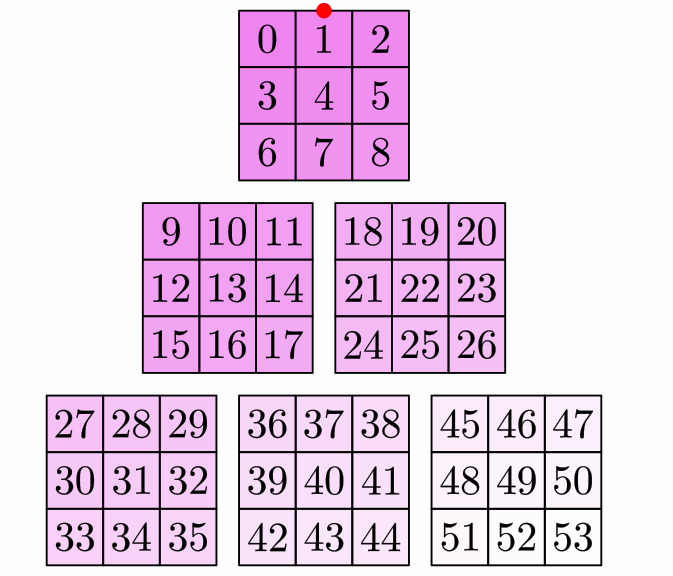
How it works:
1. Divides 54 elements into 6 groups of 9
2. Arranges each group of 9 using innerLayout (3×3 box)
3. Positions the 6 groups using outerLayout (Pascal triangle)
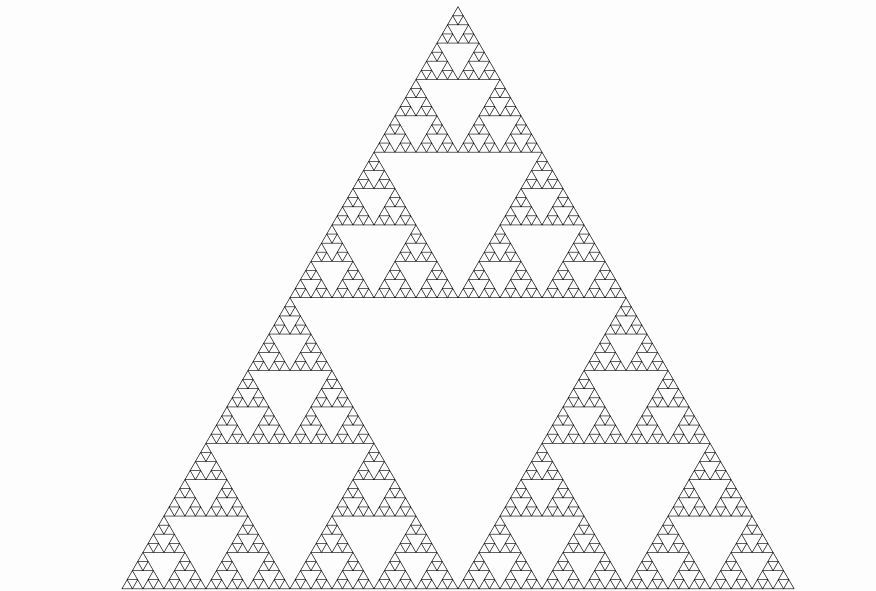
Another example: Let's use the ComposeLayout to create a Layoutobject that resembles the Sierpinski's triangle.
int degree = 6                                       // Degree of the Sierpinski triangle
int numNeededTriangles = (int) Math.pow(3, degree)   // We need 3^degree triangles

def tr = shape(type: 'regularpolygon', sides: 3, transform: [scale: 0.25], style: [thickness: 2])  // Base triangle

// A group with 3^degree copies of the base triangle
def triangles = group(copies: tr, number: numNeededTriangles)

// Pascal layout as the building block, composed with itself 'degree' times
def innerLayout = layout(type: 'pascal', refPoint: [0, 0], gaps: 0)
def sierpinskiLayout = innerLayout
degree.times {
    sierpinskiLayout = layout(type: 'compose', outer: sierpinskiLayout, inner: innerLayout, size: 3)
}

sierpinskiLayout.applyLayout(triangles)
scene.add(triangles)
camera.adjustToAllObjects()
You will get something like that (note that there are 3^6=729 triangles here!):
Best Practices
Positioning Strategy
- For simple positioning:
- Use
.shift()for relative movement - Use
.moveTo()for absolute placement -
Use
.center()for screen centering -
For relative positioning:
- Use
.stack()for precise control -
Use
.align()for simple edge alignment -
For multiple objects:
- Use
MathObjectGroupwith layouts - Consider composed layouts for complexity
Transform Selection
| Task | Method |
|---|---|
| Move object | .shift() or .moveTo() |
| Rotate | .rotate() |
| Scale | .scale() |
| Preserve shape | Similarity transforms |
| Mirror/flip | Reflection transforms |
| Complex mapping | General affine transform |
Performance Tips
- Layouts work best when all group elements have similar dimensions
- Cache transforms if applying the same transform multiple times
- Use method chaining to reduce code verbosity
- Group before animating for coordinated movements
Next Steps
Now that you understand transformations, explore: - Basic Objects - Objects to transform - Styling - Visual appearance - Basic Flow - Animation techniques - Animations - Animated transformations